Versions and recycle bin
Reference — Viewing and restoring earlier versions of an entry, bringing back deleted entries from the recycle bin
What you use this area for
Every time an entry in your account's workspace is saved or deleted, Herzog CAB keeps the previous version. This lets you see who changed what and when, and bring back a version that was changed or deleted by mistake. This applies to all ways in which data reaches the workspace:
- saving and deleting in the web app,
- the cloud sync of the desktop app,
- the import from the desktop app.
If the cloud sync has overwritten a change from the web app with the desktop's version, you will therefore find the web app's version again under Versions.
Versions exist for Designs, Braiding and winding orders, Machines, the master data Materials, Bobbins, Drums, Colors and Customers, Hall plans (floor plans and assignments) and Print templates. Files in the media library (images, documents, 3D models), settings, users and roles have no versions.
Where a version goes when you save or delete, and how you get it back:
flowchart LR
  E[Entry] -- Save --> V[Previous version<br>under Versions]
  V -- Restore --> E
  E -- Delete --> P[Recycle bin]
  P -- Restore --> E
Where the "Versions" button is located
The button appears as soon as an entry has been saved once. In toolbars only the icon is shown (a clock with an arrow); the name appears when you point at it.
| Area | Location |
|---|---|
| Designer | Icon in the toolbar, next to Print. |
| Braiding order and winding order | Button in the header, next to Print. |
| Machine | Button at the top right, next to Delete and Save. |
| Master data (materials, bobbins, drums, colors, customers) | Button at the bottom left of the Edit … dialog. |
| Factory Planner | Icon in the header of the editor, next to Save: in Floor plan mode for the floor plan, in Assignment mode for the selected assignment. |
| Print editor | Button in the header, only for templates of your account and with the permission Edit print templates. Supplied default templates only have versions once your account has saved its own version. |
Anyone who is allowed to see the entry may view its versions.
The "Versions" dialog
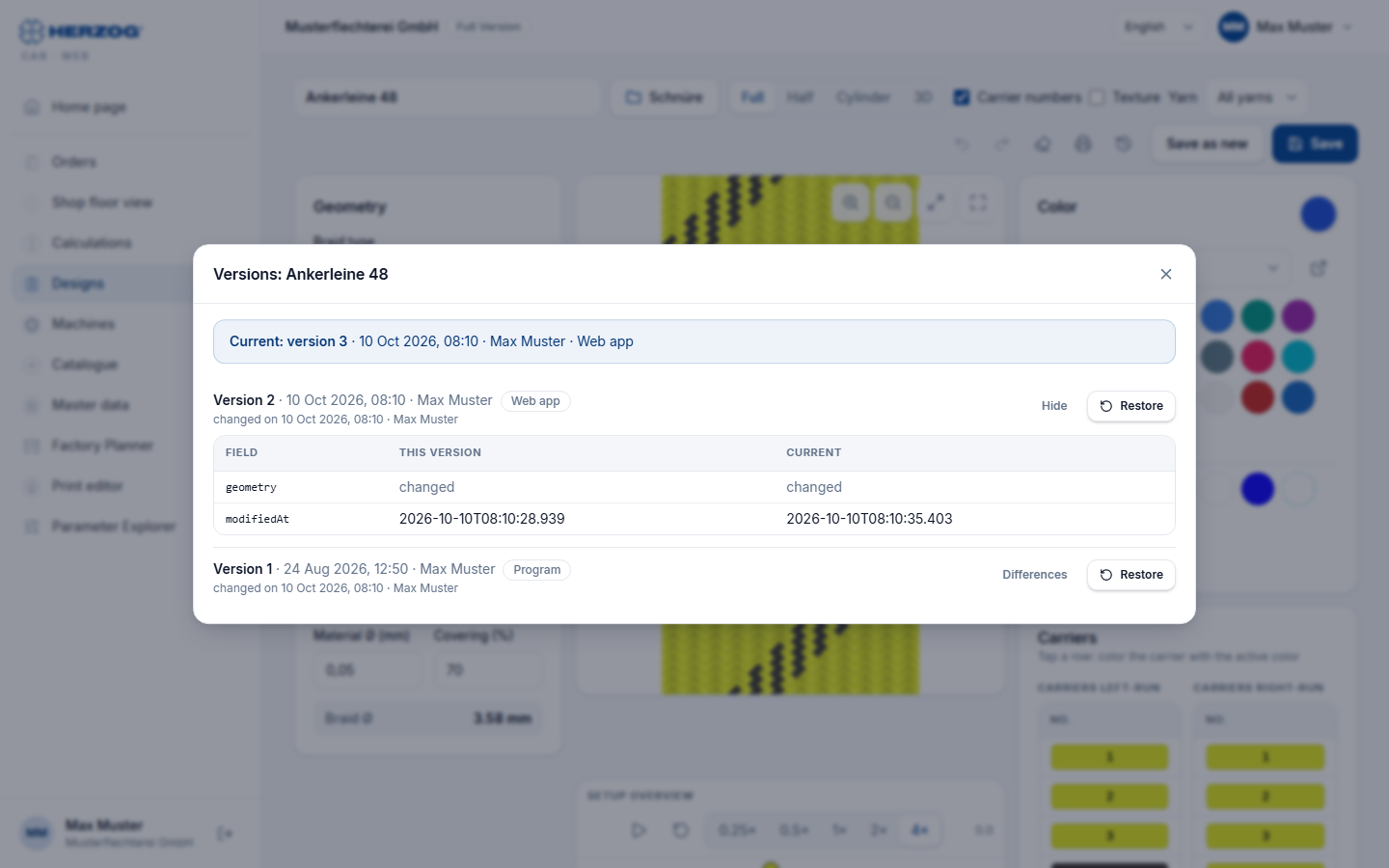
The dialog is called Versions: <name of the entry>.
| Element | Meaning |
|---|---|
| Box at the top | The current version: Current: version n, when and by whom it was saved and where it came from (Web app or Program). For a deleted entry it shows Deleted on <date> with the person and the button Restore entry. |
| List of versions | All stored versions, the newest at the top. For each version: Version n, when and by whom it was saved, the source as a chip (Web app or Program) and below it, when and by whom it was replaced: changed, deleted or replaced by a restore. |
| Differences / Hide | Expands a table below the version: Field, This version, Current. It only lists what differs from the current version, with the labels from the editor, e.g. Number of carriers with 20 and 24. The values appear as in the editor: numbers with the decimal separator of your language, the braiding angle in your reference, Yes/No, points in time as a date. For the customer of an order it shows the customer name. For lists, such as the colors of a design, it shows changed, for a field that one version does not have missing. Anything that cannot be assigned to a label is summarized in the row Further details. The tooltip of each row shows the technical field names. At the end, if different, Created and Modified on follow. If only timestamps, preview image or program version differ, it shows Same content as the current version. |
| Restore | Makes this version the current one again (see below). Only with the permission to edit. |
If there are no earlier versions yet, it shows No earlier versions yet. From now on, every save keeps the previous version here. This is the case for entries that have not been saved since versions were introduced on 05.10.2026. If someone saves an entry without changing anything, no new version is created.
Restoring a version
- Open the entry and click Versions.
- If necessary, use Differences to check what is different in the version.
- For the desired version, click Restore.
- Confirm the prompt Version n from <date> becomes the current version. The present version stays in the history. with Restore.
The web app reports Restored., reloads the page and shows the entry in the old version. In the master data dialog, the dialog closes instead. The version is saved as a new version with the source Web app. The version it replaces then appears in the list itself. A restore can therefore also be undone.
On the machine page, the web app does not keep unsaved inputs. There, the prompt points out that anything not saved is lost when the page is reloaded.
If the desktop app works with the cloud sync and the return path is switched on, the restored version reaches the workspace folder like any other change from the web app.
Who may restore
Anyone who may also edit the entry may restore it (Roles):
| Entries | Permission |
|---|---|
| Designs | Edit designer |
| Orders and customers | Edit orders |
| Materials, bobbins, drums, colors, machines | Edit master data |
| Floor plans and assignments | Edit Factory Planner |
| Print templates | Edit print templates |
Without this permission you can only view the versions.
Messages
| Message | Meaning |
|---|---|
| This editor has unsaved changes. Please save or discard them before you restore a version. | The editor has open changes. As long as they exist, the Restore button is missing. |
| Someone else has saved in the meantime. The history is being reloaded. | A colleague or the cloud sync has just saved the entry. Check the reloaded list and then restore again. |
| This entry is currently being edited. | Someone else has the entry open right now, in the web app or in the desktop app (lock, see Edit lock). Restore as soon as it is free. |
Recycle bin
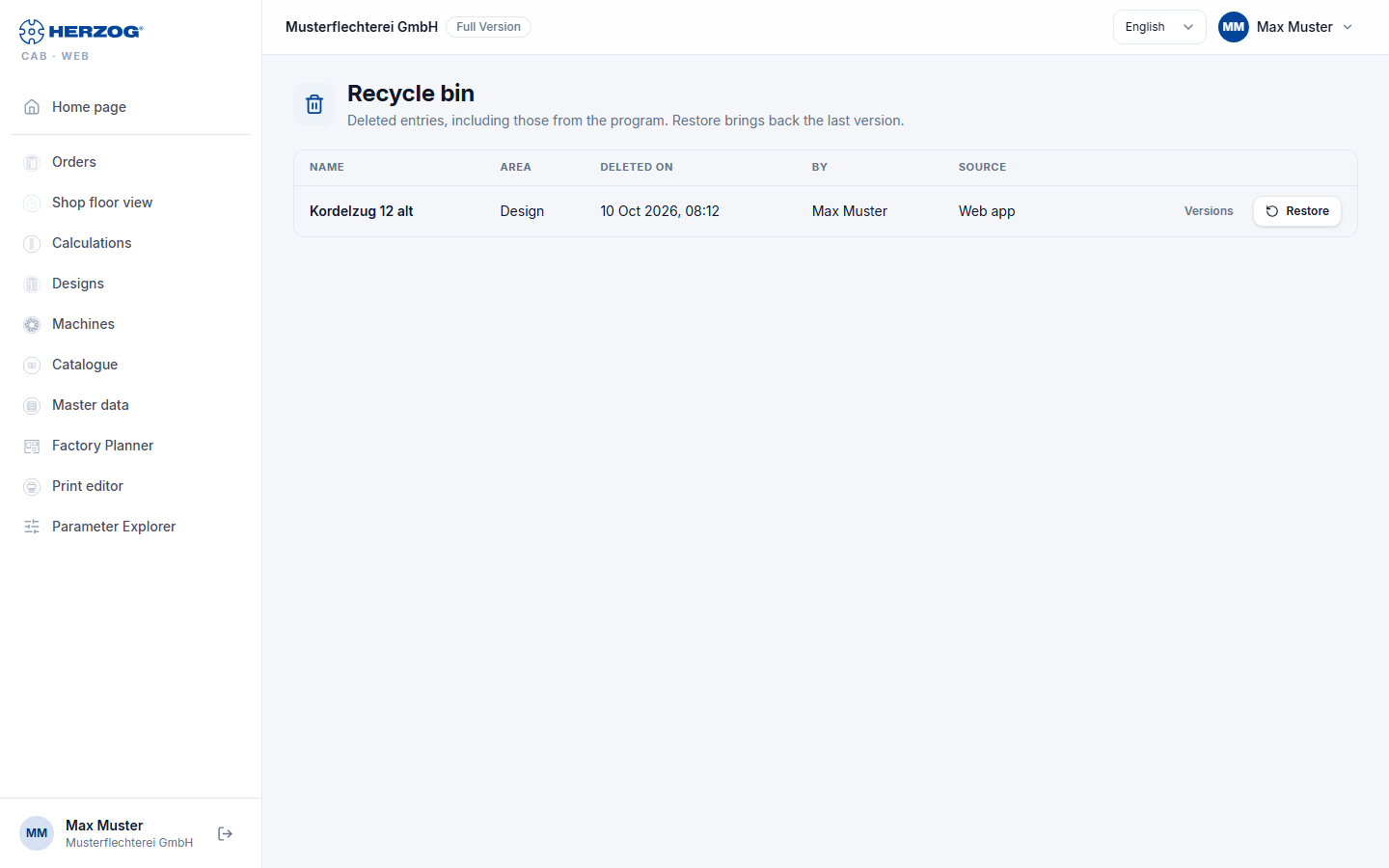
Deleted entries do not disappear immediately but go to the Recycle bin. You open it via User menu > Recycle bin. It shows the deleted entries of all areas that you are allowed to see, with the most recent deletion at the top. Whatever the desktop app deletes via the cloud sync also ends up here.
| Element | Meaning |
|---|---|
| All / areas | Filter by area, for example Design, Order, Material, Machine, Hall plan, Assignment or Print template. Appears as soon as there are entries from more than one area in the recycle bin. |
| Name | Name of the deleted entry. |
| Area | Where the entry comes from. |
| Deleted on / By | Time of deletion and who deleted it. |
| Source | Web app or Program (via the cloud sync). |
| Versions | Opens the "Versions" dialog of the deleted entry. There you can also bring back an older version. |
| Restore | Brings the entry back in its last version, after the prompt The entry comes back in its last version. It is then listed again in its list, and the web app reports <name> has been restored. Only with the permission to edit (see above). |
On a smartphone the entries appear as cards with the same buttons. If nothing has been deleted, it shows The recycle bin is empty. For each area the recycle bin shows the 200 most recently deleted entries.
What does not end up in the recycle bin
The web app deletes files in the media library permanently. This also applies to the image, documents and 3D model of a machine: they are removed together with the machine when it is deleted. If you bring the machine back from the recycle bin, only its data returns.
Trial
A restored entry counts like a newly created one. If the trial limit for this area has been reached, it can only be brought back after deleting another entry or with a subscription.
How long versions are kept
- Versions: 90 days. For each entry the last 20 versions are kept longer as well. The server removes older versions once a day.
- Recycle bin: Deleted entries remain in the recycle bin until someone restores them. Nothing can be permanently deleted there.
Difference from the desktop app
The desktop app has no Versions dialog and no recycle bin. If it works with the cloud sync, its saves and deletions still end up here, with the source Program. Without cloud sync, it stores earlier versions only in the workspace folder, where you cannot view them (see Old versions).
Related pages
- Web app interface — user menu and version conflicts
- Roles — permissions for editing
- Licence and cloud — cloud sync of the desktop app
- Known limitations