Coloring and twist
Reference — paint mode, color palette, user colors, color picker, plying colors and the Twist brush: assign colors and a twist to the carriers and their yarns.
What you use this area for
The pattern of a braid results from which carrier carries which color. In paint mode you assign colors to the carrier positions — by clicking in the braid pattern or in the carrier table. With the Twist brush you also define whether the yarns of a carrier have an S twist, a Z twist or are untwisted. The braid pattern updates immediately with every change.
The screen at a glance
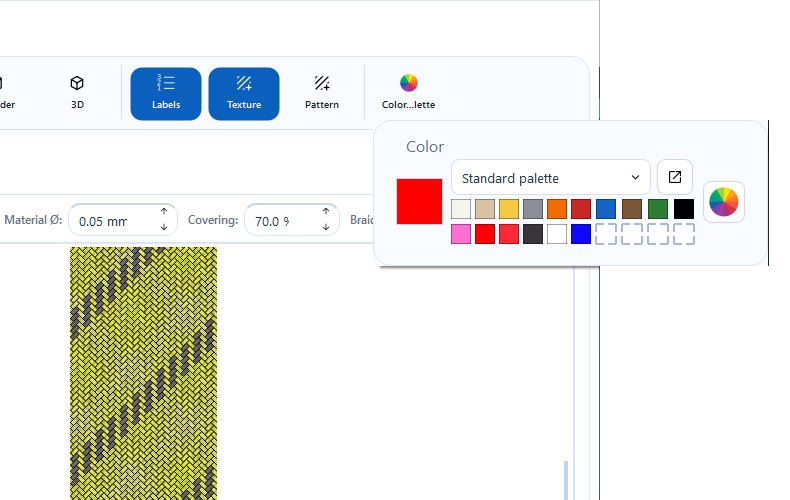
The Color palette button in the toolbar opens the color palette, the Twist button to its right opens the Twist window. Both windows open below their button and close when you click elsewhere or press Esc.
Controls in detail
Color and Move (mode switch)
- Color — the paint mode (default): clicks in the braid pattern or in the carrier table color the carrier position hit with the active color. In the braid pattern, the position under the mouse pointer is highlighted so that you can see what a click would hit. If the Twist brush is selected, a click on Color switches back to coloring.
- Move — the pan mode: the left mouse button moves the view, nothing is colored. (Panning with the right mouse button works in both modes.) In the Cylinder and Square views the left mouse button rotates the body here as well, see Views and 3D view.
Left run / Right run side filter
Round and square braids have two runs. The Left run and Right run buttons define which run a click colors or gives a twist — exactly one of the two is always active. For flat braid and packing braids this selection does not exist; the buttons are then hidden.
Active color
The large square on the left of the Color group shows the currently active color — this is the color used for coloring. A click on the square opens the color picker dialog (Choose color) for free color selection.
Color library (palette selection)
The selection list above the color fields lists all color palettes from the central color database (Master data > Colors):
- Standard palette — always available; contains ten program colors and below them the ten user color slots (see below).
- Own palettes — all colors of the selected palette appear as color fields in rows of ten. With very many colors the list becomes scrollable; a small note below it states the total number of colors.
Each color field shows the color name and color value on hover. A click makes the color the active color — colors from the library keep their assignment (name, Pantone/RAL reference), which also appears in the carrier table and on printouts. If the Twist brush is selected, a click on a color switches back to coloring.
The button next to the selection list (Open color database) jumps directly to Master data > Colors, where you maintain palettes and colors.
User colors (10 slots)
The standard palette offers ten freely assignable slots (with a dashed border):
| Action | Effect |
|---|---|
| Click on an empty slot | Opens the color picker (Create user color) and assigns the selected color to the slot. |
| Click on an occupied slot | Makes the saved color the active color. |
| Right-click on a slot | Opens the color picker to reassign the slot. |
User colors are saved permanently and are available again at the next start.
Color picker (color wheel)
The color wheel button to the right of the palette opens the color picker dialog for colors outside the library. The selected color becomes the active color; if the standard palette is active, it is also stored in the first free user color slot.
Coloring in the braid pattern
In paint mode, click a stitch in the braid pattern — the associated carrier position receives the active color. For round and square braids, the side filter determines whether the left run or the right run is colored. In the Cylinder and Square views a short click colors; dragging with the mouse button held down rotates the body there.
Coloring in the carrier table
The carrier table in the center lists all carrier positions with their current color:
- Round and square braid: two columns Carriers left-run and Carriers right-run.
- Flat braid: one column Carriers.
- Packing braid: one column per track (Track 1, Track 2, …).
A click on a cell colors exactly this position. If a carrier has a twist, it is shown after the number, see Twist.
Coloring many carriers quickly
Hold down the mouse button and drag across the cells of the carrier table — all positions you pass over receive the active color.
Plying colors (color per yarn)
From a ply count of 2, several yarns run side by side on the same track on one carrier. Each of these yarns can get its own color — e.g. a black carrier with a red marker thread. Yarn 1 is always the carrier color itself.
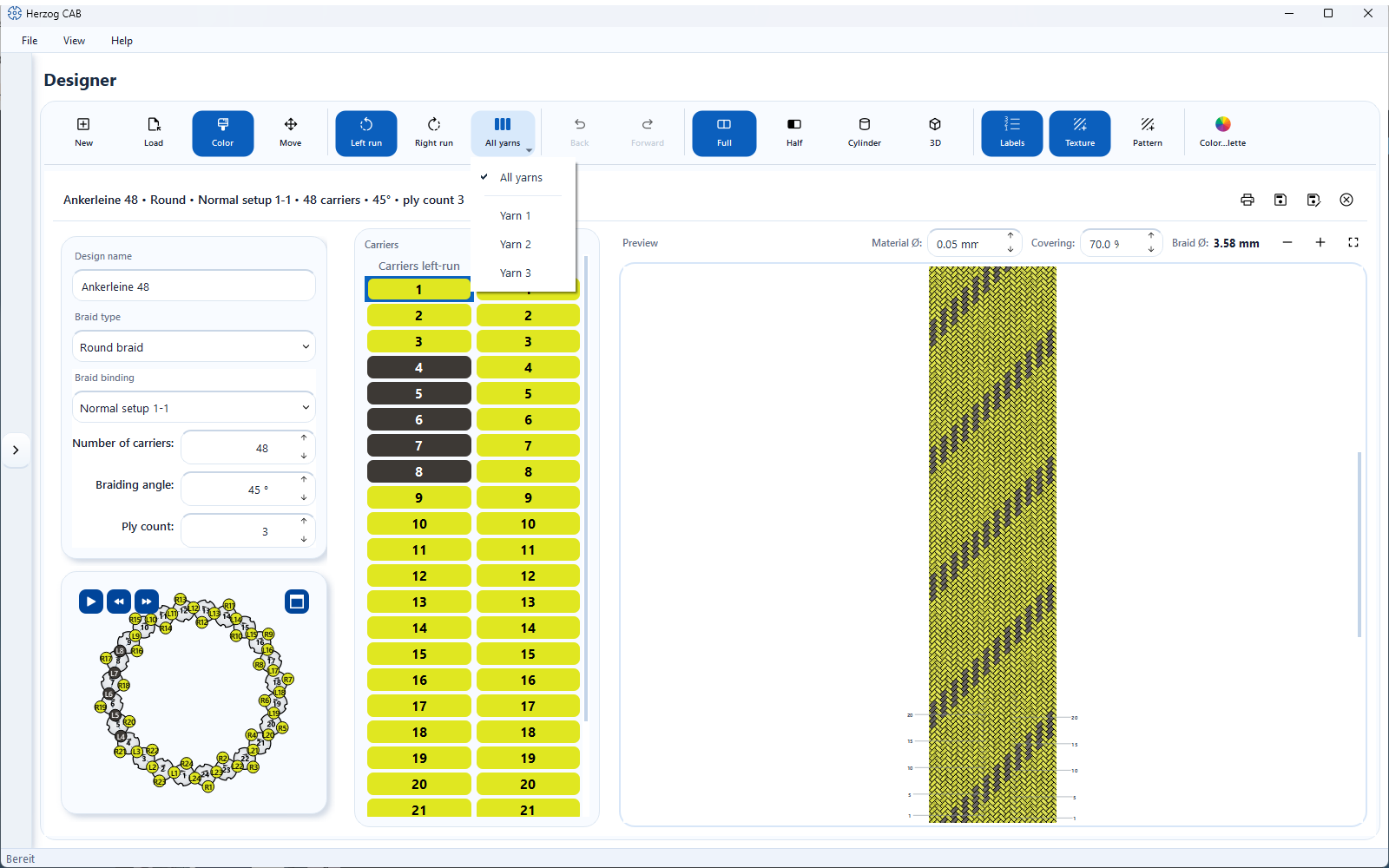
Yarn selector (toolbar). To the right of the Left run and Right run buttons, a button with a bar icon appears from ply count 2, labelled All yarns or Yarn N. Its menu offers All yarns and below it Yarn 1 … Yarn n. It defines which yarn a click in the carrier table or in the braid pattern colors:
| Selection | Effect of a click with the active color |
|---|---|
| All yarns | colors the whole carrier in one color; existing yarn colors of this carrier are removed. |
| Yarn N | colors only this one yarn of the carrier hit. |
If you reduce the ply count below the selected yarn, the selector jumps back to All yarns. While the Twist brush is selected, the yarn selector is locked: the twist always applies to all yarns of a carrier.
Plying colors of a carrier in the dialog. A Right-click on a cell of the carrier table does not color, but opens a menu:
| Menu entry | Effect |
|---|---|
| Plying colors… | Opens the Plying colors – <carrier> dialog (e.g. "– L3" or "– Track 2, carrier 4"). Grayed out at ply count 1 ("Plying colors are available from ply count 2."). |
| All yarns like yarn 1 | Removes the individual yarn colors of this carrier; all yarns run in the carrier color again. Only active if the carrier has its own yarn colors. |
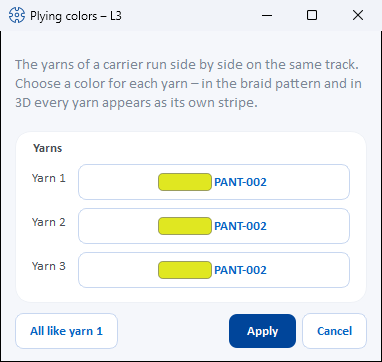
The dialog contains one row Yarn N per yarn with a color button that shows the color code or color value. A click on the color button offers the Active color, the colors of the current Palette and Choose custom color…. All like yarn 1 gives all yarns the color of yarn 1; Apply writes the colors into the carrier, Cancel discards them. Individual colors are available for up to 12 yarns per carrier; further yarns run in the carrier color. Every change can be undone with Back.
Where the yarn colors appear:
- Carrier table — vertical stripes per yarn, yarn 1 on the left.
- Braid pattern — each yarn as its own stripe along the thread, in all drawn views (Full, Half, Cylinder, Square, Braid pattern), in the left and in the right run, and also with the yarn structure switched on.
- Setup overview — the carrier dot is divided into circle segments per yarn, see Setup and track animation.
- 3D view — each yarn in its color, see Views and 3D view.
- Printout and order — the carrier list shows a stripe per yarn and the color details per yarn separated by " / " (e.g. "STD-RED / STD-BLU"), see Saving and printing; likewise the carrier table in the braiding order and the color breakdown in the winding order.
Ply separator lines
From ply count 2, thin lines separate the yarns of each carrier in the braid pattern — always, even if all yarns have the same color. This way you see at a glance that plying is used. The lines are as fine as the outline of the stitches; only if all yarns of a stitch are dark are they drawn light.
Twist (S, Z or untwisted)
With the Twist brush you give each carrier the twist of its yarns: S, Z or Untwisted, optionally with the number of turns per meter. The twist applies to all yarns on the bobbin of a carrier, not per yarn of the ply count.
📷 Screenshot missing
Subject: Open “Twist” window below the Twist button with the S, Z and Untwisted buttons, the TPM field and the hint text; in the background the carrier table with entries such as “3 S 120”.
How to create: Designer, round braid with some twisted carriers, click the Twist button to the right of Color palette, choose S, enter TPM 120.
Target file: assets/screenshots/designer/designer-drehung.png
Twist button (toolbar). It sits to the right of Color palette and shows the selected twist in its name, e.g. Twist S 120. A click selects the brush, switches from Move to paint mode and opens the Twist window:
| Element | Meaning |
|---|---|
| S | S twist: with the yarn held vertically, the fibers run like “\”. |
| Z | Z twist: with the yarn held vertically, the fibers run like “/”. |
| Untwisted | Untwisted yarns. |
| TPM | Turns per meter, optional, 0 to 9999 in steps of ten; “–” means no value. Together with the material Ø, the TPM sets the slope of the twist lines. Locked for Untwisted. |
Setting the twist. Click a carrier in the carrier table or a stitch in the braid pattern — the carrier receives the selected twist including the TPM. The side filter works as for coloring, and dragging with the mouse button held down across the carrier table works too. There is no button that sets all carriers at once. A color from the palette or a click on Color switches back to coloring.
Where the twist appears:
- Carrier table — after the number, e.g. “3 S 120” (carrier 3, S twist, 120 TPM). The tooltip spells it out (S twist, 120 TPM). Untwisted carriers show only the number.
- Braid pattern — with Yarn structure switched on, every stitch draws the yarns of the ply count with fiber sheen, twisted yarns with twist lines (S “\”, Z “/”). The slope of the lines follows from TPM and material Ø; without TPM or without material Ø, 30° applies, and it always stays between 3° and 75°. You switch the yarn structure on and off in the Display window.
- 3D view — with the material Yarn, untwisted yarns appear smooth, S and Z yarns twisted. Wire and Rope show no twist.
- Printout — the setup table states the twist after the carrier number, see Elements and placeholders.
The twist is saved with the design and applies to all braid types, including mixed designs. Back and Forward undo and redo it.
Older program versions lose the twist
Herzog CAB before version 2.1.2 does not know the twist. If such a computer saves a design, the twist is lost. If several computers work with the same workspace folder, update all of them.
Back and Forward (undo / redo)
Back (Ctrl+Z) undoes the last step, Forward (Ctrl+Y) restores undone steps. The history covers all color and twist assignments since the design was opened.
Related pages
- Colors (master data) — maintain palettes and colors with Pantone/RAL reference
- Setup and track animation — the colors in the running machine
- Views and 3D view — Display window with yarn structure and material
- Braid type and parameters — set ply count, material Ø and braid type
- Designing a design from scratch