Braiding order editor
Reference — Create and edit a braiding order: all tabs of the order editor with every field and every button.
What you use this area for
In the braiding order editor you maintain a complete braiding order: customer, order data, braiding machine, material, bobbin, product target values, production values, take-up unit and drum, and the linked design. You do not have to enter many values by hand — next to the fields there are calculator icons that open the matching calculation and write the result back into the order.
You reach the editor in several ways:
- in the Order Overview via New order > New braiding order,
- via Open or a double-click on a braiding order card,
- via the home page (Home): Production or Recently opened card.
The screen at a glance
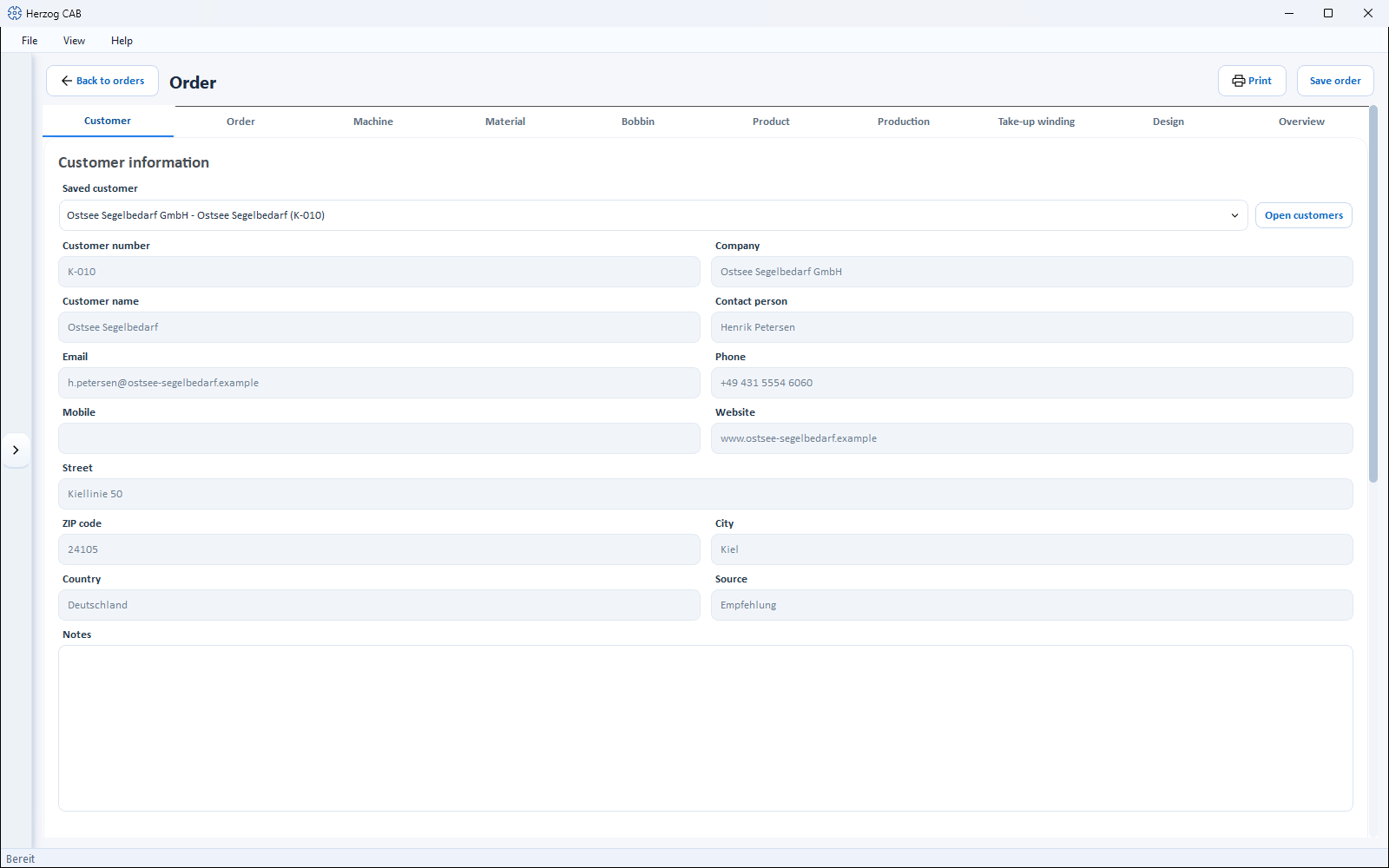
All controls of the header are in one line: on the far left, Back to orders (with an arrow icon) takes you back to the Order Overview, next to it is the title. On the right are Print (opens the print output) and Save order. The explanatory sentences for the individual cards appear as a tooltip when you point the mouse at the card heading. The Save order button is highlighted in color as long as there are unsaved changes.
The editor is divided into ten tabs, which you can fill in in any order:
| Tab | Content |
|---|---|
| Customer | Choose a customer from the customer master data; display of the customer data. |
| Order | Order name, number, order length, dates and status. |
| Machine | Braiding machine from the Machine Fleet; braid type, binding, speed, machine image. |
| Material | Choose material; density, titer, ply count. |
| Bobbin | Choose bobbin format; dimensions and bobbin volume. |
| Product | Product-related target values with embedded calculations. |
| Production | Speed, runtime, bobbin sets and the projection to the order length. |
| Take-up winding | Choose take-up unit and drum; split of the order length across the drums with a check against the take-up unit (from version 2.1.0). |
| Design | Linked braiding design with preview and carrier table. |
| Overview | Compact summary across all tabs. |
"Customer" tab
Here you assign a customer to the order.
Saved customer
Selection list with all customers from the customer master data; the first entry is No saved customer selected. When you select one, the order transfers all customer data into the display fields below.
"Open customers" button
Opens the Customer management in a separate window. There you can create, change or delete customers; a Double-click on a customer transfers it directly into the order and closes the window.
Display fields
Customer number, Company, Customer name, Contact person, Email, Phone, Mobile, Website, Street, ZIP code, City, Country, Source and Notes show the data of the selected customer. The fields are locked — you change the customer data via Open customers in the customer management.
The order remembers the customer data
When saving, the order stores a copy of the customer data. If you later change the customer in the customer master data, the data saved in the order is kept.
"Order" tab
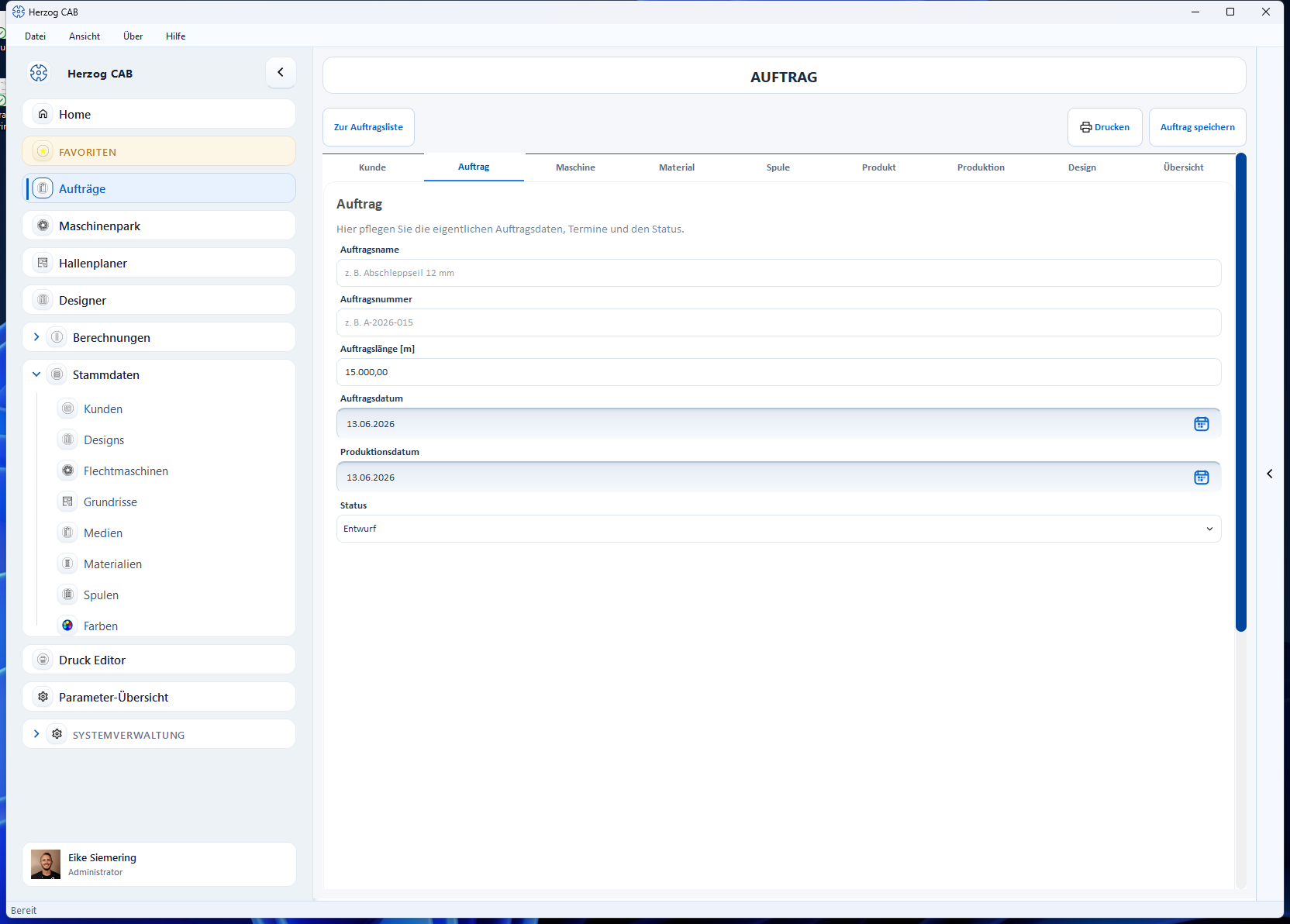
| Field | Meaning |
|---|---|
| Order name | Freely chosen name, e.g. Abschleppseil 12 mm. Appears as the title on the order card. |
| Order number | Your order or document number, e.g. A-2026-015. |
| Order length [m] | Total braid length to be produced. Basis for the projection on the Production tab (the same field appears there again — both are synchronized). |
| Order date | Date the order was received. Use the calendar icon on the right of the field to pick the date from a calendar. Preset to the current date. |
| Production from | Planned production start, also selectable via the calendar icon. |
| Production until | Planned production end. Either pick it by hand or have it calculated with Apply production end from estimate: production start + total runtime from the Production tab, converted using the Production hours per working day from the settings (default 8 h); weekends are skipped. If there is no runtime projection yet, a message points this out. |
| Status | Draft (default), Released, In production, Completed or Error. The status appears as a colored chip in the Order Overview and in the status tiles on Home. |
Error status
Use the Error status to mark orders where something went wrong in production. In the Order Overview you find such orders via the status filter All statuses.
Winding orders (preparation)
Below the order data, the Winding orders (preparation) area lists all winding orders that are linked to this braiding order — with name or number, status and bobbin count. A Double-click opens the winding order. As long as none is linked, it shows No winding order linked yet. You create new winding orders after saving via Create winding order in the Order Overview; when creating one from the braiding order, Herzog CAB schedules backwards — the end of winding is at the start of braiding.
"Machine" tab
Here you choose the braiding machine and check its basic configuration. Most fields are display fields — they come from the braiding machine master data.
Machine
Selection list of your saved braiding machines (first entry: No machine selected). If the machine belongs to a group, the group is shown in brackets after the name. The button with the open icon next to it (Open braiding machines) shows the Machine Fleet in a separate window; a Double-click on a machine transfers it into the order.
Braid type
Choice between Round braid and Flat braid. The braid type affects how the active carriers result from the binding and which designs are offered on the Design tab.
Display fields from the machine data
| Field | Meaning |
|---|---|
| Serial number | Serial number of the selected machine. |
| Group | Machine group (if maintained in the master data). |
| Heads | Number of braiding heads of the machine. |
| Maximum carriers per head | Carrier positions per head. |
| Total carriers | Carrier positions across all heads. |
| Active carriers (per head) | Calculated automatically from the braid type and the selected binding. |
| Pitch size | Pitch size of the machine. |
| Maximum speed [rpm] | Maximum speed according to the master data. |
All these fields carry the placeholder text comes from the machine or calculated from binding and cannot be edited directly.
Set speed [rpm]
Number field for the speed actually set on the machine; the value 0 is shown as not set. This speed is used in the production calculations.
Braid binding
Three mutually exclusive options: Normal setup, Tandem setup, Half setup. Only the setups that the selected machine supports according to the master data can be selected. The selection changes the Active carriers (per head) field and the design selection.
Machine image
To the right of the fields, a card shows the image of the selected machine with a short info. Without a selected machine, a placeholder appears with the note No machine selected.
"Material" tab
Here you define the material of the order. You maintain the material data itself in the material master data.
Material
Selection list of all materials (first entry: No material selected). For better distinction, each entry also shows density and fineness. Open material next to it starts the material management in a separate window.
Fields
| Field | Meaning |
|---|---|
| Name | Name of the selected material (display field). |
| Density [kg/m³] | Material density from the master data (display field, placeholder comes from the material). |
| Titer | Fineness of the material with unit selection tex, dtex, den, Metric count, English count. Value and unit come from the master data and are locked in the order. The field also contains a calculator icon (Calculate titer). |
| Brand | Manufacturer/brand from the master data (display field). |
| Note | Note from the master data (display field). |
| Ply count | Number of threads processed in parallel per carrier (1–100, default 1). |
"Bobbin" tab
Here you choose the bobbin belonging to the material (the bobbin format). You maintain the bobbin formats in the bobbin master data.
Bobbin
Selection list of the bobbin formats (first entry: No bobbin selected). If a machine is selected on the Machine tab, the list shows only the bobbins that suit this machine (assignment from the machine master data); the machine's default bobbin is preselected. Open Bobbin next to it starts the bobbin management in a separate window.
Fields
| Field | Meaning |
|---|---|
| Name | Name of the selected bobbin format (display field). |
| Outer diameter [mm] | Outer diameter of the bobbin. |
| Core diameter [mm] | Core diameter of the bobbin. |
| Winding length [mm] | Usable winding length of the bobbin. |
| Bobbin volume [ccm] | Bobbin volume — calculated automatically from the three dimensions. |
If a bobbin from the master data is selected, the dimensions are locked (placeholder comes from the bobbin). If the order contains bobbin dimensions without a master data bobbin (e.g. taken over from an older order), the dimensions can be edited directly; the volume is recalculated live.
"Product" tab
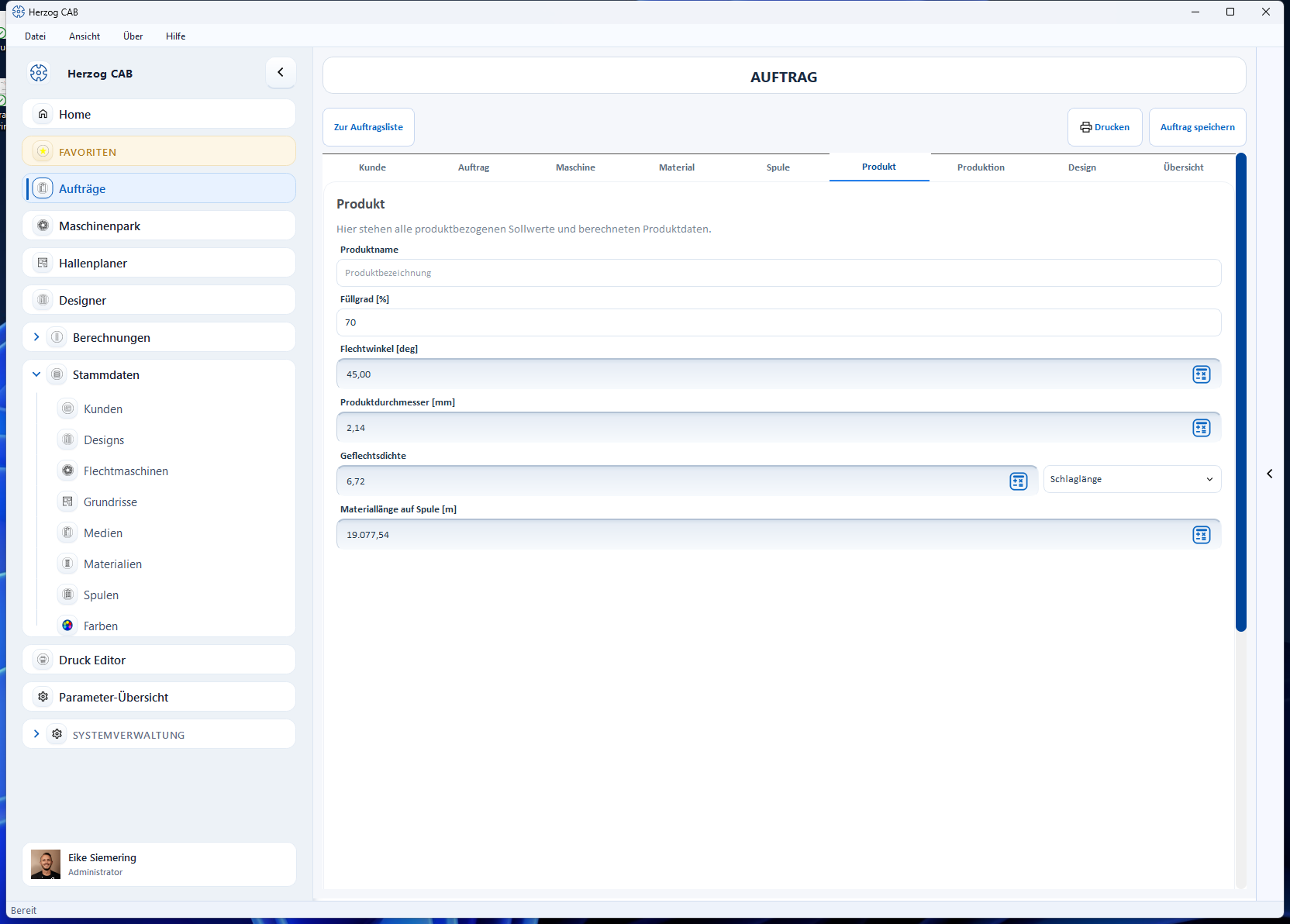
This tab contains the product-related target values. Four fields have an embedded calculator icon — see Calculations directly in the order.
| Field | Meaning |
|---|---|
| Product name | Designation of the product to be manufactured. |
| Filling grade [%] | Filling grade of the braid; preset to 70 for new orders. |
| Braiding angle [deg] | Braiding angle — enter manually or calculate via the calculator icon. Display and input in the configured braiding angle reference. |
| Product diameter [mm] | Diameter of the finished product — manually or from the calculation. |
| Braid density | Braid density with unit selection Lay length, Picks per 10 millimeters, Picks per inch, Picks per French inch — manually or from the calculation. |
| Material length on bobbin [m] | How much material fits on one bobbin — manually or from the calculation. Basis for the bobbin set calculation on the Production tab. |
"Production" tab
The tab is divided into two sections (one below the other in a narrow window).
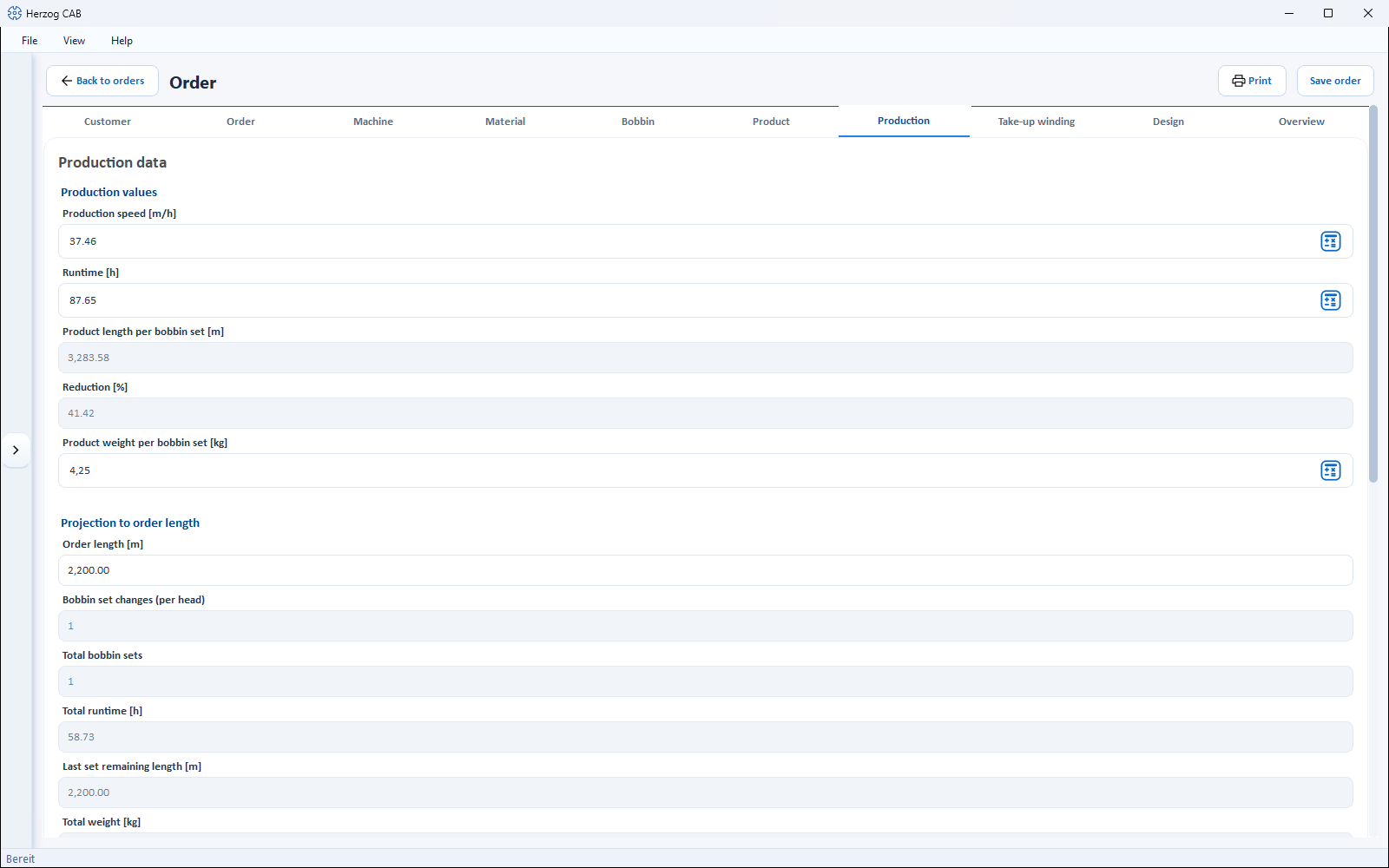
"Production values" section
| Field | Meaning |
|---|---|
| Production speed [m/h] | Manufacturing speed — with calculator icon. |
| Runtime [h] | Runtime per bobbin set — with calculator icon (the calculation also supplies the following three values). |
| Product length per bobbin set [m] | Length that can be produced with one bobbin set (display field, comes from the runtime calculation). |
| Reduction [%] | Material shortening caused by braiding (display field, comes from the runtime calculation). |
| Product weight [kg] | Weight of the product — with calculator icon. |
"Projection to order length" section
| Field | Meaning |
|---|---|
| Order length [m] | The same field as on the Order tab — both entries are synchronized. |
| Heads used | Only visible for machines with more than one head: how many heads manufacture the same product for this order. If a head runs a different product, that belongs in a separate order. |
| Bobbin set changes (per head) | How often a new bobbin set must be loaded per head (display field). |
| Total bobbin sets | Bobbin sets required across all heads used (display field). This value feeds the target bobbin count of a linked winding order. |
| Total runtime [h] | Runtime for the complete order length (display field). |
| Last set remaining length [m] | Product length still to be manufactured with the last bobbin set (display field, per head). |
| Total weight [kg] | Product weight projected to the order length (display field). For core-cover ropes, the core from the Take-up winding tab is included. |
The display fields result from the order length, speed and bobbin set length; they fill in as soon as the underlying values are available.
"Take-up winding" tab
Here you choose the take-up unit and drum for the order. The order length is split across the drums and checked against the take-up unit. The entries are saved with the order and appear on the Overview tab, in the web view and as placeholders in the print templates.
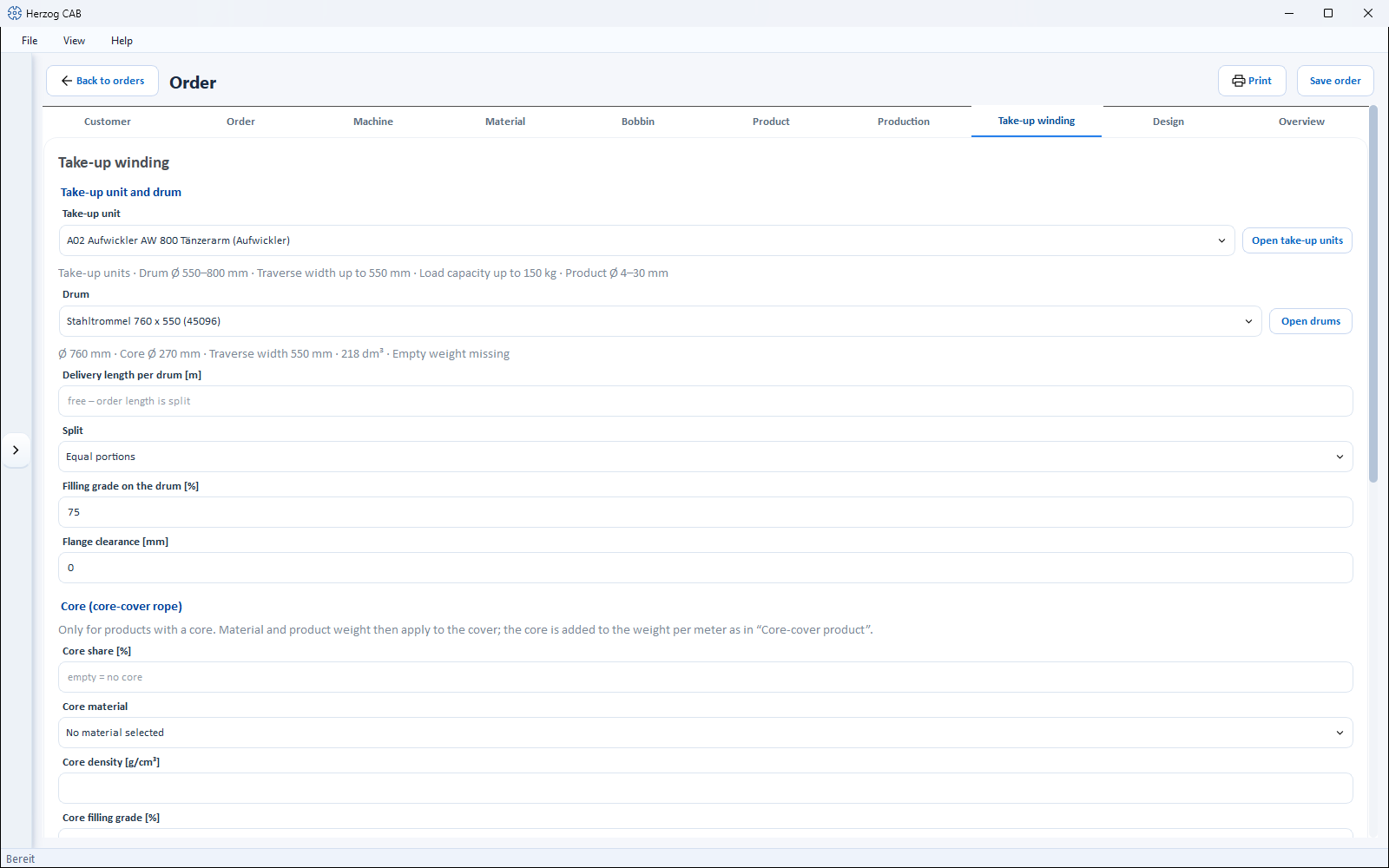
New from version 2.1.0
Take-up units come from the master data Take-up units, drums from the Drums. The calculation behind it is the same as in the calculation Drum and take-up unit selection.
"Take-up unit and drum" section
| Field | Meaning |
|---|---|
| Take-up unit | Take-up unit from the Machine Fleet (default: No take-up unit selected). Below it are its limits, e.g. drum Ø, traverse width, load capacity and product Ø, and for a reel take-up unit the reel volume. The Open take-up units button shows the take-up units in a separate window; there they can be created and changed, and a double-click transfers one into the order. |
| Drum | Drum from the drum master data (default: No drum selected). Below it are the outer and core diameter, traverse width, volume and empty weight (or Empty weight missing). Open drums shows the drums in a separate window; a double-click transfers a drum. If the take-up unit winds onto its reel, no drum is needed. |
| Delivery length per drum [m] | Length per drum if the customer specifies it. Leave empty to distribute the order length according to the selected split. |
| Split | Equal portions, Full drums + remainder or Remainder on a smaller drum — as in the Drum and take-up unit selection. With a delivery length, the split only applies to the remainder. |
| Filling grade on the drum [%] | Share of the winding space filled with product; the voids of the round braid are included in it. If empty, 75 % applies. |
| Flange clearance [mm] | Distance of the top layer from the flange edge. 0 = bobbin volume from the drum database. |
"Core (core-cover rope)" section
Only for products with a core. Material and product weight then apply to the cover; the core is added to the weight per meter as with Core-cover product — and thus to the load capacity and to the Total weight on the Production tab.
| Field | Meaning |
|---|---|
| Core share [%] | Share of the core in the cross-section of the product. Empty = without core. The core diameter follows from the product diameter. |
| Core material | Takes over the density of the material. |
| Core density [g/cm³] | Density of the core. |
| Core filling grade [%] | Filling grade as with Core-cover product. |
"Calculate suggestion" button
Finds a take-up unit from the Machine Fleet and a drum from the database that suit the product and length, and enters both. With a delivery length it looks for the smallest drum for exactly this length, otherwise for the order length per head. A message names the result (Suggestion applied: … with ….) or the reason why there is none, e.g. The suggestion needs the product diameter (Product tab). If no take-up unit has been created in the Machine Fleet, it only suggests the drum.
"Splitting the order length" section
At the top is the basis of the calculation: product Ø, weight per meter (with the share of the core) and order length (with several heads also per head). If something is missing, it says where to enter it, e.g. Weight per meter missing (product weight and bobbin set on the Production tab).
| Field | Meaning |
|---|---|
| Capacity per drum [m] | Product length that fits on the selected drum. |
| Drums in total | Number of drums; with several heads e.g. "6 (3 per head)". The order length is split per head. |
| Length per drum | The split, e.g. "2 × 500 m + 1 × 180 m"; if the remainder is on a different drum, it is shown in brackets after it. |
| Heaviest drum | Weight of the heaviest loaded drum; without empty weight "… kg + empty weight". |
| Check | Colored lines: green Take-up unit and drum fit., red e.g. Does not fit: … or The product does not fit into the winding space of the drum., yellow Cannot be checked: …, gray notes such as Without a take-up unit only the drum capacity is checked. or Each head needs its own take-up unit. |
What exactly is checked is described under Take-up units — Which data is checked.
"Design" tab
Here you link a braiding design from the Designer to the order and see its preview including the carrier table.
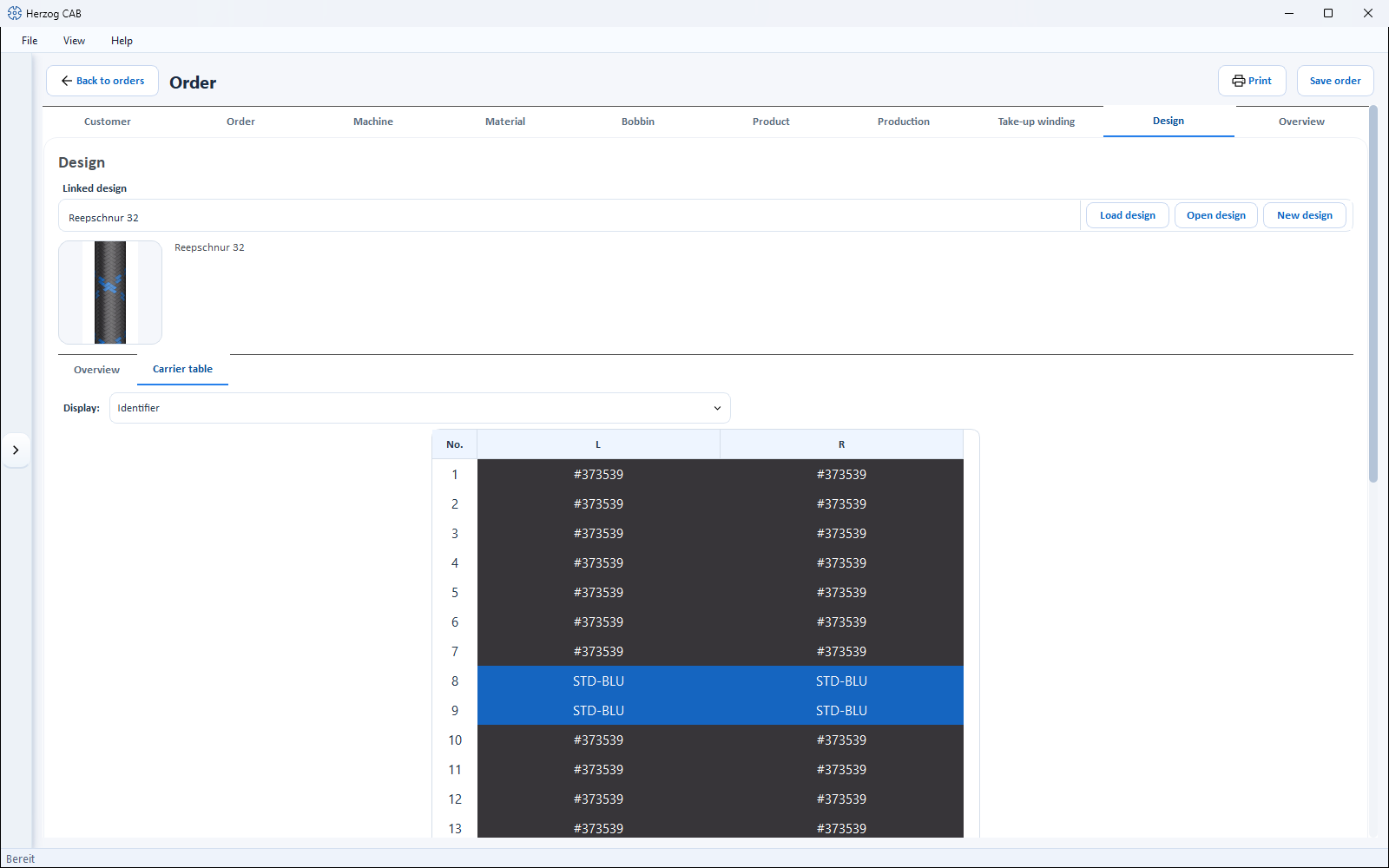
Linked design
Display field with the name of the linked design (placeholder: No design linked yet). The internal design ID is no longer shown in the field, but in the tooltip (Design ID: …) when you point the mouse at it. The field contains three buttons:
| Button | Effect |
|---|---|
| Load design | Saves the order and opens the design selection. Only designs that suit the machine are offered (same braid type, binding and number of carriers). Apply links the highlighted design; with Close everything stays unchanged. |
| Open design | Opens the linked design in the Designer window. Save & apply saves changes, updates the link and closes the window; Close closes the window without further saving. |
| New design | Opens an empty Designer, preset with the machine data of the order. Save & apply creates the design and links it to the order. |
Every save links (from version 2.1.0)
If you save in the New design or Open design window via the Designer toolbar and then close it with Close, the design is still linked to the order. Without saving, the order stays unchanged. If saving is cancelled with Save & apply (e.g. in the folder selection), the window stays open.
Preview
Below the field, a thumbnail shows the design with key data (name, braid type, carriers). A click on the thumbnail or the text opens the linked design. If the design has plying colors, the carrier table and the printout show a color strip per yarn and the color details per yarn separated by " / ".
"Overview" and "Carrier table" sub-tabs
- Overview — large design preview; a click opens the design.
- Carrier table — the setup table of the design: column No. plus one color column per track (for round braids with two tracks, two color columns). The cell background matches the carrier color, the text color changes automatically for good contrast. A Double-click on the table opens the design.
The Display selection defines which color designation appears in the cells: Color name, Identifier, Hex value or Pantone (values from the color master data). The setting also applies to the color breakdown in the winding order and to the printout.
When the Design tab is locked
If the number of carriers of the selected machine exceeds the range the Designer can display, the Design tab is deactivated and an existing link is removed. Choose a suitable machine or binding to unlock the tab again.
"Overview" tab
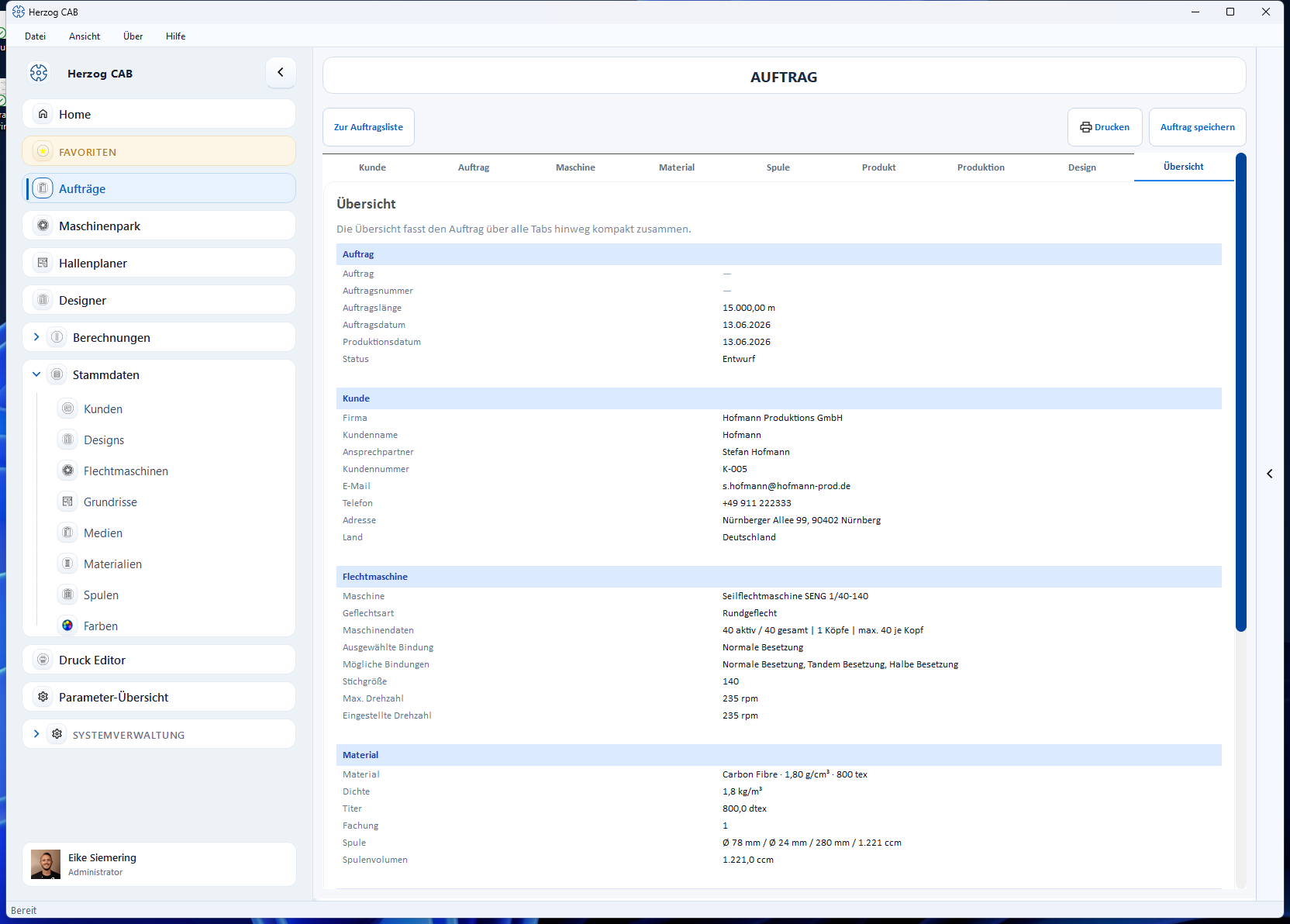
The overview summarizes the order across all tabs — divided into the sections Order, Customer, Braiding machine, Material, Product, Production, Take-up winding and Design. Empty fields appear as a dash, so that gaps stand out immediately.
Final check before printing
Check the order on the Overview tab before you print or release it.
Calculations directly in the order
Fields with a calculator icon open the matching calculation page as a window — prefilled with the values of the order. After the first calculation, Apply becomes active: a click writes the result back into the order field and closes the window. Close discards the result. The common layout of the calculation pages is described under How calculation pages are structured.
| Field in the order | Calculation |
|---|---|
| Braiding angle [deg] (Product tab) | Braiding angle |
| Product diameter [mm] (Product tab) | Product diameter |
| Braid density (Product tab) | Braid density |
| Material length on bobbin [m] (Product tab) | Material length on bobbin |
| Production speed [m/h] (Production tab) | Production speed |
| Runtime [h] (Production tab) | Runtime and bobbin set |
| Product weight [kg] (Production tab) | Product weight |
| Titer (Material tab) | Fineness |
Saving and unsaved changes
- Save order (top right) saves the order; a short success message confirms the save. Only then is a new order permanently available in the overview.
- If you leave the editor with unsaved changes (e.g. via Back to orders or the navigation), Herzog CAB asks: Save, Don't save or Cancel.
- Saving requires the right to edit orders — see Roles and rights.
- If a colleague is editing the order right now, you see it read-only (banner Being edited – read only, lock in the order list). If they have saved it in the meantime, Herzog CAB asks (Overwrite, Save as copy, Reload) — see Several users on the same workspace folder.
Related pages
- Order Overview — search, duplicate, delete orders
- Winding order editor — the bobbin preparation step for the braiding order
- Print — template selection, print preview, QR code
- From order to machine sheet — the workflow as a guide
- Designer — design and edit braiding designs
- Customers · Braiding machines · Materials · Bobbins · Take-up units · Drums · Designs — the related master data
- Drum and take-up unit selection — the same calculation as a separate calculation