How calculation pages are structured
Concept — The common structure of all calculation pages: input, calculate, result tiles
All calculations in Herzog CAB are built from the same set of components. Once you know one page, you can find your way around all of them. This page explains the shared controls once, in one place — the individual calculation pages only describe their own input and result values and any special features.
Two ways to every calculation
- Tile overview: The navigation entry Calculations (or one of its groups) opens an overview of all calculators as tiles.
- Navigation tree: Directly via the groups Material, Product (with Hollow braid), Production and Winding in the navigation.
Structure of a calculation page
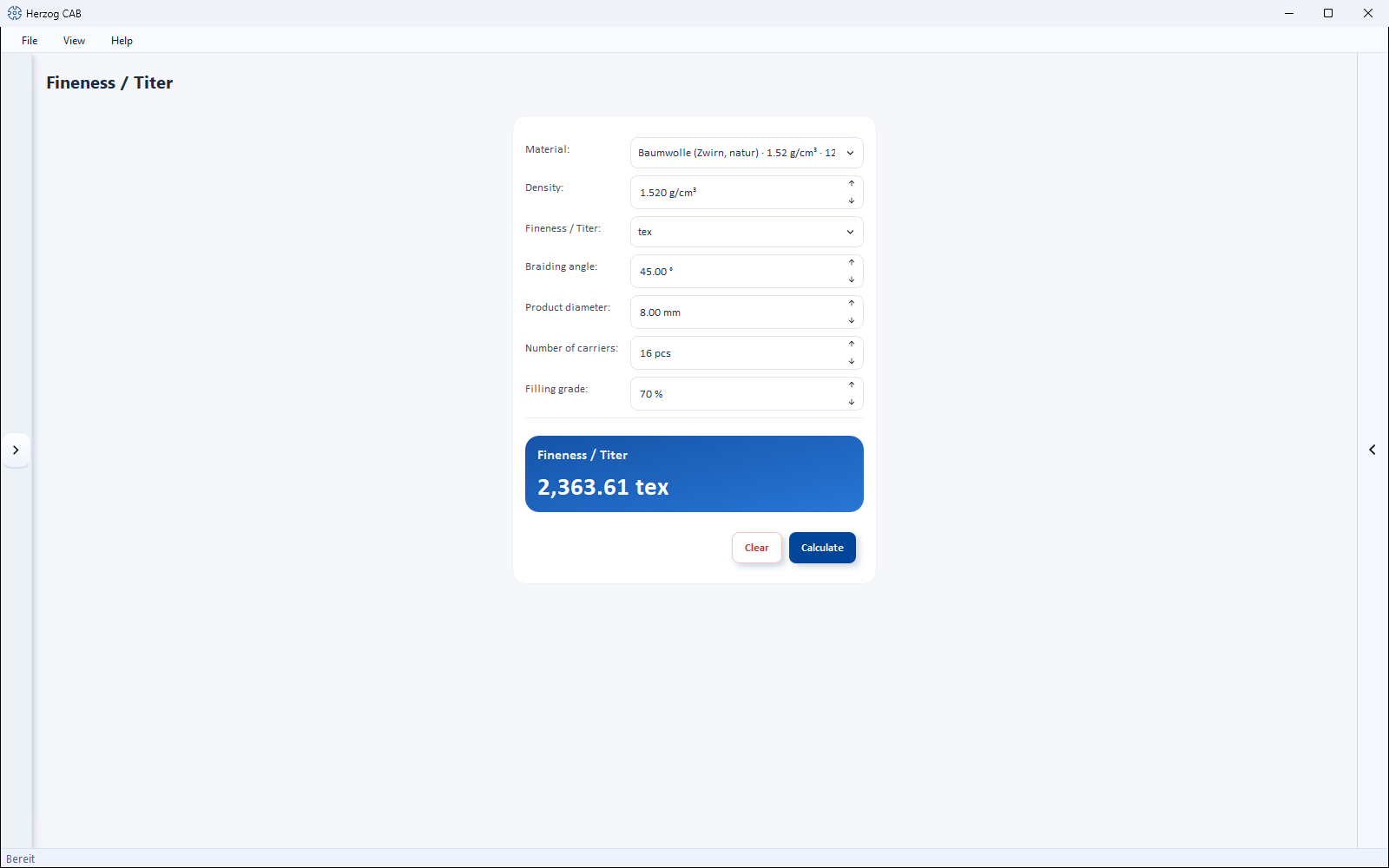
From top to bottom: the title line with the name of the calculation, the white input card, below it (or next to it on larger pages) the result area, and the Delete and Calculate buttons. Larger pages such as Core-cover product or Machine runtime per bobbin set additionally divide the input into headed sections or side-by-side sub-areas. If the window is too narrow to show all sub-areas side by side, they stack one below the other and the page scrolls — no field is cut off at the edge any more.
Input fields
| Field type | Behavior |
|---|---|
| Number field with unit | The unit is shown directly in the field (when empty, e.g. "– mm"). You only enter the number; small arrows at the edge of the field step the value up/down. |
| Selection list (dropdown) | Fixed choice, e.g. braid type or machine type. |
| Material selection | Lists the material master data; the selection fills dependent fields such as Density and Fineness automatically. You can then override these values. |
| Bobbin selection | Lists the bobbin master data, on some pages pre-filtered by the Machine type field. |
| Drum selection | Lists the drum master data; the dimensions come from the selected drum (from version 2.1.0, e.g. Product length per drum). |
| Toggle buttons | For either-or settings, e.g. yarn type Multifilament/Monofilament or number of layers 1/2/3. Depending on your choice, matching fields are shown or hidden. |
| Unit selection at the field | Next to individual fields (e.g. Fineness) you select the input unit: tex, dtex, den, metric count, English count. |
Some fields have sensible default values (e.g. filling grade 70 %) — you can simply leave them or adjust them.
Braiding angle fields
All braiding angle fields and results show the angle in the selected reference — to the cross direction (Herzog, default) or to the braid axis, see Settings > General > Braiding angle. If you point the mouse at the field, the tooltip shows both values with an explanatory picture.
Calculate and Delete
- Calculate runs the calculation. Alternatively, simply press Enter.
- Delete resets all input fields to their default values and clears the result area.
Input check (red fields)
If a required entry is missing or a value is not permitted, two things happen when you click Calculate:
- The affected fields are outlined in red — you see immediately where something is missing.
- A short notification appears: "Please check the entered data!" The message does not block anything and disappears on its own.
Technically impossible combinations (e.g. a covering above 100 %) are reported the same way; individual pages show their own hint texts for this.
Result area
- Blue main tile(s): the central result, displayed large.
- White mini tiles: secondary and intermediate values, in a two-column grid.
- Result tables: Some pages (e.g. Core-cover product) additionally show a table with two value columns.
- Before the first calculation, each tile shows a dash with the unit (e.g. "– tex") as a placeholder.
Unit switch on result tiles
On individual result tiles (e.g. Required fineness on the page Material diameter from product) there is a small unit selection directly in the tile header (e.g. tex/dtex). It only switches the display unit of the value already calculated — nothing is recalculated.
Special case: live converters
Two pages follow a simpler pattern without a Calculate button: Fineness conversion and Braid density conversion. They consist of:
- an input field for the source value,
- the selection lists From and To for the units,
- a round swap button between them, which reverses the conversion direction and takes the previous result as the new input,
- a blue result tile that updates immediately on every change of input or unit.
Live converters deliberately do not create history entries.
History, remembered values and favorites
- Every successfully completed calculation goes into the history and under Recently opened on the home page — one click loads the inputs used at that time again. The History sidebar at the right edge of the window only exists on the pages under Calculations.
- Within a session, your inputs are kept, even if you open other pages in between.
- You pin frequently used calculations as a favorite with a right-click.
Printing the result
On every calculation page, File > Print… (Ctrl+P) prints the current result using a print template of the type "Calculation". If there are several matching templates, a dialog asks which one to use; without templates of your own, Herzog CAB uses a supplied default template. Details under Preview and printing.
Trial version: limited calculation runs
In the trial version, the number of calculations per calculation type is limited. After each run, a notification shows how many remain; once the quota is used up, the calculation is locked. The full version calculates without limit — see Trial version and quotas.