Account and users (web app)
Reference — The "Account and users" page in the user menu of the web app: edition, modules, seats, company storage location, users and their roles
What you use this area for
Here you see what your account has enabled in the web app and who is currently working with it — and administrators assign the users their roles for the web app. Inviting new users and managing passwords and computers is still done in the licence portal; the page links to it.
You open the page via User menu > Account and users or the Account and users tile on the home page.
The screen at a glance
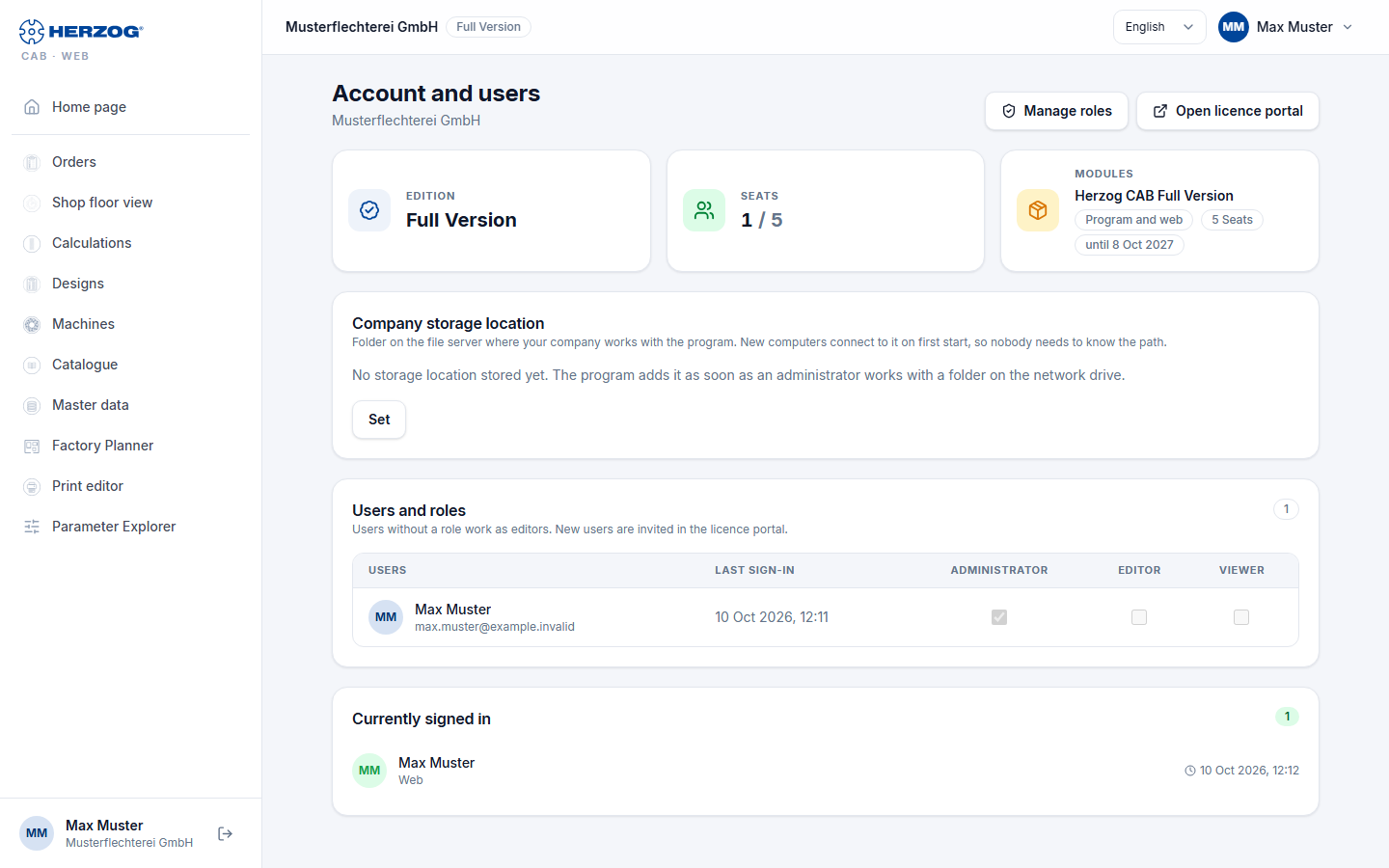
| Element | Meaning |
|---|---|
| Manage roles | To the right of the page title, only with the permission Manage roles: switches to Roles. |
| Open licence portal | Opens license.herzog-cab.com in a new tab. |
| Edition | Which subscription you are working with: Full version, Designer or Trial version. For internal accounts the note internal account. |
| Seats | Occupied and available seats, for example 2 / 3. Program and web app are counted together. |
| Modules | The modules that open the web app, with the number of seats and the term (until <date> or Lifetime). Program and web means: one quota for the desktop app and web app together. |
Company storage location
The folder on your file server in which the company works with the desktop app,
e.g. \\fileserver\freigabe\HerzogCAB. A new computer
connects to it on first start without anyone needing to know the path
(see First start).
Usually the desktop app enters the folder itself as soon as an administrator
works there.
| Element | Meaning |
|---|---|
| Path and set … | The stored folder and when it was last set. Without an entry, it shows No storage location stored yet. |
| Set / Change | Opens the Network path field. Only network paths such as \\server\freigabe\ordner are allowed, no drive letters. Save applies, Cancel discards. |
| Remove | Deletes the entry. New computers then ask for the folder again. |
Only users with the permission Workspace settings (e.g. administrators) may set, change and remove the folder; everyone else only sees the folder.
Users and roles
The table lists all users of the account with Name, Email, Last sign-in, the indicator Currently signed in or inactive and one checkbox per role.
- Assign role: Users with the permission Manage users check or uncheck the boxes; the change applies immediately. A user can have several roles — the permissions add up.
- Without a role, a user works as an Editor.
- The Administrator role always has all permissions.
So that nobody grants themselves more permissions than they have, three rules apply. If a change violates them, the web app rejects it with a red message.
- Your own roles are changed by another administrator. In your own row the checkboxes are locked.
- You can only assign or withdraw a role if you yourself have all its permissions. Anyone who has more permissions than you cannot be downgraded either.
- The account always keeps at least one administrator (The account needs at least one administrator.).
The same rules apply in the licence portal.
Currently signed in
The card at the bottom of the page lists who is currently occupying a seat and where: computer name, Web or (offline), plus the time of the last activity. The number in the card title gives the occupied seats. The list reloads every minute.
Two places, one user
The account role (Administrator / Editor / Viewer) is assigned in the licence portal; it applies in the desktop app and web app. The checkboxes here supplement it with web app roles with individual permissions — useful if, for example, sales should only see designs and orders.
Related pages
- Roles (web app) — custom roles with individual permissions
- Inviting and managing users (licence portal)
- Subscription and orders: ordering and renewing an annual subscription
- Customer account and invitation