Designer
Reference — the design editor: create, color, animate, compare, save and print braiding designs.
What you use this area for
In the Designer you create braiding designs: you choose the braid type and the braid binding, define the number of carriers, braiding angle and ply count and then color the individual carriers. The braid pattern is built live as you go — so you see immediately which pattern (spiral, ring, check …) results from your color assignment. You save finished designs in the design library, use them in braiding orders and print them as a machine setup sheet.
In this chapter
-
Braid type and parameters
Round, flat braid, square, spiral, packing and soutache braid; binding, number of carriers, braiding angle, ply count, material Ø and covering.
-
Coloring and twist
Paint mode, color library, user colors, color picker, plying colors, twist per carrier and side filter.
-
Setup and track animation
The machine top view with horngears and the animated tracks.
-
Views and 3D view
Full and half development, the rotatable projections cylinder and square, the real 3D model of the braid and the Display window.
-
Saving and printing
Saving with target folder selection, saving under a new name, printing with template selection and preview.
The screen at a glance
Start view (no design open yet)
As long as no design is open, the Designer shows a start view with short instructions and your recently used designs:
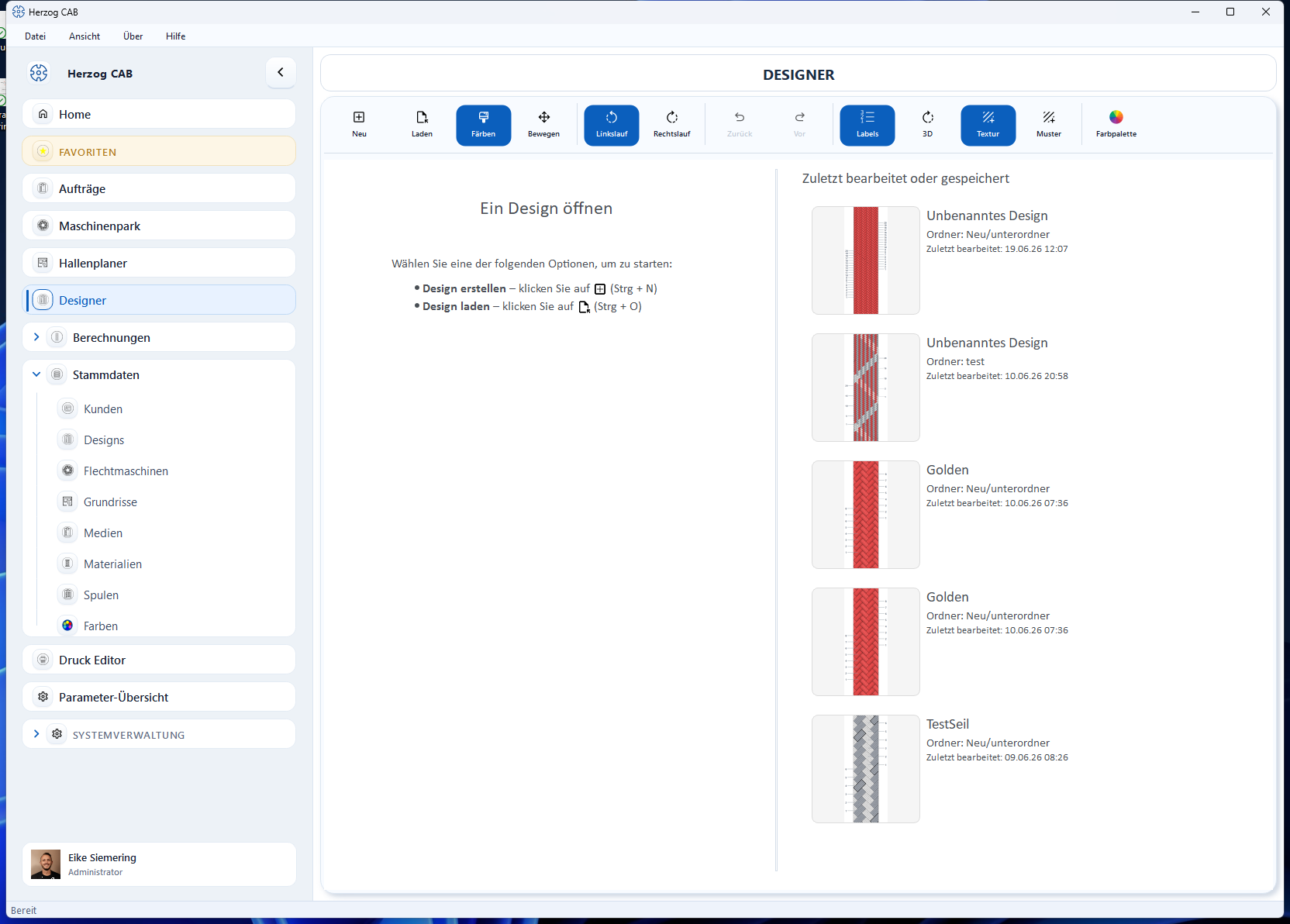
- Open a design (left) — the two ways to start: Create design (Ctrl+N) creates a new, empty design, Load design (Ctrl+O) opens a saved one.
- Last edited or saved (right) — your five most recently changed designs, each with preview image, name, folder and the timestamp of the last edit or save. A click opens the design directly. If its carrier count does not match the braid type and binding, the Designer asks (“…” has n carriers. Only m carriers are possible for this braid type and binding …) and offers Open with m carriers; the saved design only changes when you save.
As long as no design is open, the toolbar is locked; only New and Load can be used.
Editing view
As soon as a design is open, the editing view appears. It consists of five areas:
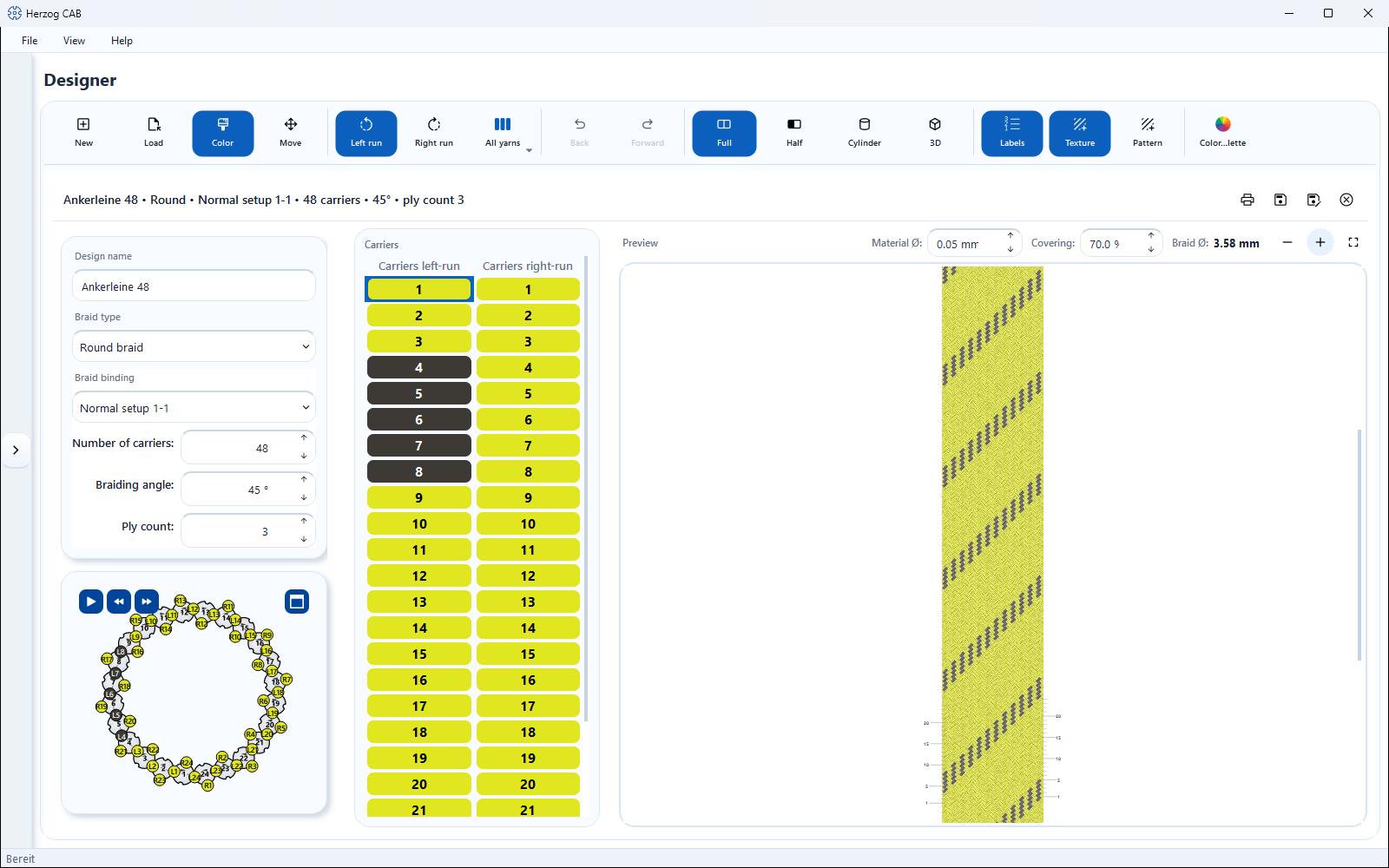
| Area | Content |
|---|---|
| Toolbar (top) | Mode switch, side filter, undo/redo, view switches, Display, Color palette and the Twist brush. |
| Document header (per design window) | Summary of the design and the actions Print, Save, Save under new name, Close view. |
| Parameter panel (left) | Design name, braid type and parameters with material Ø, covering and braid Ø below Ply count, and below them the Setup overview. |
| Carrier table (center) | All carrier positions with their current color — you can also color directly here. |
| Preview (right) | The braid pattern that results from the current color assignment, with its own zoom buttons; in the 3D view the spatial model. |
Controls in detail
Toolbar
| Button | Function |
|---|---|
| New (Ctrl+N) | Opens a new design window with the defaults from Settings > Design (default: round braid, 16 carriers, 45°, Normal setup 1-1). If a design is already open, a second window is created next to it (see below). |
| Load (Ctrl+O) | Switches to the design library, where you select and open a saved design. |
| Color | Paint mode: clicks in the braid pattern or in the carrier table color carriers with the active color — see Coloring and twist. If the Twist brush is selected, Color switches back to coloring. |
| Move | Pan mode: hold down the left mouse button to move the view without coloring. |
| Left run / Right run | Side filter for color and twist: defines which running direction a click hits. Only visible for round and square braid (two runs). |
| All yarns / Yarn N | Yarn selector, only from ply count 2: defines which yarn of a carrier a click colors — see plying colors. |
| Back (Ctrl+Z) / Forward (Ctrl+Y) | Undoes the last step (color or twist) or restores it. |
| Full or Braid pattern / Half / Cylinder or Square / 3D | The view switches: flat development, half development, rotatable projection and the real 3D model — which ones appear depends on the braid type, see Views and 3D view. |
| Display | Opens the Display window: Yarn structure and Labels for the drawn views, Material, Simple display, Form and Orientation for the 3D view. Applies to all design windows — see “Display” window. |
| Color palette | Opens the color palette with active color, library colors and user colors — see Coloring and twist. |
| Twist | Brush for the twist of the yarns: S, Z or untwisted, optionally with TPM. The button shows the selected twist in its name, e.g. Twist S 120 — see Twist. |
Document header
Each design window has its own header:
- Summary (left) — design name and the most important settings in one line, e.g. braid type, binding, number of carriers, braiding angle and ply count. For square and packing braid, the horngear arrangement and (for packing braid) the number of tracks are also shown.
- Print — starts printing with template selection.
- Save / Save under new name — stores the design in the design library, see Saving and printing.
- Close view (✕) — closes this design window. If there are unsaved changes, the app asks first — or saves automatically if this is set under Settings > Design.
Comparing two designs side by side
The Designer can show two design windows at the same time — useful for comparing two color variants directly:
- Open the first design.
- Click New — a second, empty design window appears next to it and is active.
- Click Load and choose the second design — it is loaded into the active window.
You recognize the active window by its highlighting; a click into a window activates it. The toolbar and parameter panel always act on the active window. More than two windows are deliberately not possible — if you try, the note "A maximum of two designs can be open at the same time" appears. In that case, first close one via the ✕ in its header.
Zooming and panning
| Action | Operation |
|---|---|
| Zoom | Mouse wheel over the braid pattern — zooming happens at the mouse position. |
| Zoom (buttons) | Zoom in / Zoom out at the top right of the preview card. |
| Fit view | Fit view (full-screen icon) on the preview card — the braid pattern is fitted completely again. For Cylinder and Square, it returns to the starting view in which the body fills the preview. |
| Pan | Hold down the right mouse button and drag — works at any time, also in paint mode. |
| Pan (mode) | Choose the Move tool and drag with the left mouse button. In Cylinder and Square the left mouse button rotates the body here as well; pan there with the right mouse button. |
| Rotate (Cylinder, Square) | Hold down the left mouse button and drag sideways — see Rotating cylinder and square. |
The Setup overview has its own, independent zoom and pan controls.
Guided tour
To get started, the Designer offers a built-in guided tour: it starts in the start view, creates a new design on request and then explains all tools and areas of the editing view step by step.
Related pages
- Designing a design from scratch — the workflow from an empty design to printing
- Design library — manage saved designs
- Colors (master data) — maintain color palettes for the Designer
- Braiding order — use designs in the order
- Design (settings) — defaults, view, animation, saving
- Designs and Designer in the web app