Storage location
Reference — Where Herzog CAB stores its data: central user data (local or network) and the workspace of the active profile.
What you use this area for
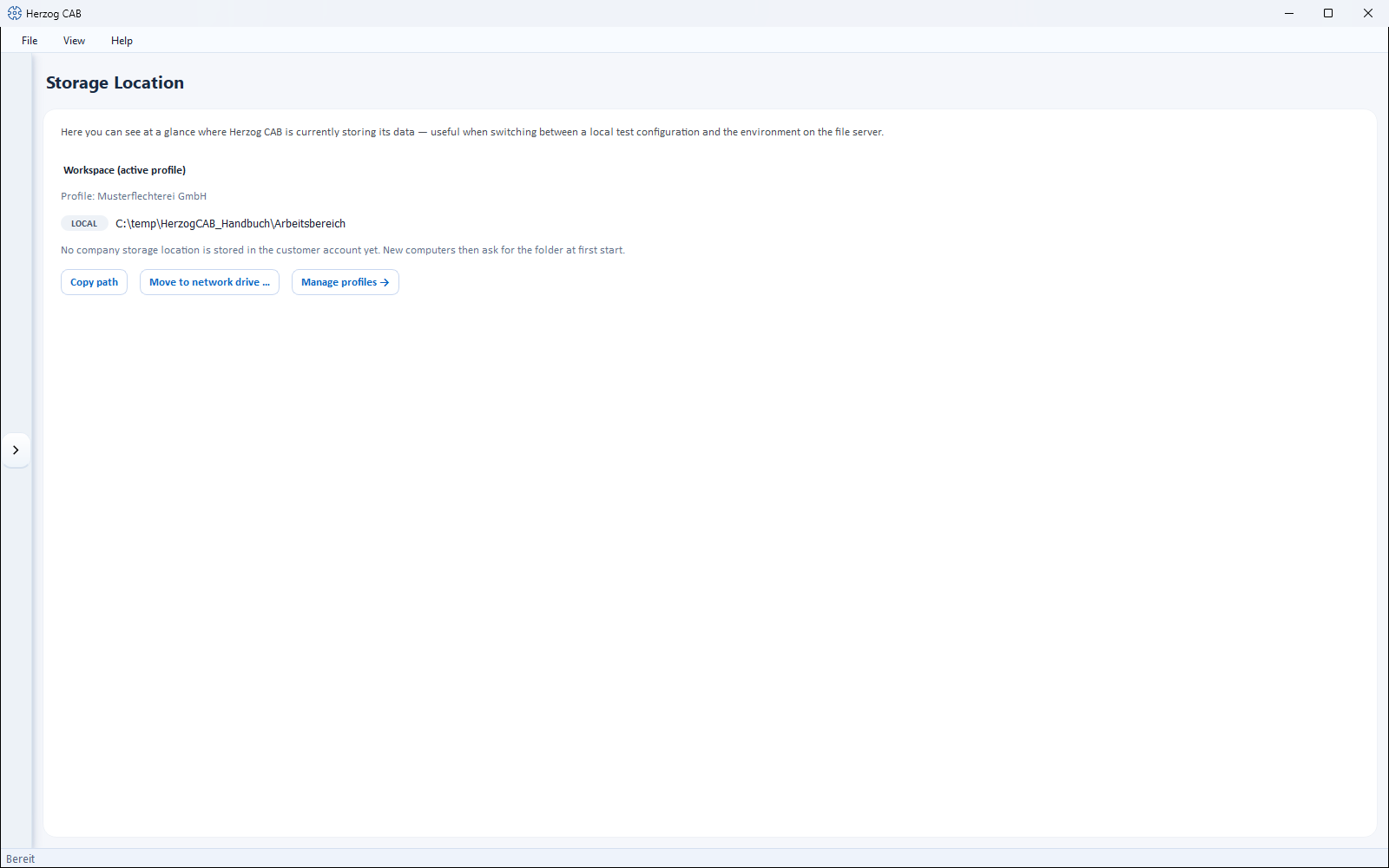
The STORAGE LOCATION screen (System administration > Storage location) shows at a glance where Herzog CAB is currently storing its data — useful when switching between a local test configuration and the environment on the file server. Here you also switch whether the central user data is stored locally on this computer or on a network path shared by several workstations.
Herzog CAB distinguishes two storage locations:
- Central user data — user accounts, profiles, role assignments and profile pictures. They apply computer-wide or (with a network storage location) site-wide and are not stored in the workspace.
- Workspace — the application data of the active profile: master data, orders, designs, print templates.
With a customer account
In the account model, users and roles come from the customer account. The Central user data block then only appears if a network path for it has been set on this computer from earlier versions. What matters here is the workspace: the page shows whether it is stored locally or on a network drive, which company storage location the customer account knows, and offers to move the folder to a network drive.
Permission required
Only users with the Workspace settings permission can see this area; changing the storage location also requires this permission.
The screen at a glance
Controls in detail
Central user data (users, profiles, assignments)
| Element | Description |
|---|---|
| Badge LOCAL / NETWORK | Shows the current mode: LOCAL = the user data is stored only on this computer; NETWORK = it is stored on a shared network path. |
| Path display | The full folder path (can be selected and copied with the mouse). |
| Copy path | Copies the path to the clipboard. |
| Change... | Opens the Set up data storage location dialog (see below). Only usable with the Workspace settings permission. |
Workspace (active profile)
| Element | Description |
|---|---|
| Profile: … | Name of the currently active profile. |
| Badge LOCAL / NETWORK | LOCAL = the workspace folder is stored only on this computer; NETWORK = it is stored on a network drive that other computers can also reach. |
| Path display | The workspace folder of this profile (can be selected and copied). |
| Company storage location in the customer account | Only with a customer account: the folder that new computers connect to at first start — or the note that none has been stored yet. |
| Copy path | Copies the path to the clipboard. |
| Move to network drive … | Only for a local workspace folder. Opens the Move to network drive dialog. Requires the Workspace settings permission. |
| Store this path in the customer account | Only with a customer account, if the workspace folder is on a network drive and the account knows a different storage location or none. Enters this folder as the company storage location; an existing one is only replaced after confirmation. Requires the Workspace settings permission. |
| Manage profiles → | Jumps directly to the profile management, where the workspace folder is changed. |
Existing installations
If an administrator already works on a network drive and the customer account does not yet know a storage location, Herzog CAB enters the folder itself at startup. You do not need to do anything for this.
Move to network drive
If your company started with one computer and local data and a second computer is added, the data must move to a network drive. How Herzog CAB protects simultaneous changes by several users there is described under Several users in the same workspace folder. The dialog does the move in one step:
- Herzog CAB copies the entire folder to the new folder.
- It checks the copy file by file.
- Only then does the profile work in the new folder. With a customer account, the new folder is also stored as the company storage location.
- Herzog CAB restarts — without signing in again.
flowchart TD
  A[Move] --> K[Copy the entire folder<br>to the new folder]
  K --> P{Copy checked<br>file by file?}
  P -- no or cancelled --> X[Continue in the previous folder]
  P -- yes --> U[Switch the profile to the new folder,<br>with customer account store it<br>as the company storage location]
  U --> H[Old folder remains as a backup<br>with a notice file]
  H --> N[Herzog CAB restarts]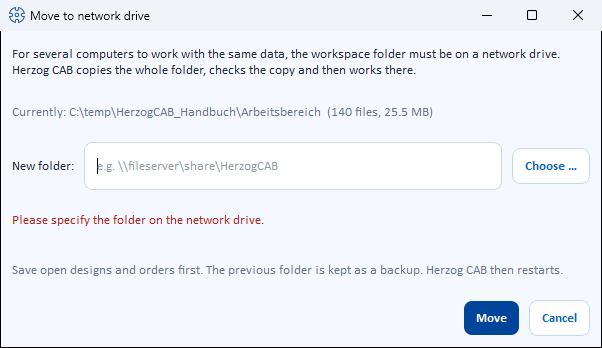
| Element | Meaning |
|---|---|
| Currently | The previous folder with the number of files and size. |
| New folder / Choose … | The folder on the network drive. A mapped drive such as Z:\HerzogCAB is converted to the network path. If the customer account already knows a storage location, it is suggested. |
| Move | Starts copying after a confirmation prompt. A progress bar shows the status. |
| Cancel | Closes the dialog; during copying it aborts the process. Herzog CAB then continues to work in the previous folder. |
The new folder must be empty or at least must not contain any Herzog CAB data — otherwise the dialog refuses, so that nothing gets mixed up.
The old folder remains as a backup
Herzog CAB does not delete anything. Afterwards, the previous folder contains the file MOVED – DO NOT WORK HERE ANYMORE.txt with the new location. Only delete the old folder once everything is running.
Save first
Save open designs and orders before moving.
"Set up data storage location" dialog
Use Change... to define where the central user data is stored:
| Element | Description |
|---|---|
| Local — this computer only | User data is stored in the default folder on this computer. |
| Network path — shared with other computers | User data is stored on a share, e.g. \\fileserver\share\HerzogCAB — all workstations with the same path use the same accounts, profiles and assignments. |
| Path field / Choose … | Enter the network path or choose it via the folder selection. |
| Test connection | Checks whether the path exists and is writable. The result also reports whether user data already exists there (this computer then takes over the existing data) or whether the path is empty. |
| Apply / Cancel | Saves or discards the selection. |
When switching to an empty network path, Herzog CAB offers to copy the user data existing on this computer there so that nothing is lost. After a switch, Herzog CAB asks for a restart — only then does the new storage location take effect everywhere.
Where the selection is stored
The setting itself is stored in a small configuration file locally
on each computer. On every workstation that should use the
shared user data, you therefore set the network path
once. Without a switch, the central user data is stored in the
Windows folder %ProgramData%\Herzog GmbH\Herzog Cab.
What is stored in the workspace?
All application data of a profile is stored as files and folders directly in the workspace folder:
| Content | File / folder |
|---|---|
| Design index / design folder list | index.json, folders.json |
| Preview images of the designs | previews\ |
| Materials | materials.json |
| Bobbins | bobbins.json |
| Colors | colors.json |
| Customers | customers.json |
| Orders (braiding and winding orders) | orders.json |
| Own machines | my_machines.json |
| Designer color palette | designer_palette_state.json |
| Factory Planner: floor plans and placements | floor_plans.json, placements.json |
| Machine documents | machines\ |
| Media library | media\ |
| Print templates | Printouts\ (containing templates\ and assets\) |
| Log (if enabled) | logs\herzogcab.log |
Up to version 2.1.0, the Settings dialog also showed the same paths in the Storage locations tab; the tab has been removed, and the overview is now only available here.
Data backup
For a complete backup, it is sufficient to back up the workspace folder of each profile and the folder of the central user data.
Related pages
- Profiles (workspaces) — defining and switching the workspace folder
- File storage at a glance
- Several users in the same workspace folder — lock, versions and prompts