Colors
Reference — maintain a color palette for the Designer; in addition to the screen color value, each color can carry a standardised reference color (RAL or Pantone).
What you use this area for
In the color master data you maintain a color palette that you reuse in the Designer to color your braid patterns. Besides its screen color value (Hex), each color can carry a reference color from a standardised system (Pantone or RAL) – this keeps the link to a color fan.
The screen at a glance
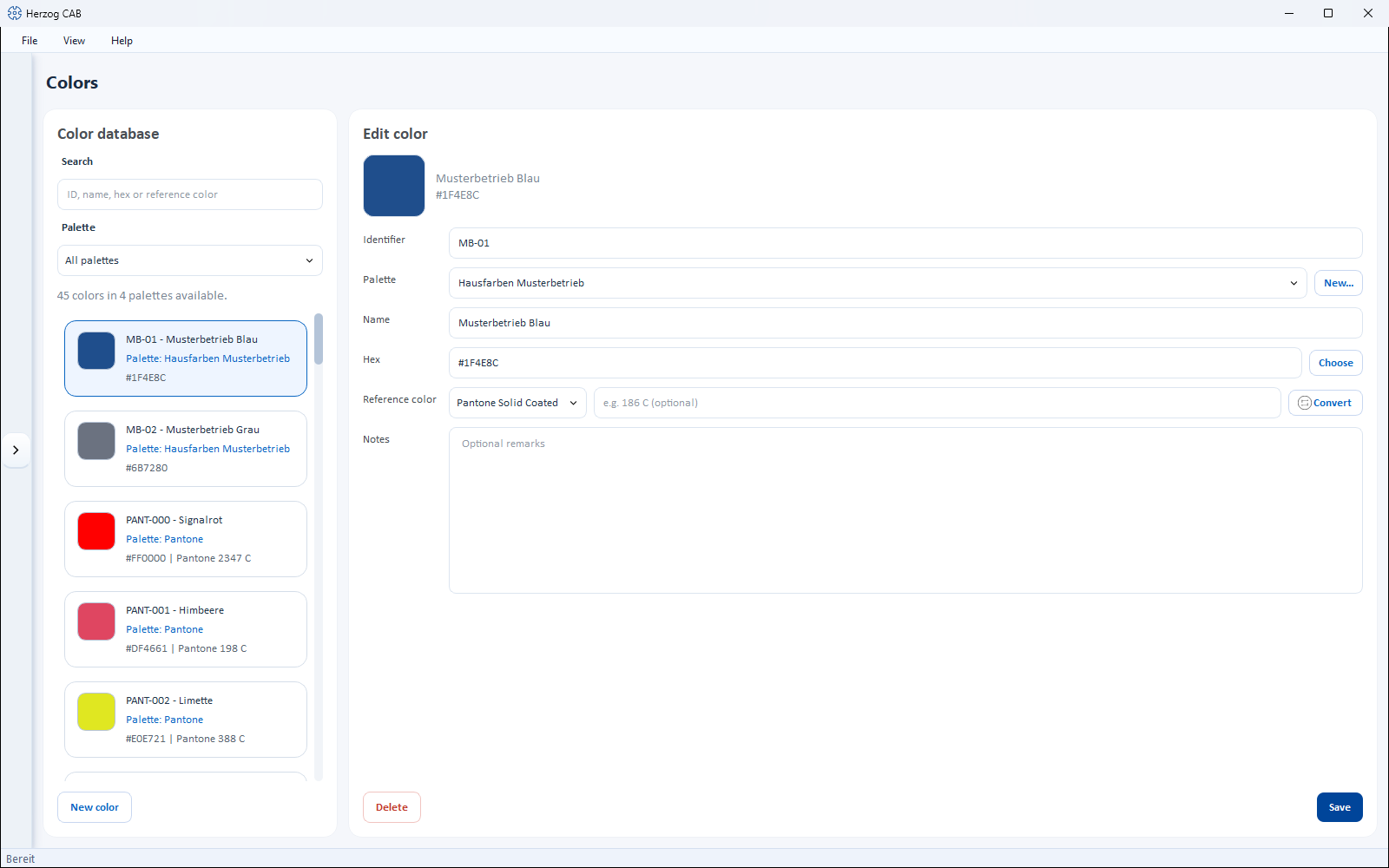
- Color database (left) – search field, a Palette selection field for filtering and the list of all colors. Each card shows color swatch, identifier, palette, hex value and – if available – the reference color.
- Edit color (right) – the properties of the selected color with color preview.
Controls in detail
Search and palette filter
- Search – filters by ID, name, hex value or reference color.
- Palette – selection field that restricts the list to one palette (default: All palettes).
Fields of a color
| Field | Description |
|---|---|
| Identifier | Internal identifier of the color. If the field is left empty, the program assigns an identifier automatically. |
| Palette | Palette to which the color is assigned. Use New to create another palette. |
| Name | Plain-text name (e.g. "Herzog red"). |
| Hex | Screen color value (e.g. "#D32F2F"). Choose opens the color picker. |
| Reference color | Standardised reference: the system (Pantone Solid Coated, RAL Classic or Custom) and the associated value (e.g. "186 C"). |
| Notes | Optional remark. |
Convert reference color
Next to the reference color value is the button Convert. For the current hex value, it searches the most similar colors in the selected reference system and shows them in the dialog Hex to RAL Classic or Hex to Pantone Solid Coated:
- At the top is the Base color (your hex value).
- Below it, the closest matches appear as cards, each with color swatch, hex value and a Delta-E value (the smaller, the more similar).
- With Apply on a card you enter the reference color into the form. Close discards the selection.
Delete and save
- Save – saves the changes to the selected color.
- Delete – removes the selected color (with confirmation prompt).
Standard palette and custom palettes
The standard palette is built into the program
Herzog CAB comes with a Standard palette of basic colors (black, white, gray, beige, brown, red, blue, yellow, green, orange). This palette cannot be changed or deleted. For custom colors, create your own palette via New; only there can you save new colors.
Palettes let you keep color sets separate (e.g. per customer or product line).
Use
The colors are available in the Designer when coloring.
Related pages
- Designer – design braid patterns
- Painting and coloring – use colors in the Designer
- Designs – the design library