Designs
Reference — the design library: manage, open, rename, move and delete saved braid designs in folders.
What you use this area for
Designs is your design library – a store of all saved braid patterns, structured like a file explorer with folders and a table overview. Here you manage designs: you sort them into folders, rename, move or delete them and open a design for editing.
Manage the library here – draw in the Designer
Nothing is drawn on this page. The actual designing – choosing the braid type, painting patterns, viewing the animation – takes place in the Designer. This page is the library, the Designer is the drawing tool. Double-clicking a design opens it in the Designer.
The screen at a glance
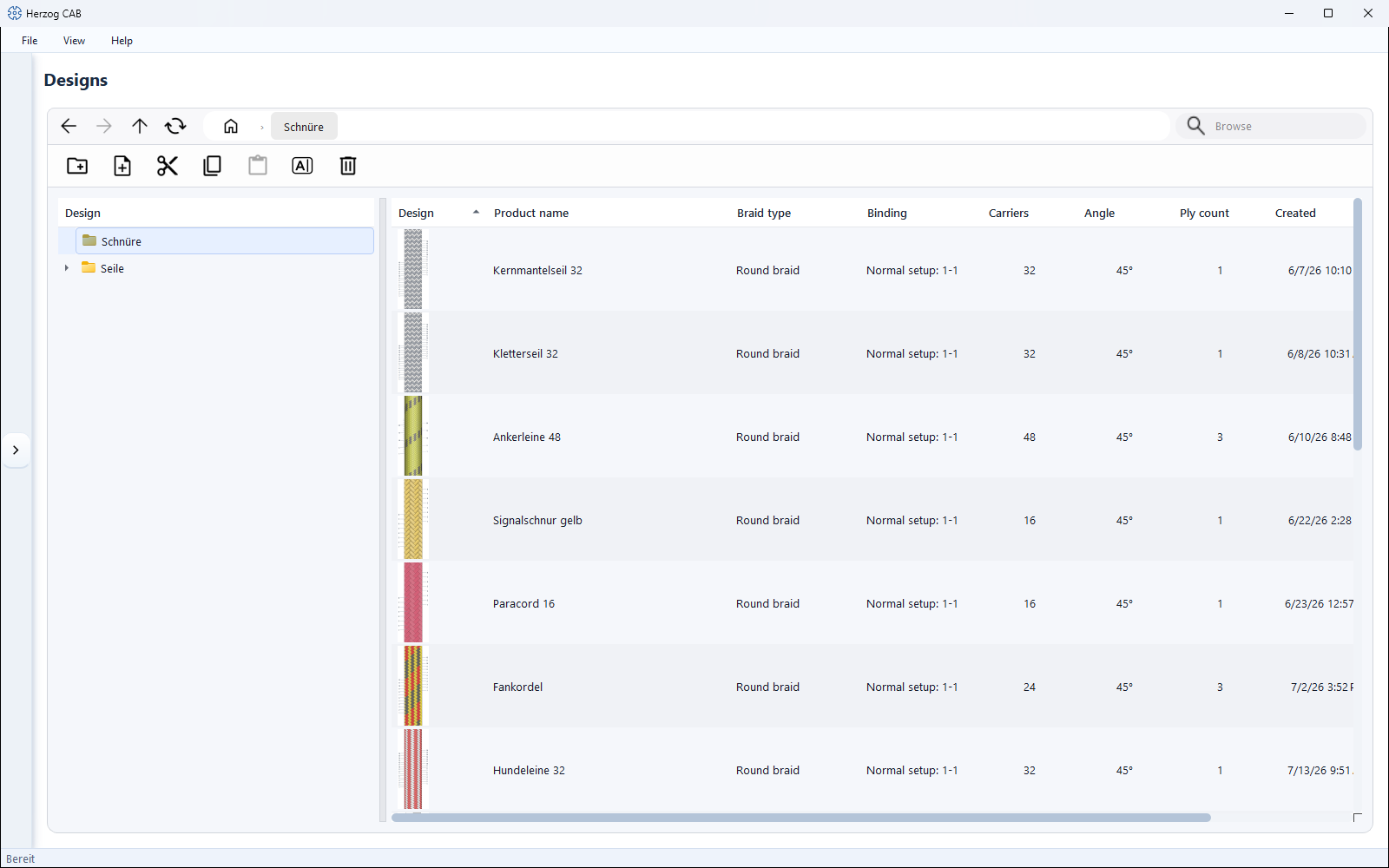
The page consists of three areas:
- Toolbar (top) – navigation, search and the actions (create folder/design, clipboard, rename, delete).
- Folder tree (left) – the folder structure of your designs. A click opens a folder.
- Design table (right) – all designs of the selected folder as a table with preview image.
Controls in detail
Navigation
In the toolbar you find – as in a file explorer – the navigation buttons:
| Button | Effect |
|---|---|
| Back | Back to the previously visited folder. |
| Forward | Forward again (after "Back"). |
| Up one level | Switch to the parent folder. |
| Update | Reload the view. |
Search
The search field filters the designs. If the search term matches, the view switches to a flat result mode that shows matches from all folders.
Toolbar actions
| Button | Effect |
|---|---|
| New folder | Creates a folder in the current path. |
| New design | Creates a new design in the current folder and opens it for editing. |
| Cut | Remembers the selected element (folder or design) for a move operation. |
| Copy | Remembers the selected element for a copy operation. |
| Paste | Pastes the cut or copied element into the current folder. |
| Rename | Renames the selected element. |
| Delete | Deletes the selected element (with confirmation prompt). |
Cut/copy and paste together form the clipboard: first you mark a design or a folder with Cut (move) or Copy (duplicate), then you switch to the target folder and choose Paste.
Folder tree (left)
The folder tree shows your folder structure. A single click opens the folder; its designs appear on the right. The context menu (right mouse button on a folder) gives you the same actions as the toolbar – Create new design…, New folder…, Rename…, Cut, Copy, Paste and Delete….
Design table (right)
The table lists all designs of the current folder. You can sort them by clicking a column header.
| Column | Content |
|---|---|
| Design | Preview image (thumbnail) of the pattern. |
| Product name | Name of the design. |
| Braid type | Round braid, flat braid, square braid or packing braid. |
| Binding | Setup/binding (e.g. Normal setup, Tandem setup, Half setup). |
| Carriers | Number of carriers. |
| Angle | Braiding angle. |
| Ply count | Number of threads combined per carrier. |
| Created | Creation date. |
| Modified | Date of the last change. |
Double-clicking a row opens the design in the Designer. The context menu of a design offers Rename…, Cut, Copy and Delete….
Related pages
- Designer – design and color designs
- Design parameters – braid type, setup, braiding angle and ply count in detail
- Create a design from scratch – step-by-step workflow
- Colors – color palette for coloring