Web app interface
Concept — How the web app is structured: sidebar, header, tabs, user menu, lists and dialogs, operation on tablet and smartphone
The frame
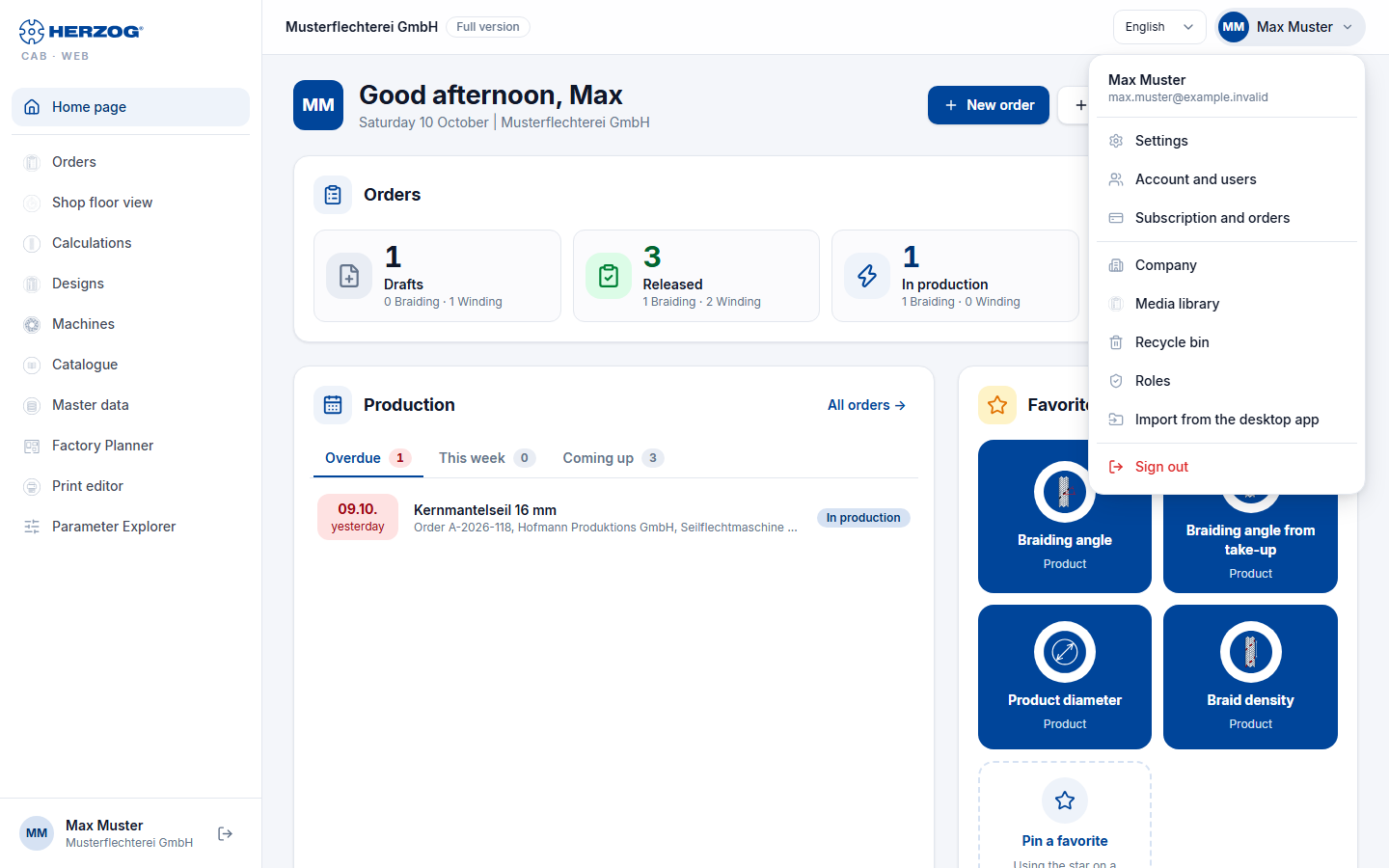
| Area | Content |
|---|---|
| Sidebar (left) | One entry per module (see below), each only with the matching permission. At the bottom your name, the account and the Sign out icon. The sidebar only answers the question "which module am I in" — subpages and actions are located in the page itself. |
| Header (top) | On the left the name of the account with a label (e.g. internal, the edition or Trial: n days left), on the right the language selection and the user menu. |
| Content | The current page with the page title, actions to the right of it (e.g. New braiding order) and below it tabs for subpages (e.g. Materials, Bobbins, Drums, Colors, Customers under Master data or the machine kinds in the Herzog catalogue). |
Sidebar entries
From top to bottom, each only with the stated permission (Roles):
| Entry | Visible with | Page |
|---|---|---|
| Home page | always | Home page |
| Orders | View orders | Orders |
| Shop floor view | View orders and View master data | Orders per machine with their status |
| Calculations | Run calculations | Calculations |
| Designs | View designer | Designs and Designer |
| Machines | View master data | Machines |
| Catalogue | View master data | Herzog catalogue |
| Master data | permission for at least one master data tab | Master data |
| Factory Planner | View Factory Planner | Factory Planner |
| Print editor | View print templates | Print editor |
| Parameter Explorer | Open Parameter Explorer and View orders | Parameters of the orders |
Which entries you see also depends on the module: with Herzog CAB Designer, Orders, Shop floor view, Calculations, Machines, Catalogue, Factory Planner and Parameter Explorer are missing; under Master data Colors and Customers remain.
User menu
Clicking your initials or your name at the top right opens the user menu:
| Entry | Target |
|---|---|
| Account (selection) | Only for Herzog employees with several internal accounts: switches the account. |
| Language | On a smartphone here instead of in the header. |
| Settings | Language, user, password note. |
| Account and users | Edition, modules, seats, users and roles. |
| Subscription and orders | Activations, trial, ordering an annual subscription or sending an inquiry. |
| Company | Company data and logo for print templates. |
| Media library | Uploaded images and documents. |
| Recycle bin | View and restore deleted entries. |
| Roles | Roles and permissions — only with the permissions Manage roles or Manage users. |
| Import from the desktop app | ZIP import and export of the workspace — only with the permission Workspace settings. |
| Sign out | Ends the session. |
Lists, cards and forms
- Lists have a search field and Filter at the top; the number of hits is shown next to them (n of m …). On narrow screens, tables become Cards.
- New… buttons are to the right of the page title; Open or a click on the row leads into the editor.
- Save is at the top right of the editor. After saving, a confirmation (Saved.) briefly appears at the bottom edge; errors appear as a red message box.
- Confirmation prompts (e.g. when deleting) open as a dialog — on a smartphone as a sheet from the bottom. Deleted orders, designs, machines, master data, hall plans and print templates end up in the recycle bin.
- Versions: Editors have a Versions button with the earlier versions of the entry, see Versions and recycle bin.
- Version conflict: If someone else has saved an entry while you had it open (e.g. the desktop app via cloud sync), the web app reports when saving "This entry has since been changed by someone else. Please reload." — reload the page and enter your change again. You can then see what the other person saved under Versions. Usually the edit lock prevents this in the first place.
Edit lock
When you open an entry for editing, the web app locks it for everyone else: for colleagues in the web app and, if the desktop app works with cloud sync, also for the computers in the workspace folder. Anyone who opens the same entry sees it read-only until you are done. The basic idea and the desktop app side are described in Multiple users in the same workspace folder.
Locked on opening: braiding and winding orders, designs in the Designer (if you come from an order, the order too), machines, in the Factory Planner the floor plan and the selected assignment, the template in the Print editor, the entry in the edit dialog of the master data and the program in the Braiding Simulator. New entries that have not yet been saved, and entries you may only view, are not locked by the web app.
The lock
Whatever someone else is currently editing carries a small gray lock in lists and cards: in the orders, the designs, the machines, the hall plans, the master data, the shop floor view, the template selection of the Print editor and in the Braiding Simulator. If you point at it, the tooltip shows Being edited and below it name, location and start, e.g. Max Muster · PC-12 · since 14:32. The location is the computer name if someone is editing in the desktop app, otherwise Web app. The lists check every 30 seconds; a lock therefore appears or disappears with a short delay.
The notice in the editor
📷 Screenshot missing
Subject: Order in the web app with the notice “Being edited – read only” next to Versions, the buttons Try again and Release lock and the tooltip on the lock.
How to create: Open the same order in two browsers (two users of the same account, one with the Release locks permission); in the second browser point the mouse at the lock. Sample account, 1440 × 900 px.
Target file: assets/screenshots/web/sperre-hinweis.png
If someone else is editing the entry, a notice appears at the top of the editor next to Versions, and all fields are read-only:
| Notice | Meaning | Buttons |
|---|---|---|
| Being edited – read only | Someone else is editing the entry; who it is appears in the tooltip on the lock. | Try again checks immediately; if it is not free yet, the web app reports The entry is still being edited. Release lock only with the Release locks permission. |
| Available now – reload | The other user is done. If a third person takes the entry in the meantime, Being edited – read only appears again. | Reload reloads the page with the current version, then you edit. |
| Now being edited by someone else – read only | You had the entry, now someone else is editing it. | Reload |
| Your editing session was ended – read only. Unsaved changes can no longer be saved. | Someone with the Release locks permission has released your lock. | Reload |
| Released due to inactivity – reload to continue working | 30 minutes without input and without unsaved changes: the web app has released the entry. | Reload |
| No connection to the server – read only | The web app cannot reach the server and cannot take the lock. | Try again |
The server rejects saving, deleting or restoring an entry that someone else is currently editing with This entry is currently being edited.
When the entry is free again
- You close the tab, reload the page or go to another page in the web app. If you go straight on to an editor of the same entry (e.g. from the Designer back to the order), the lock stays without a gap.
- 30 minutes without input, if there are no unsaved changes.
- The tab reports to the server every minute. If nothing arrives for three minutes, for example because the computer is asleep or the network is gone, the entry is free.
Each browser tab edits on its own: if you open the same entry in a second tab or additionally in the desktop app, you see it read-only there.
Release lock
With the Release locks permission (group Administration, by default only in the Administrator role, see Roles) you end someone else's lock: click Release lock in the notice and confirm the prompt Release lock?. It names the editor, e.g. Being edited by Max Muster on PC-12 since 14:32. Releasing the lock ends this editing session: unsaved changes there can no longer be saved. The page reloads and you edit the entry. The release is logged. If someone else has taken over the entry in the meantime, the web app reports Someone else is editing the entry by now.
Status from the shop floor
You can set the order status in the shop floor view even while someone is editing the order. Whoever has the order open takes over the new status when saving: The status was set to "In production" on the shop floor in the meantime and has been applied. If they had changed the status themselves, theirs applies: Saved. The status from the shop floor ("In production") was replaced by yours.
Tablet and smartphone
The web app adapts to the screen width:
- From 768 px (tablet): sidebar and header as on the desktop, lists as cards depending on the space.
- Smartphone: The sidebar becomes a drawer, which you open via the menu icon at the top left. At the bottom edge there is a tab bar with Home, Orders, Calculators, Designs and More (opens the drawer). In the drawing areas (Designer, Factory Planner) you zoom with two fingers.
As an app on the home screen
Most browsers offer to add the page to the home screen. The web app then starts like an app — without an address bar.
Related pages
- Sign in and select account
- Home page
- Versions and recycle bin
- Interface at a glance (desktop app) — for comparison
- Multiple users in the same workspace folder — edit lock in the desktop app
- Roles — Release locks permission