Import from the desktop app and export (web app)
Reference — The "Import from the desktop app" page in the user menu of the web app: uploading the desktop app's workspace as a ZIP or downloading the web workspace as a ZIP
What you use this area for
The web app works with the same data model as the desktop app. Via this page you transfer a complete Workspace of the desktop app — orders, customers, materials, bobbins, colors, machines, designs, hall plans, print templates and the associated files — into the account with a single ZIP upload. Conversely, you download the web app's workspace as a ZIP, for example as a backup or to open it in the desktop app.
For ongoing synchronization there is also the cloud sync in the desktop app (Licence and cloud), which uploads changes automatically and fetches changes from the web app. Which way suits which case is explained in Bringing data from the desktop into the web app.
You open the page via User menu > Import from the desktop app or the tile on the home page; it requires the permission Workspace settings.
The screen at a glance
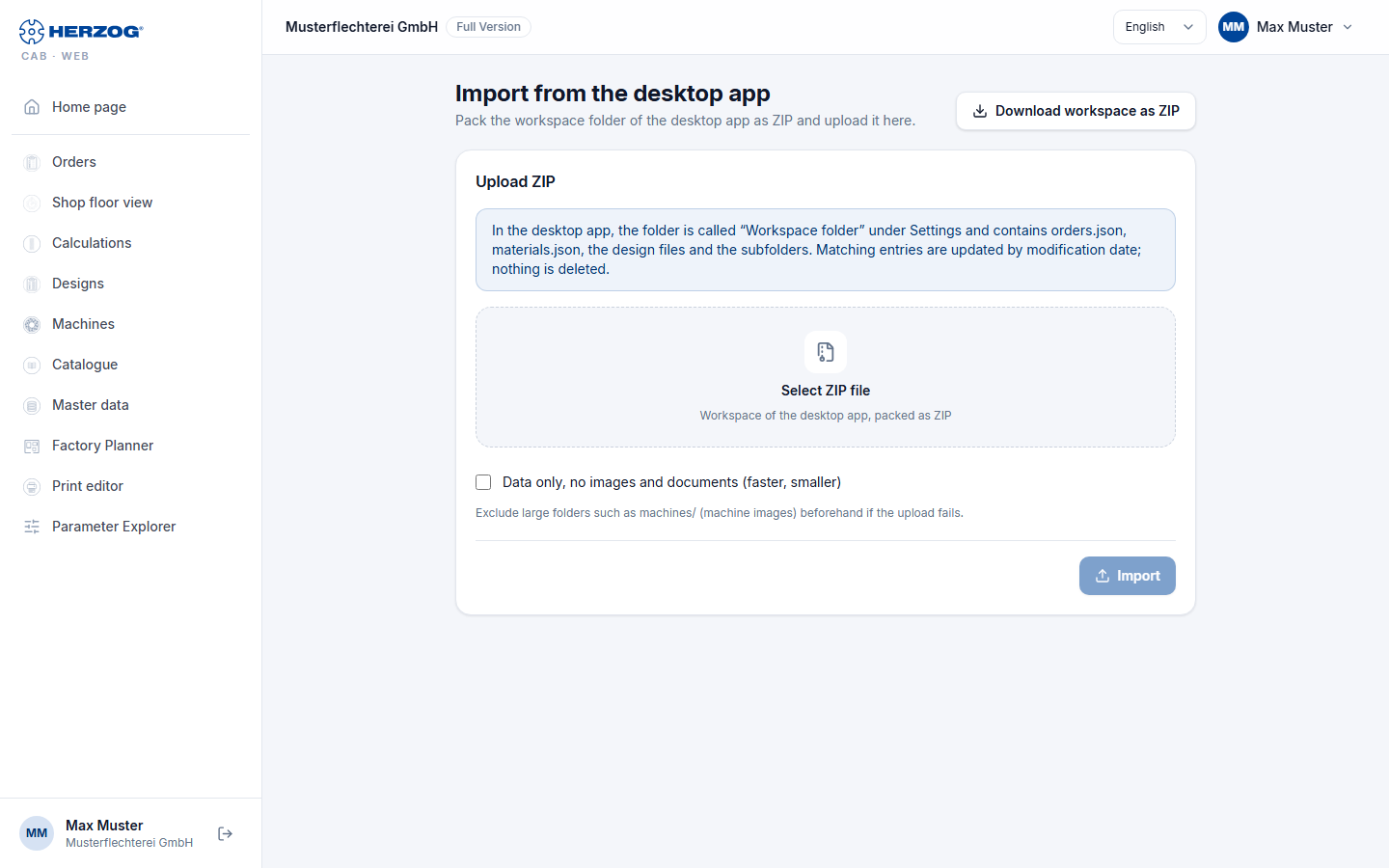
| Element | Meaning |
|---|---|
| Download workspace as ZIP | Exports the account's workspace as a ZIP in the file format of the desktop app. |
| Select ZIP file | The workspace folder of the desktop app, packed as a ZIP. |
| Data only, no images and documents (faster, smaller) | Skips images and documents in the ZIP. |
| Import | Starts the import (Import running …). |
| Result | Table per data type with Created, Updated, Unchanged, Files and, if applicable, Error. |
How to pack the workspace
- In the desktop app, open System administration > Storage location — it shows the path of the workspace folder (see Storage location).
- Pack this folder with Windows Explorer (Send to > Compressed
(zipped) folder) or an archiving program. Among other things, the folder contains
orders.json,materials.json, the design files and subfolders. - Upload the ZIP here.
Large folder?
The machines/ subfolder with machine images can become large.
If the upload fails, exclude it beforehand or check
Data only — images can be added later via the
media library.
What happens during the import
- Identical entries (same identifier) are updated by modification date — the newer one wins. Nothing is deleted.
- New entries are created, unchanged ones are skipped.
- Files (images, documents) are adopted into the media library; identical files only once.
- Users, roles and profiles of the desktop app do not belong to the workspace and are not imported — users come from the customer account.
- In the trial, the quantity limit also applies to the import.
The import can be repeated as often as you like, e.g. to bring in orders changed later.
Related pages
- Bringing data from the desktop into the web app — the workflow
- Licence and cloud (desktop app) — the automatic cloud upload
- Storage location (desktop app) — where the workspace folder is located
- Media library (web app)