Orders
Reference — Order Overview: search, filter, create and manage all braiding and winding orders.
What you use this area for
The order is the central work folder in Herzog CAB: it bundles customer, machine, material, bobbin, product, production values and design into one concrete customer order. The Orders navigation item opens the Order Overview — the list of all orders in the workspace. From here you create new orders, open existing ones in the matching editor, duplicate similar orders as a template and delete orders you no longer need.
Herzog CAB has two order types:
| Order type | Purpose | Editor |
|---|---|---|
| Braiding order | A product is manufactured on a braiding machine. | Braiding order editor |
| Winding order | Bobbins are wound in the winding department — often as the preparation step ("step 1") of a braiding order. | Winding order editor |
Both order types appear together in the overview and can be linked to each other: a braiding order can have any number of associated winding orders.
The screen at a glance
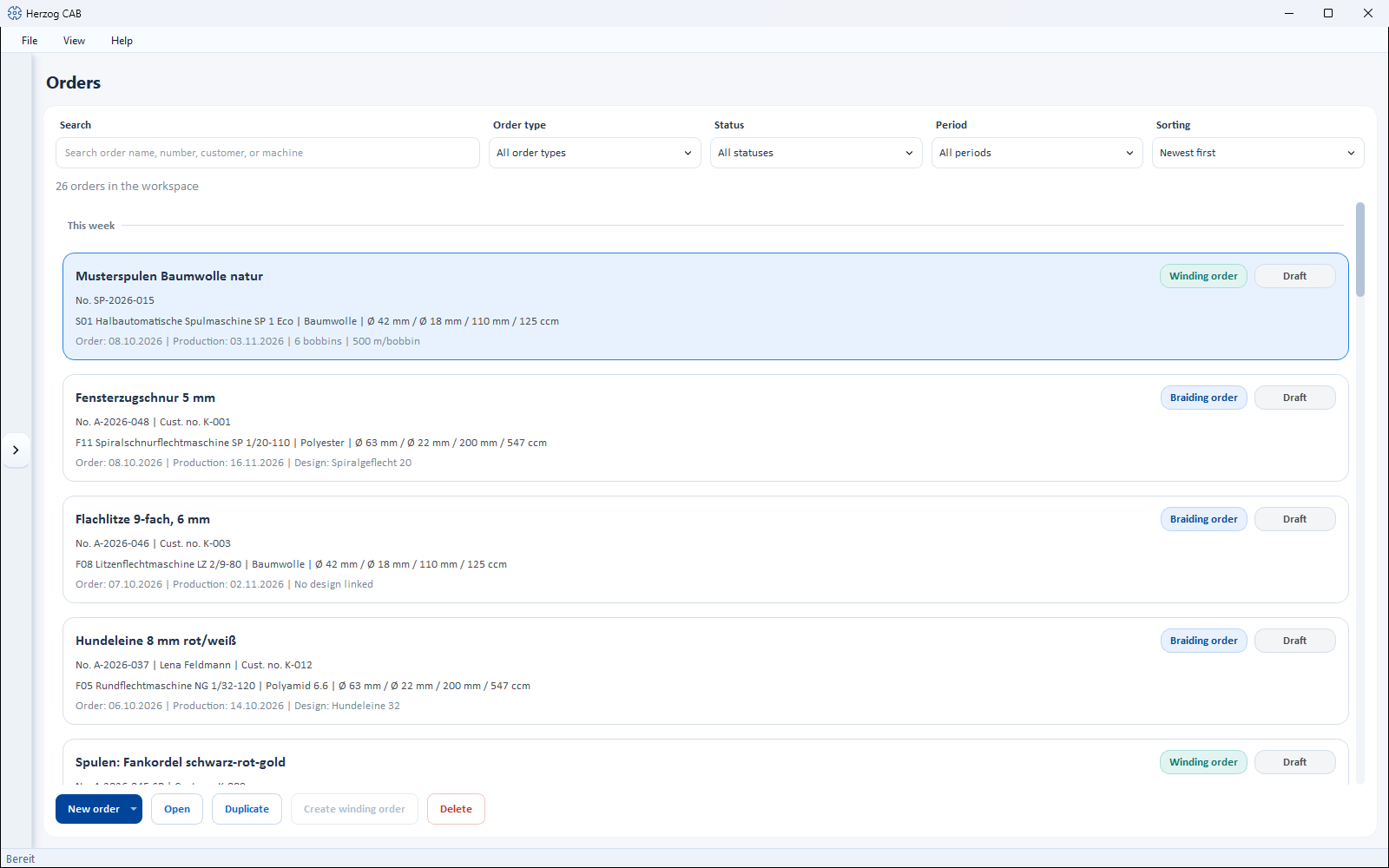
The screen is laid out from top to bottom:
- Search field and filters — search, order type, status, period, sorting
- Result line — how many orders are visible and which filters are active
- Order list — cards, grouped by time (e.g. Today, This week, June 2026)
- Action bar — New order, Open, Duplicate, Create winding order, Delete
Controls in detail
Search field
Free-text search across the visible order data: order name, order number, customer name, customer number, machine name as well as order type and status. The list filters immediately with every keystroke; upper and lower case do not matter.
"Order type" filter
| Selection | Effect |
|---|---|
| All order types | Braiding and winding orders together (default). |
| Braiding orders | Braiding orders only. |
| Winding orders | Winding orders only. |
"Status" filter
Shows only orders with the selected status: All statuses (default), Draft, Released, In production or Completed (for their meaning see Status of an order).
"Period" filter
Limits the list by time: All periods (default), Today, This week, Last week, This month or Last 30 days. The Order date is decisive; if it is missing, the production date or the modification or creation date of the order is used instead.
"Sorting" selection list
| Selection | Order |
|---|---|
| Newest first | By order date, descending (default). |
| Oldest first | By order date, ascending. |
| Production date | By production date, descending. |
| Order date | By order date, descending. |
Result line
Below the filters you see how many orders the workspace contains (e.g. 11 orders in the workspace). As soon as a filter or a search is active, the display changes to x of y orders visible and names the active filters. If the combination of search and filters finds no order, the list shows the note No matching orders found.
Order list (cards)
The orders appear as cards, grouped by period (Today, This week, Last week, then month and year, finally No date). Each card shows:
- Title — the order name; without a name, Order <number> or Untitled order instead.
- Order type chip — Braiding order (blue) or Winding order (petrol).
- Status chip — current status with a colored marker.
- Header line — order number, customer name and customer number.
- Machine line — machine, material and bobbin format (outer/core diameter, winding length, volume).
- Link line (only for linked orders, with ⛓ symbol) — for a winding order: Step 1 (winding) for braiding order: …; for a braiding order: n linked winding orders. If the linked braiding order has been deleted, this is also shown here.
- Footer — order date and production date; for braiding orders also the linked design (or No design linked), for winding orders the target values (n bobbins, … m/bobbin).
A click selects the card (the action bar always refers to the selected card). A Double-click opens the order directly in the matching editor — braiding orders in the braiding order editor, winding orders in the winding order editor.
"New order" button
Opens a submenu with two entries:
- New braiding order — opens the empty braiding order editor.
- New winding order — opens the empty winding order editor.
"Open" button
Opens the selected order in the matching editor (same effect as a double-click on the card). Only active when an order is selected.
"Duplicate" button
Creates a complete copy of the selected order — the name gets the suffix (copy) — and opens it immediately in the editor. This saves time when a new order closely resembles an existing one: you then only adjust the values that differ.
"Create winding order" button
Only active when a Braiding order is selected. Creates a linked winding order from the braiding order and opens it directly in the winding order editor. The customer, material, bobbin format, production date, the target values (target bobbin count, length per bobbin) and the color breakdown from the linked design are transferred. The new order is named Bobbins: <name of the braiding order>; the order number gets the suffix -SP.
"Delete" button
Removes the selected order after a confirmation prompt. If a braiding order has linked winding orders, the prompt explicitly points this out: the winding orders remain, but lose their link.
Deleting cannot be undone
A deleted order cannot be restored. If in doubt, it is enough to set the status to Completed.
Permissions
New order, Duplicate, Create winding order and Delete require the right to edit orders. If your role lacks it, the buttons are locked — see Roles and rights.
Status of an order
Every order has a status, which you set in the respective editor on the Order tab. It appears as a colored chip on the order card:
| Status | Meaning |
|---|---|
| Draft | Being edited, not yet released (default for new orders). |
| Released | Released for production. |
| In production | Currently being manufactured. |
| Completed | Finished. |
| Error | A problem occurred in production. Braiding orders only; cannot be selected in the "Status" filter. |
This is the usual path of an order through the statuses. The program does not enforce the sequence — you can select any status directly. Error exists only for braiding orders, not for winding orders:
stateDiagram-v2
  [*] --> Draft
  Draft --> Released
  Released --> In_production
  In_production --> Completed
  In_production --> Error
  Error --> In_production
  Completed --> [*]
  In_production: In production
  Error: Error (braiding order only)
The home page (Home) shows the number of orders per status; a click on one of these counters opens the Order Overview with the status filter already preselected. Opened orders also appear in the Recently opened card on the home page.
In this chapter
-
Braiding order
The braiding order editor with all tabs — from customer through machine, material and product to design and overview.
-
Winding order
The winding order editor: target values for the winding department, color breakdown, winding parameters and the link to the braiding order.
-
Print
Choose a print template, use the print preview and set up the QR code for the mobile order view at the machine.
Related pages
- From order to machine sheet — the complete workflow as a guide
- Planning bobbins for a braiding order — how braiding and winding orders work together
- Searching and filtering — the common operating concepts for lists
- Home — status tiles and upcoming productions
- Customers, Braiding machines, Materials, Bobbins — the master data that orders draw on