3D hall view
Reference — interactive three-dimensional view of the planned hall with machines, walls and status light spheres
What you use this area for
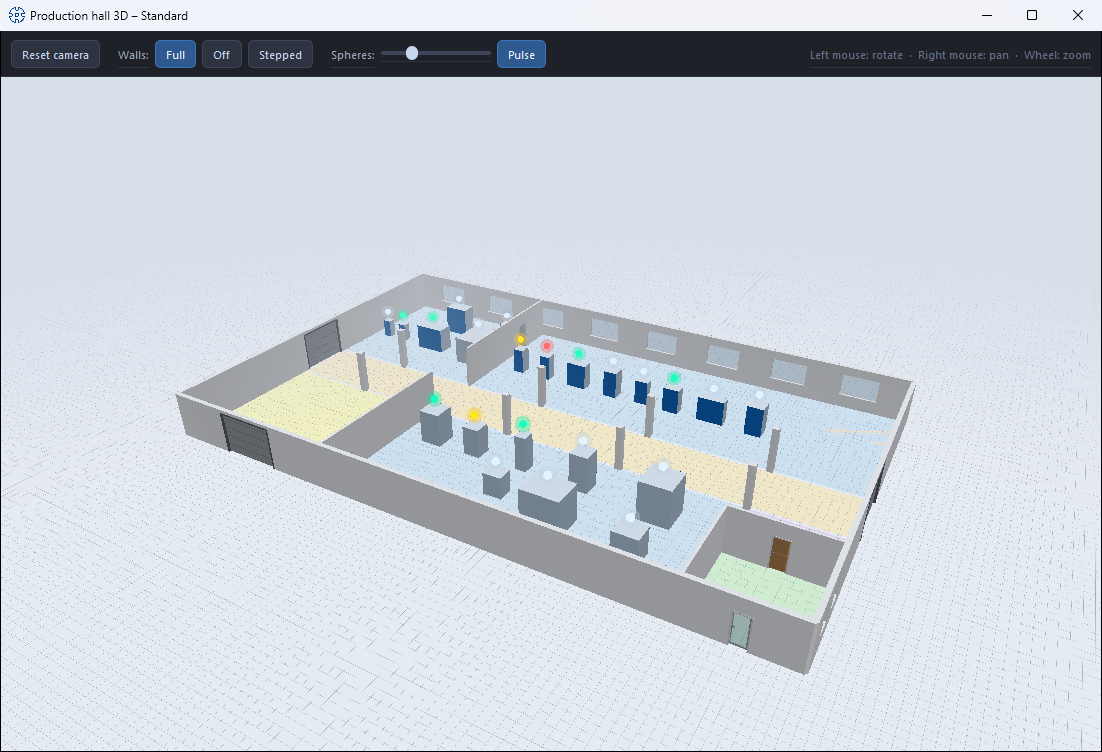
The 3D hall view shows the current hall layout as a walk-through three-dimensional model: floor, walls, areas, doors, gates, windows, stairs, banners and all placed machines. With it you check the spatial impression, routes and lines of sight — and at the same time see from the status light spheres which machines are currently producing or have an error.
Opening and closing
You open the view in the Factory Planner editor via the 3D view toggle (top right in the header toolbar). The hall appears in a separate window with the title Production hall 3D – "Layout name". The window stays open next to the editor and continuously applies changes to the layout. When you close the window, the view toggle in the editor switches back to 2D.
Mouse control
| Action | Operation |
|---|---|
| Rotate (orbit around the target point) | hold down the left mouse button and drag |
| Pan (move sideways) | hold down the right mouse button and drag |
| Zoom | mouse wheel |
The most important mouse functions are shown as a reminder on the right of the window's toolbar.
Controls in detail
Reset camera
Restores the default viewing angle — helpful if you have "lost your way" while navigating.
Walls: Full / Off / Stepped
Three buttons control the wall display:
- Full — all walls at full height (default).
- Off — walls hidden; clear view of the entire layout.
- Stepped — view-dependent: rear walls stay full, walls facing the viewer are lowered in steps — you look into the hall without losing the outer contour.
Spheres: size and pulse
- Size slider — scales the status light spheres above the machines (from subtle to visible from afar, 30 % to 300 % of the default size).
- Pulse — switches the pulsing of the spheres on or off.
Status light spheres
Above every machine for which Show status light is active in the editor, a glowing sphere floats in the status light color of the current order status:
| Color | Meaning |
|---|---|
| 🔴 Red | Error reported |
| 🟢 Green | In production |
| 🟡 Yellow | Orders waiting (released) |
| ⚪ Gray | No active orders |
The color logic is the same as in the Machine Fleet.
What is displayed
- Floor and areas — the functional areas drawn in the floor plan.
- Walls — with the Wall textures stored in the editor (inside/outside); without texture in a neutral display. Interior walls receive the inside texture on both sides.
- Elements — doors (depending on the door type with viewing window, as panel or glass door), gates, windows, stairs with their steps as well as banners with the stored image.
- Machines — as bodies in their master data dimensions (L × W × H). If view images are stored in the machine master data (front, back, side and top view), the side faces are displayed with them — so the machine is recognizable at a glance. Machines without maintained dimensions appear with the substitute size 2.0 × 1.0 × 1.5 m.
Make machines recognizable
In the braiding machine or bobbin winding machine master data, maintain the dimensions and the view images of the machine — both determine how realistic the hall looks in 3D.
Related pages
- Factory Planner editor — this is where geometry and machine placement are created; the wall textures are also stored there.
- Factory Planner overview — manage floor plans and assignments.
- Machine Fleet — the same status information as a fleet overview.