Home page (Home)
Reference — The personal dashboard at program start
What you use this area for
Home is the first page after signing in and your personal dashboard: at a glance you see the status of your orders, what is due in production, your favorites and what you opened last — calculations, orders and designs. Each user has their own Home; the content depends on the signed-in user, their permissions and the active workspace.
The screen at a glance
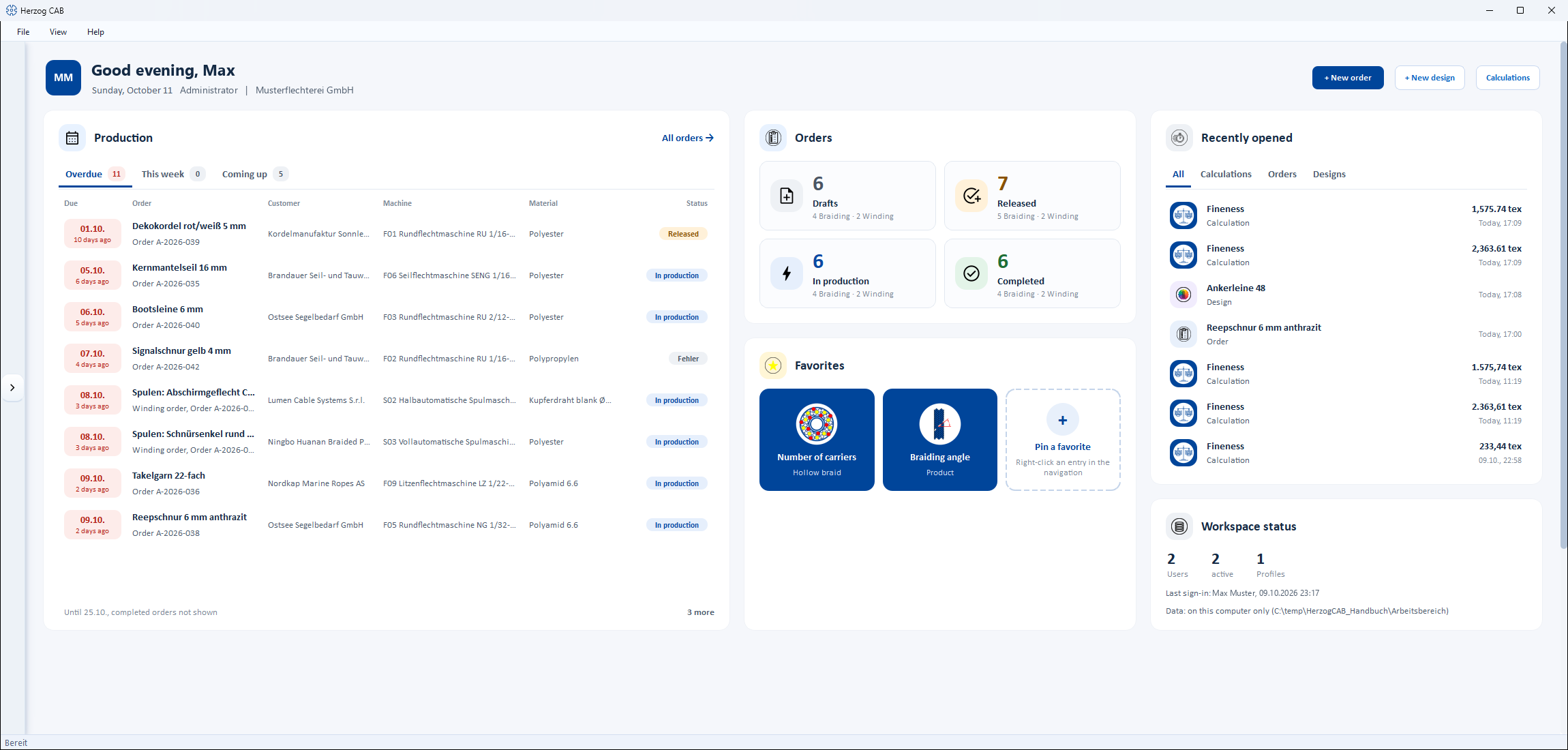
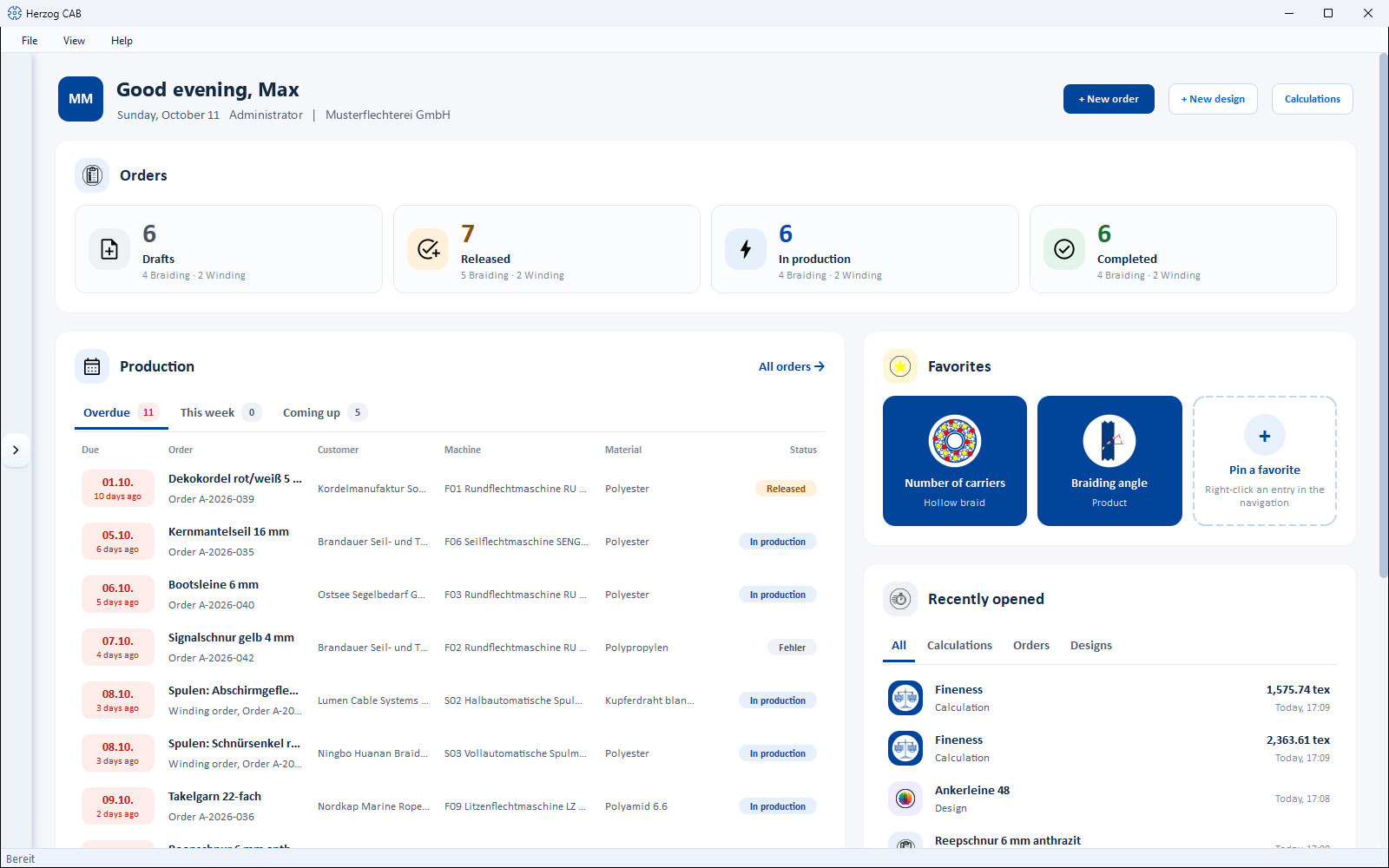
The home page uses the full window width and arranges its cards in one, two or three columns depending on the available space:
| Width of the content area | Arrangement |
|---|---|
| from approx. 2000 pixels | Three columns: on the left Production (widest column), in the middle Orders with the counters and Favorites below, on the right Recently opened and Workspace status below. |
| from approx. 1050 pixels | Two columns: Orders across the full width at the top, below it Production on the left, Favorites and Recently opened on the right; Workspace status at the bottom across the full width. |
| below that | One column: Orders, Production, Favorites, Recently opened, Workspace status one below the other. |
Above the cards are the greeting with the quick actions and — if necessary — the trial version card and notice banners. Without the permission to view orders (e.g. in Herzog CAB Designer), Orders and Production are omitted; the remaining cards move side by side. The page is rebuilt each time it is opened, so the figures are always up to date.
Controls in detail
Greeting and quick actions
At the very top, without a card of its own, are your profile picture (or your initials) and a greeting with your first name — depending on the time of day, "Good morning", "Good afternoon" or "Good evening". The line below shows today's date, your Role and the active Workspace. You change your profile picture and display name under My profile.
To the right are the quick actions. They only appear if your role has the corresponding permission; the first available button is highlighted in Herzog blue.
| Button | Function |
|---|---|
| + New order | Creates a new braiding order. |
| + New design | Opens the Designer with a new design. |
| Calculations | Opens the calculation overview. |
Trial version card (trial version only)
In the trial version, the Trial version card shows the remaining time ("X days remaining", color-graded) and four counters with the used quotas for Customers, Designs, Machines and Orders (e.g. "2 / 3"). If a quota is full, the counter turns red. Details under Trial version and quotas. This card does not appear in the full version.
Notice banners
- Update — appears when a new program version is available ("Version X is available."). The Details & installation button starts the update, see Installing updates.
- New — points to news, releases and the feedback page. Open calls up the Herzog CAB page; Don't show again hides the banner permanently.
"Orders" card (counters)
Visible to users with the permission to view orders.
| Element | Function |
|---|---|
| Counters Drafts, Released, In production, Completed | Show the number of orders in the workspace per status. Clicking a counter opens the order overview, already filtered to this status. |
| Breakdown "X Braiding · Y Winding" | Appears below the large number as soon as there is at least one winding order, and breaks the total down by order type. |
The four counters stand side by side as long as every label fits completely. If the card is too narrow for this — for example with the navigation expanded, a larger font or another language — they arrange themselves 2 × 2.
"Production" card
The card shows the orders that are not completed and have a production date, divided into three tabs, each with the number of orders:
| Tab | Content |
|---|---|
| Overdue | Orders whose production date has already passed. The number is red as soon as there are any. |
| This week | Due from today until Sunday. |
| Coming up | Due in the next 14 days. |
When opened, the card shows the tab selected last, otherwise the first one with entries. Orders without a production date and completed orders do not appear; the footer states the period ("Until <date>, completed orders not shown").
If the card is wide enough (from approx. 900 pixels), the orders appear as a Table with the columns:
| Column | Content |
|---|---|
| Due | Date and relative indication ("today", "tomorrow", "in 3 days", "yesterday", "2 days ago"); red for overdue orders, blue for orders due today. |
| Order | Order name or order number, for winding orders with the addition Winding order. |
| Customer | Customer of the order ("No customer" if none is selected). |
| Machine | Assigned machine ("no machine" if none is selected). |
| Material | Material of the order. |
| Status | Order status as a colored badge. |
In a narrower card, the orders are shown as compact rows (title, below it order type, customer and machine). At most eight orders appear per tab, followed by the hint "X more". All orders → at the top right opens the order overview; clicking a row opens the order in the braiding order or winding order editor.
If a tab is empty, it shows e.g. "Nothing overdue." or "Nothing is due this week."
"Favorites" card
Shows your pinned navigation entries as Herzog-blue Tiles with a large icon, and the name and area below (tooltip: "Area · Name"). As many tiles stand side by side as there is room for. A click opens the entry. At the end there is always a dashed Pin a favorite tile — it reminds you that you add entries by right-clicking in the navigation. How pinning works is described under Favorites.
"Recently opened" card
A combined list of the most recently opened Calculations, Orders and Designs, newest at the top. With the tabs All, Calculations, Orders and Designs you narrow down the list; the tabs only appear if your permissions allow more than one type. For each type, Herzog CAB remembers the last eight entries; All shows the eight newest.
| Element | Meaning |
|---|---|
| Icon | Each calculation shows its own icon from the calculation overview on a Herzog-blue background — so you recognize Braiding angle, Product weight etc. at a glance. Orders and designs each have their own icon. |
| Title and type | Name of the entry, below it Calculation, Order, Winding order or Design. |
| Result | Calculations only: the most important result value. |
| Time | "Today, 14:05" or the date. |
A click opens the calculation with the input values used at that time (see History), the order in the matching editor or the design in the Designer. Deleted orders and designs disappear from the list. If it is empty, it shows e.g. "Nothing opened yet."
"Workspace status" card (administrators only)
Users with at least one administration permission (users, roles, profiles or workspace or company) see this card with:
- three key figures Users, active and Profiles,
- Last sign-in — who signed in last, with date and time,
- the Storage location: whether the central data storage can be reached (for a network storage location) or "Storage: local on this machine". With a customer account, this shows where the data is located: "Data: on the network drive (…)" or "Data: on this computer only (…)". If the central storage can not be reached, the message appears in red — then check the connection, see Storage location.
What has changed compared to version 2.1.0
Up to 2.1.0, the home page was at most 1500 pixels wide and centered. Instead of the greeting tile "Welcome back", the list Upcoming productions (next 14 days) and the three columns Recent calculations, Recent orders and Recent designs, there is now the greeting line with quick actions, the Production card with tabs and the combined Recently opened list.
Notice dialog “Stay informed”
From time to time, Herzog CAB shows the Stay informed dialog after start-up, with a link to the GitHub page of Herzog CAB (news, downloads, feedback). You can simply close it — it has no effect on your data or settings.