Machine Fleet
Reference — Operational overview of all braiding and bobbin winding machines with traffic-light status and assigned orders
What you use this area for
The Machine Fleet is the fleet overview of your production: it shows all created braiding machines and bobbin winding machines at a glance — with image, type, location and a status traffic light that results from the current orders. Typical questions you answer here: Which machine reports an error? Where is production currently running? Which orders are assigned to this machine?
The display updates automatically as soon as machine or order data changes — you do not have to reload the page.
Creating machines
You do not create new machines here, but in the master data under Braiding machines, Bobbin winding machines, Take-up units, Pay-off units or Creels — or directly from the Herzog catalogue (Catalogue navigation item directly below the Machine Fleet). The Machine Fleet then displays them clearly.
The screen at a glance
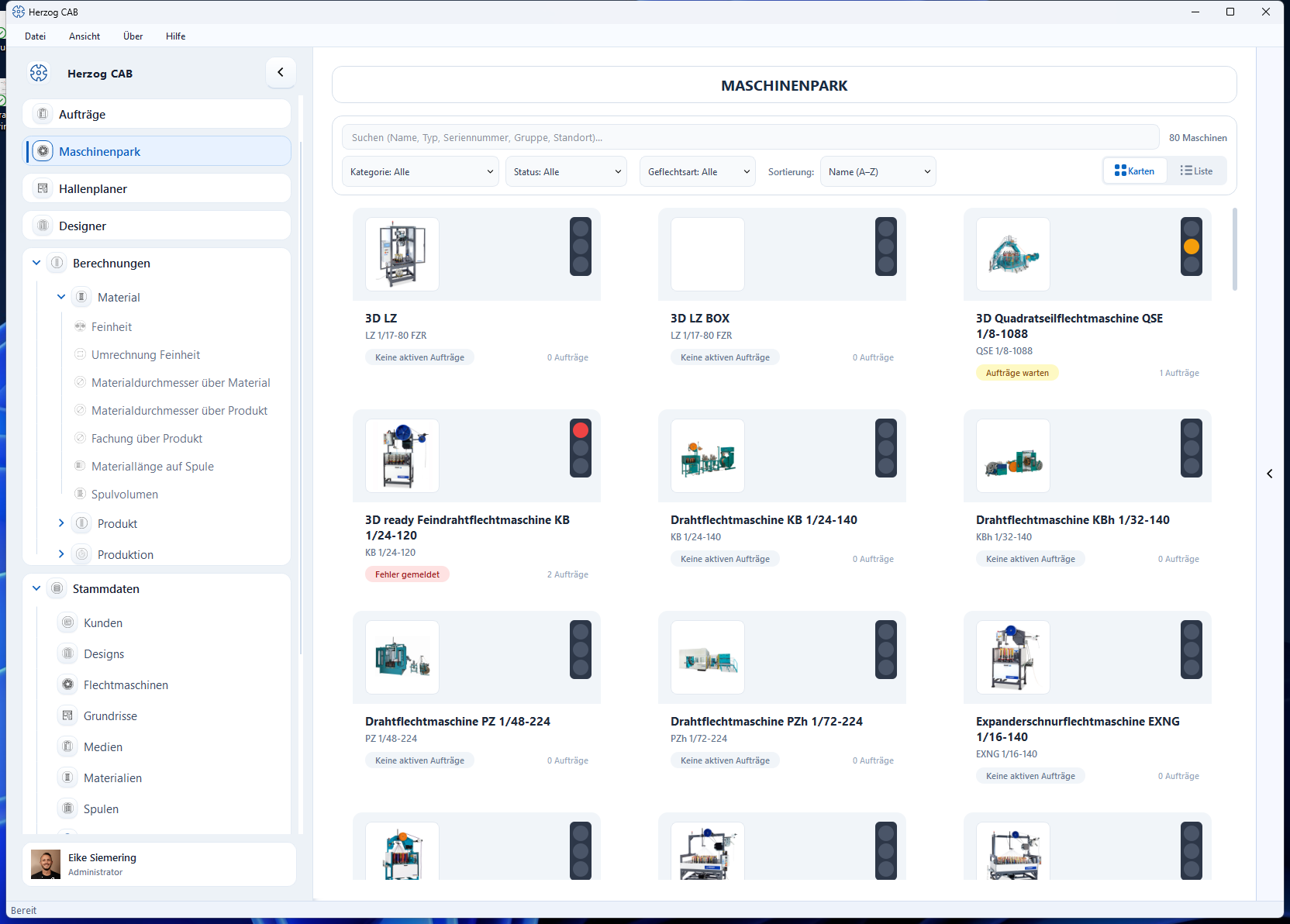
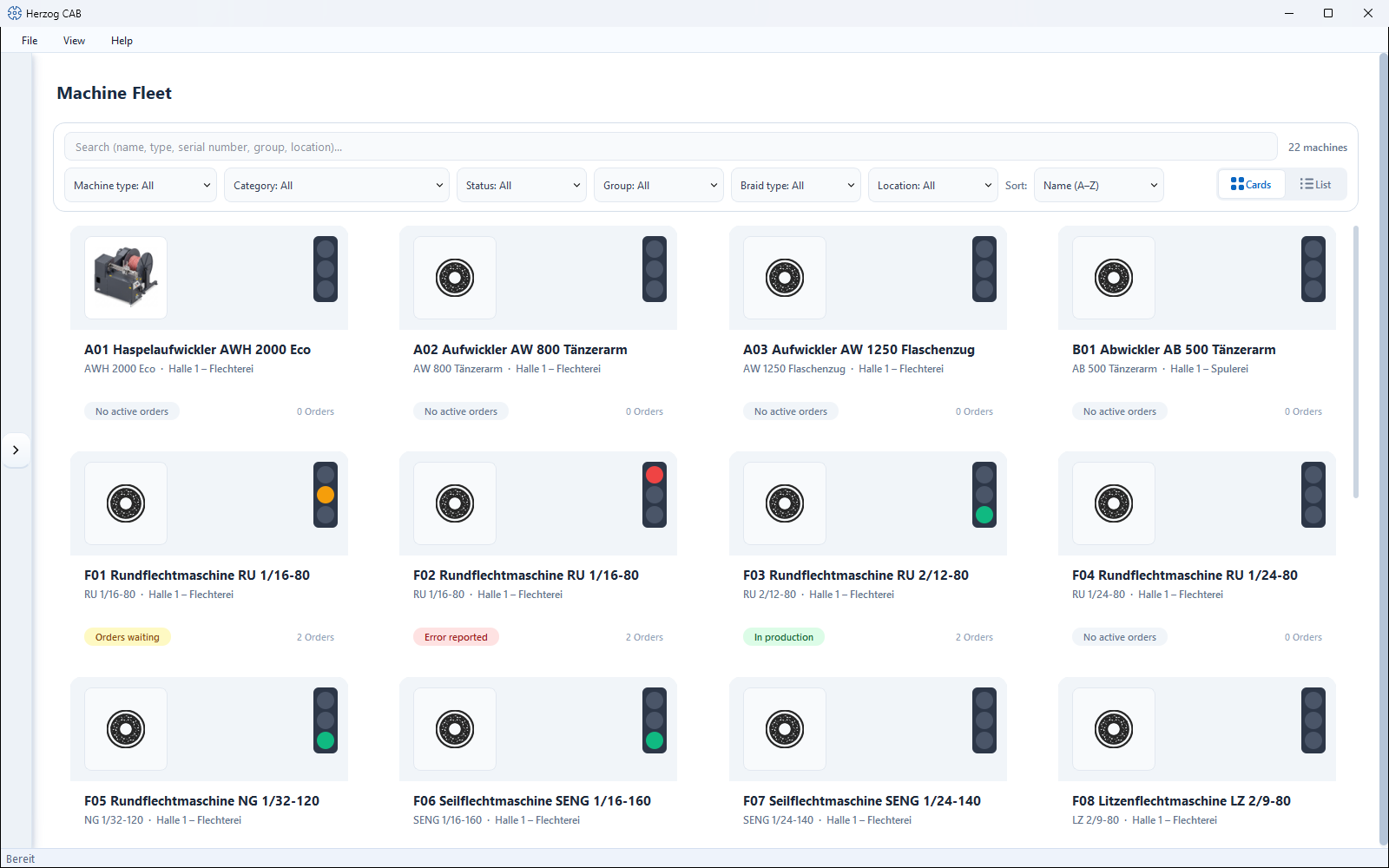
The screen consists of three areas:
- Toolbar (top) — search field, hit counter, filters, sorting and the switch between card and list view.
- Machine overview (center) — all machines as a card grid or table.
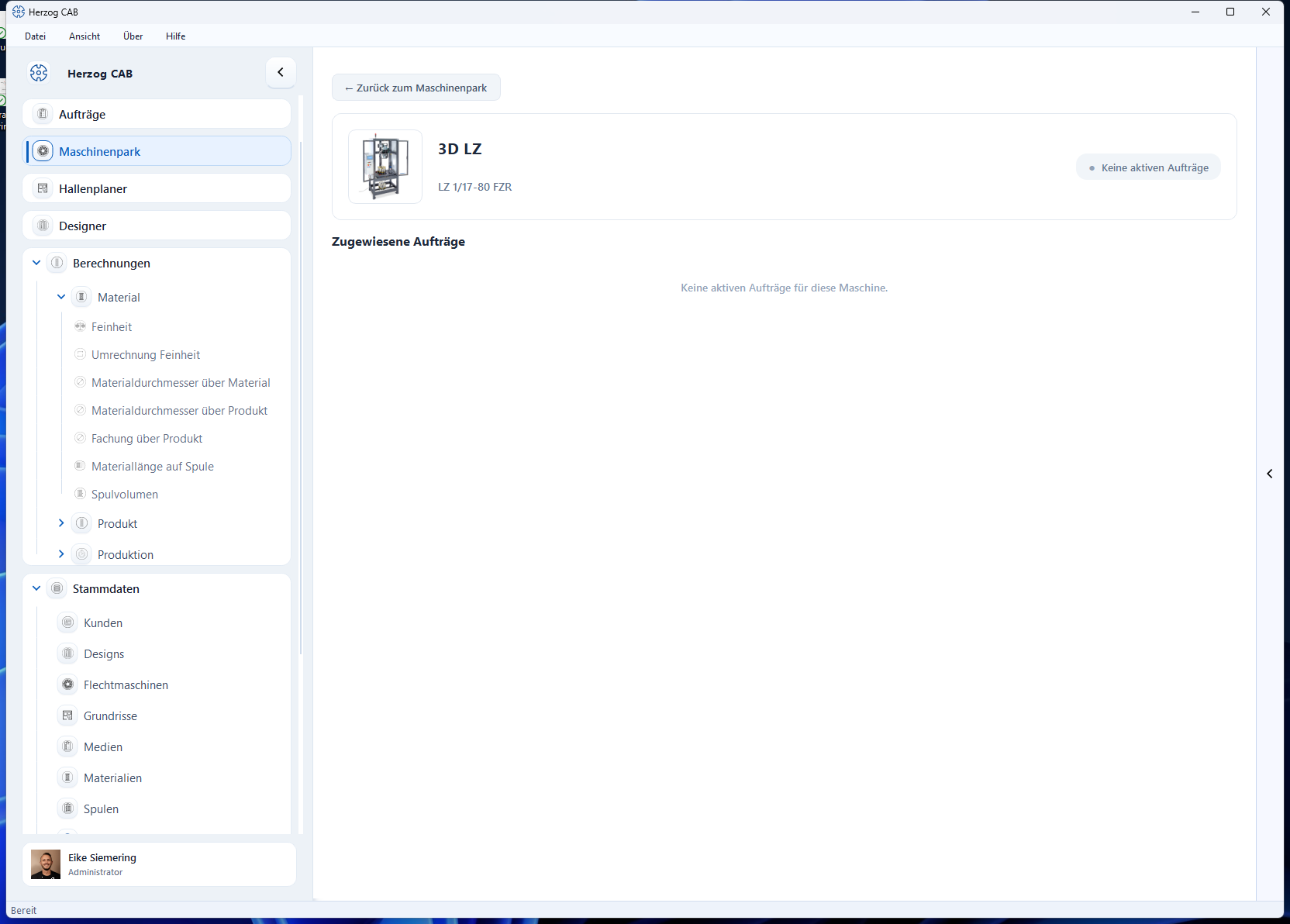
- Detail view — opens when you click a machine and shows its assigned orders.
Controls in detail
Search field and hit counter
The search field searches the name, type, serial number, group and location of the machines; the overview filters as you type. To the right, the hit counter shows how many machines are currently visible (e.g. 12 of 80 machines).
Filter row
All filters can be combined freely and take effect immediately:
| Filter | Selection | Note |
|---|---|---|
| Machine type | All · Braiding machines · Bobbin winding machines · Take-up units · Pay-off units · Creels | Always visible. Take-up units, pay-off units and creels from version 2.1.0. |
| Category | Series/categories of the existing machines | The entries result from your machine inventory. |
| Status | All · Error reported · In production · Orders waiting · No active orders | Filters by the status traffic light (see below). |
| Group | Your machine groups | Only visible if a group is assigned to at least one machine. |
| Braid type | Round braid · Flat braid | Only visible if braid types are maintained. |
| Location | Your locations | Only visible if locations are maintained. |
Sorting
The Sorting selection list orders the overview:
- Name (A–Z) — alphabetical (default).
- Status (errors first) — order error → waiting orders → in production → without active orders.
- Machine type — by type designation.
- Location — by location; machines without a location are at the end.
Cards / List view switch
On the right of the toolbar you switch between two displays:
- Cards — a grid of machine cards. Each card shows the machine image, a status traffic light (top right), the machine name, type and location, a colored status badge and the number of active orders. The number of columns adapts to the window width.
- List — a compact table with the columns preview image, Machine (name and type), Location, Status, Orders and a colored status dot.
In both views, a click on a machine opens its detail view.
The status traffic light
The status of each machine is derived automatically from its assigned orders:
| Traffic light | Status badge | Meaning |
|---|---|---|
| 🔴 Red | Error reported | At least one order for this machine has the status Error. |
| 🟢 Green | In production | At least one order is in production (and no error reported). |
| 🟡 Yellow | Orders waiting | There are released orders, but none is running. |
| ⚪ Gray | No active orders | No active order is assigned to the machine. |
A reported error always takes priority: the traffic light shows red, even if other orders are running at the same time. The order counter next to the badge counts the active orders (in production, released or with an error).
This is how the program checks the order statuses of a machine to determine the traffic light color:
flowchart TD
  A[Orders of the machine] --> F{An order<br>on Error?}
  F -- yes --> R[Red: Error reported]
  F -- no --> P{An order<br>In production?}
  P -- yes --> G[Green: In production]
  P -- no --> W{An order<br>Released?}
  W -- yes --> Y[Yellow: Orders waiting]
  W -- no --> N[Gray: No active orders]
Detail view of a machine
Click a card or row to open the detail view:
- ← Back to Machine Fleet — returns to the overview.
- Header area — machine image, name, type designation, plus (if maintained) serial number, group and location, and on the right the status display as a colored pill.
- Assigned Orders — list of all active orders for this machine. Each entry shows the status badge of the order, the order name (or the order number), order number and customer as well as the production date. Completed orders or orders not yet released do not appear here — you find them in the Order Overview.
If the machine has no active orders, the view shows the note No active orders for this machine.
Related pages
- Braiding machines, Bobbin winding machines, Take-up units, Pay-off units and Creels — create and maintain machines (master data).
- Herzog catalogue — create Herzog machines as your own machine.
- Orders — this is where the orders are created from which the traffic light is derived.
- Factory Planner — arrange machines to scale on the hall floor plan.
- Searching and filtering — general operating concepts for lists and filters.