My profile
Reference — The “My profile” dialog: changing your profile picture, display name, email and password yourself, viewing account information, signing out.
What you use this area for
Every signed-in user can maintain their own account without an administrator: profile picture, display name, email address and password. For users from the customer account, you change name, email and password in the licence portal; the profile picture remains here. You also sign out here. Changes to other users' accounts, on the other hand, are handled by the user management (the Manage users permission is required).
Opening the dialog
At the bottom left of the navigation bar, click your user card (profile picture + name). When the navigation is collapsed, the compact button with your initials in the same place does this. The My profile dialog opens with three tabs.
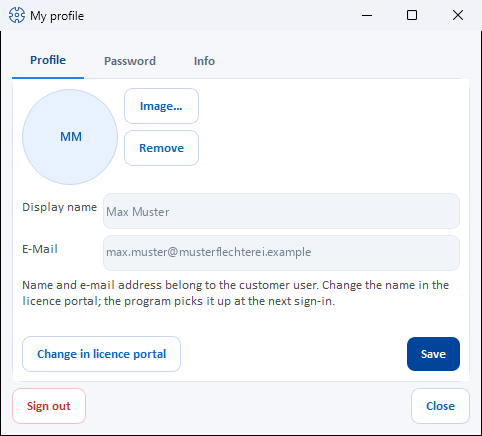
"Profile" tab
| Element | Description |
|---|---|
| Profile picture | Round picture at the top left. Without a picture of your own, it shows your initials — the first letters of the first two parts of your name, as in the navigation ("Max Muster" becomes "MM"). |
| Image... | Selects a profile picture (photo/avatar) from an image file. |
| Remove | Deletes the current profile picture. |
| Display name | Name that appears in the interface and on printouts. Read-only for account users (see below). |
| Contact address. Read-only for account users (see below). | |
| Change in licence portal | Account users only: opens the licence portal page with password, second factor and name in the browser. |
| Save | Stores the changes; the status bar reports "Profile saved." |
Account users: name and email come from the customer account
If you sign in with your user from the customer account, Herzog CAB takes over the display name and email address from the account at every sign-in. That is why both fields are read-only here; below them is the note "Name and e-mail address belong to the customer user. Change the name in the licence portal; the program picks it up at the next sign-in."
How to change your name:
- Click Change in licence portal. The browser opens the licence portal page Password, second factor and name with the card for the name.
- Enter the new name there and save.
- Herzog CAB takes it over at the next sign-in (or at the next synchronization with the customer account).
An administrator changes the name of other users in the licence portal under Inviting and managing users. The email address is the login name in the account. The profile picture can still be changed here in the program for account users as well.
Recognition on shared computers
Especially at workstations shared by several operators, a profile picture helps you see at a glance who is currently signed in.
The profile picture applies everywhere
The profile picture is stored together with the central user data (see Storage location), not in the workspace — so you have the same picture in every profile.
"Password" tab
| Element | Description |
|---|---|
| Current password | To confirm that it is really you. |
| New password / Confirm new password | Both entries must match, otherwise "The new passwords don't match." appears. |
| Change | Carries out the change; on success: "Password changed successfully." |
Account users: the password belongs to the customer account
If you sign in with your user from the customer account, the fields of this tab are locked and a note explains: "Your password belongs to the customer user and also applies to the licence portal and Herzog CAB Web. Change it in the licence portal (Settings → Licence → Open licence portal)." — see Password, second factor and name.
Microsoft and domain accounts
If you sign in with Microsoft or via the company directory, your company manages the password there — not in Herzog CAB.
"Info" tab
Display only, cannot be changed:
| Item | Description |
|---|---|
| Login | Your login name. |
| Role(s) | Your roles in the current profile; global administrators additionally see Administrator (system). |
| Company | The stored company data. |
| Workspace | The workspace folder of the active profile. |
Signing out and closing
- Sign out signs you out of the program after a confirmation prompt ("Sign out?") — the sign-in window appears again.
- Close closes the dialog; you remain signed in.
Related pages
- Signing in and out
- Users — managing other users' accounts
- Storage location — where user data and profile pictures are stored