Printing an order
Reference — Print output of an order: choose a print template, use the print preview and use the QR code for the mobile order view.
What you use this area for
The printout takes the order to the shop floor: as a production accompanying sheet ("machine sheet") at the braiding machine or as a worksheet for the winding department. You print directly from the braiding order editor or the winding order editor via the Print button (top right).
The printing workflow
flowchart LR
  A[Print in the editor] --> B{Several matching<br>templates?}
  B -->|yes| C[Choose print template]
  B -->|no| D[Print preview]
  C --> D
  D --> E[Printer or PDF]
Choose print template
If there are several matching print templates, the Choose print template dialog appears first with a selection list. Herzog CAB only shows templates that suit the situation and preselects the matching standard template:
| Situation | Preselected standard template |
|---|---|
| Braiding order with design up to 48 carriers | Standard order template (order data + one design page). |
| Braiding order with design from 49 carriers | Large order template (order data + two-page design view with large overview). |
| Winding order | Standard winding order template (including target values and color breakdown). |
Your own templates from the print template editor always appear in the list in addition. If there is only one matching template, the dialog is skipped and the print preview opens directly.
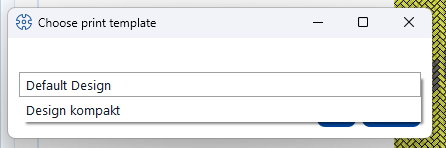
No templates available
If there are no print templates at all, Herzog CAB offers to use the simple default print.
Print preview
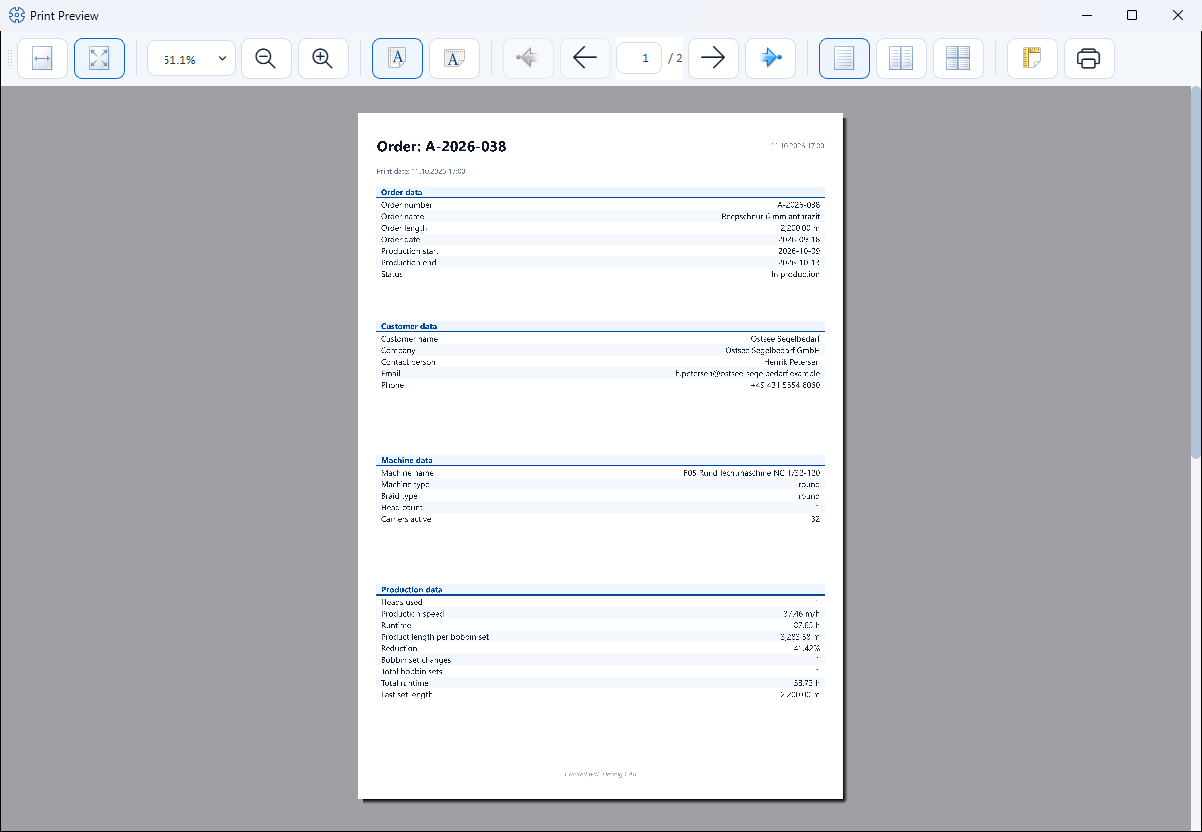
In the preview you see the finished printout page by page. Using the toolbar you can
- page through the pages,
- adjust the zoom level and choose the page view (single, side by side, overview),
- set up the paper format
- and start printing via the printer icon — there you can also choose a PDF printer to output the order as a PDF file.
The standard printout of a braiding order contains Order data, Customer data, Machine data and Production data as well as — with a linked design — the design page with preview and carrier table. The color designations follow the Display setting (color name, identifier, hex value or Pantone) from the Design tab.
Your own print templates
You define the appearance and content of the printout via Print templates: there you design, for example, a production accompanying sheet, material list or labels with logo, tables and placeholders and define paper format and orientation.
→ See Print templates.
QR code for the machine
Herzog CAB comes with a built-in web server through which order and machine data can be retrieved on a smartphone or tablet — ideal directly at the braiding machine. Access is established via a QR code: once scanned with the phone camera, the mobile view opens in the browser.
This is how it works:
- The web server is activated in the Settings > Web server and QR code and given a Password. The QR code is also shown there.
- The operator scans the QR code with the smartphone and logs in with the web server password.
- The mobile view opens with machine and order information (setup, loading, documents, machine data).
Prerequisite: web server active
The mobile view only works if the web server is running, a web server password is set and the smartphone and PC are in the same network. Without a password, the web interface can only be reached on the computer itself. Activation, IP selection and password are described under Web server and QR code.
QR code on paper
Add the QR code to a print template so that every printed production accompanying sheet leads directly to the mobile order view.
Related pages
- Braiding order editor and winding order editor — this is where you start printing
- Print templates — create and design templates
- Preview and print — print output from the templates' point of view
- Web server and QR code — set up the mobile order view
- Printing problems — when the printout does not work