Sign in and select account
Reference — The sign-in page of the web app: email address, password, code from the authenticator app, account selection and signing out
What you use this area for
Before you can start, the web app requires you to sign in with your user from the customer account — the same credentials as in the licence portal and in the desktop app. By signing in you occupy one seat of your subscription. It becomes free again when you sign out or after 15 minutes without activity. If you are working in the program at the same time, you occupy two seats.
The screen at a glance
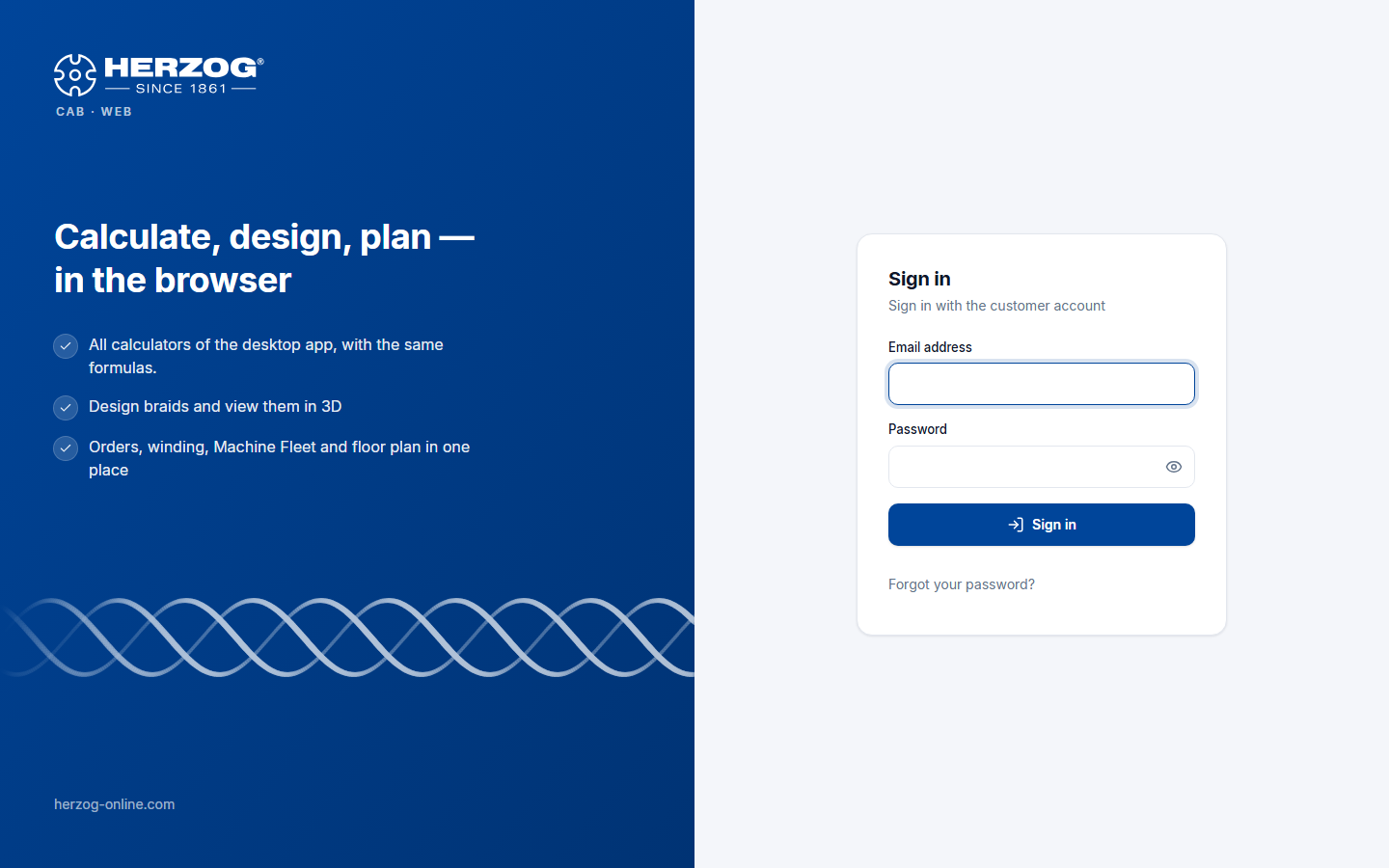
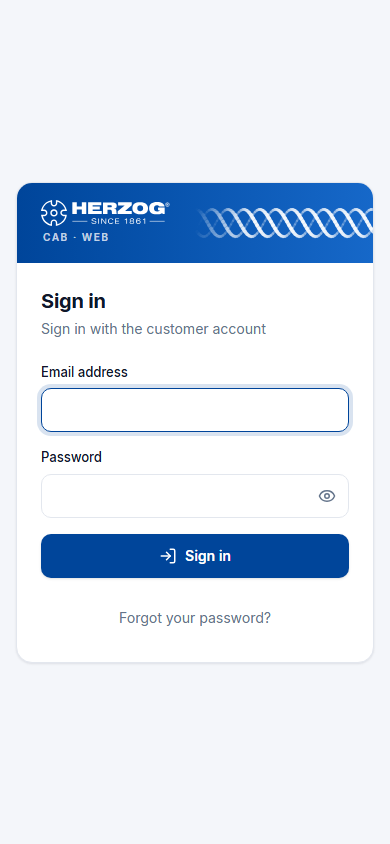
What the page looks like depends on the width of the browser window:
- Wide windows (from about 1024 px, i.e. laptop and monitor): On the left there is a brand area in Herzog blue with the sentence Calculate, design, plan — in the browser, three bullet points about the web app and a running braid of three threads. On the right is the Sign in card with the subtitle Sign in with the customer account.
- Narrow windows (tablet in portrait, smartphone): The brand area is omitted. Instead, the card has a blue header band at the top with the Herzog logo and the braid.
The braid is purely decorative. While the web app checks your sign-in, it runs faster. If Reduce motion is set in your operating system, it stands still.
Controls in detail
| Element | Meaning |
|---|---|
| Email address | Your sign-in name in the customer account. |
| Password | Your account password. The eye icon on the right of the field shows the password in plain text (Show password) or hides it again (Hide password). |
| Sign in | Checks the email address and password; meanwhile a loading icon spins in the button. The home page then opens. If the second factor is set up for your user, the code comes first (see below). |
| Forgot your password? | Opens the Forgot your password page of the licence portal in a new tab. There you request a link for setting a new password. If you have already entered your email address, it is prefilled there. |
| Try for free | Leads to the registration for the trial (only visible if self-registration is enabled). |
Code from the authenticator app
With the second factor set up, the card switches after Sign in to Confirm with the note Please enter the code from the authenticator app. The Code is entered in six boxes, one per digit:
- Type in the six digits. The box for the next digit has a blue border. The web app only accepts digits.
- You can also paste the code. On a smartphone the keyboard often already suggests the code; tapping it fills all boxes.
- As soon as the sixth digit is entered, the web app checks the code by itself. You then do not need the Confirm button; it can only be used with six digits.
- If the code is not correct, the card shakes briefly, the boxes turn red and empty, and The code is not correct. appears. As soon as you start typing again, the red disappears. The app shows a new code every 30 seconds. If in doubt, use the next one.
Messages
With every error the card shakes briefly, and the message appears in a red box above the button.
| Message | Meaning |
|---|---|
| E-mail address or password is not correct. | Check your credentials; reset the password via Forgot your password?. The same message appears if an administrator has deactivated your user in the licence portal. |
| The code is not correct. | The code from the authenticator app was wrong or had already expired. Enter the current code. |
| All seats of this account are currently taken. Taken: n of m seats. | All seats of the account are currently taken, in the program or in the browser. Wait until a colleague closes Herzog CAB, signs out or has been inactive for 15 minutes. Or an administrator orders more seats. |
| Please confirm your email address first. … | Only after a self-registration: the link from the confirmation email has not been opened yet. Send confirmation e-mail again sends the email once more. |
| Too many failed attempts. Please try again in n minutes. | The licence server slows down after several failed attempts. Wait for the stated time. |
Select account
As a user of a customer account, you go straight to your account after signing in; there is no selection for you.
Herzog employees
Herzog employees work in an internal account. If they belong to several internal accounts, the page Select account appears after signing in with a list of the accounts (company, customer number) and a search field; switching later is done in the user menu via the Account selection. Customer accounts cannot be selected by them — for customer data the customer creates a user themselves.
No access to the web app
If your account has no subscription with the web app or the trial has expired, the web app shows the page No access to the web app after signing in with the note "Herzog CAB Web is not enabled for account <company>, or the trial has expired." From there you go to Subscription and orders or sign out. Your data is kept.
Signing out
- Via the Sign out icon at the bottom of the sidebar next to your name, or
- via Sign out in the user menu of the header.
When you sign out, your seat becomes free immediately. Without signing out, the session ends by itself after a longer period of inactivity.
Related pages
- Customer account and invitation — accepting the invitation, setting a password
- Password, second factor and name
- Trial and registration
- Login problems