Setup and track animation
Reference — the Setup overview: horngears and tracks of the braiding machine seen from above, with animation and speed control.
What you use this area for
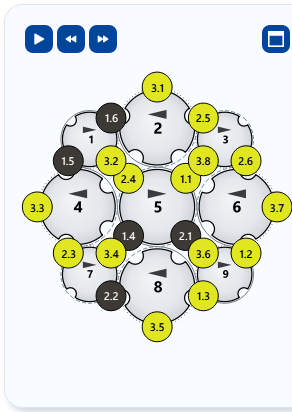
The Setup overview at the bottom of the left panel shows the braiding machine schematically from above: the horngears with their slots and the carriers sitting in them in their current colors. This shows you what your color assignment looks like on the real machine. With the Track animation you set the picture in motion: the horngears rotate, the carriers travel along their tracks — and the braid pattern builds up in sync, layer by layer.
The screen at a glance
Controls in detail
The Setup overview per braid type
The arrangement of the horngears follows the selected braid type:
| Braid type | Display |
|---|---|
| Round braid | Horngears in a closed ring around the braiding circle. |
| Flat braid | Horngears in an open row — the carriers reverse at the two larger end gears. |
| Square braid | 4 horngears in a 2×2 block, 4 slots each, two tracks. |
| Spiral braid | 4 small horngears rolling inside a fixed outer ring; all rotate in the same direction. |
| Packing braid | Horngears in a grid: 3×3 (12 carriers, 3 tracks) or 4×4 (36 carriers, 4 tracks). |
| Soutache braid | Exactly 2 horngears with a figure-eight track. |
Each occupied slot carries a dot in the color of the associated carrier. If a carrier has plying colors, its dot is divided into circle segments per yarn. If you recolor in the braid pattern or in the carrier table, the overview updates immediately.
Zooming and panning in the overview
The overview has its own view control, independent of the zoom of the braid pattern:
| Action | Operation |
|---|---|
| Zoom | Mouse wheel — zooming happens at the mouse position. |
| Pan | Hold down the right mouse button and drag. |
| Fit view | Double-click with the left mouse button. |
Buttons of the overview
At the top left of the overview are the animation buttons, from left to right:
| Button | Tooltip | Effect |
|---|---|---|
| ⏮ | Reset machine and braid build-up to the start | Resets machine and build-up to the start, see below. |
| ▶ / ⏸ | Animate tracks: horngears rotate, carriers travel along their track | Starts or pauses the animation. |
| ⏪ | Slow down animation | Halves the speed. |
| ⏩ | Speed up animation | Doubles the speed. |
The button at the top right (Show machine overview enlarged) opens the overview in a large Machine overview window.
Track animation (Play/Pause)
- Play starts the animation: the horngears rotate in opposite directions, the carriers ride along in their slots and change to the neighboring horngear at the transfer points. Each braid type has its own motion logic — from the circulating ring of the round braid through the reciprocating track of the flat braid to the intertwined tracks of square and packing braid, the figure-eight track of the soutache and the rolling gears of the spiral.
- Clicking again (Pause) stops the animation; the current state remains. Another click continues it.
- If you change parameters or the color assignment, the animation is reset and the complete braid pattern is displayed again.
When the animation is available
The animation is available for all six braid types. For some very small configurations (e.g. round braid with very few carriers), no collision-free animation is possible — the animation buttons are then not offered.
Reset to the start (⏮)
The ⏮ button to the left of Play sets the carriers back to their start position and clears the layer-by-layer build-up in the braid pattern and in the 3D view:
- If the animation is running, the braid immediately builds up again from the start.
- If the animation is stopped, the start remains until you press Play.
The carrier labels stay with their carriers.
Speed (0.25× to 16×)
To the right of the Play button there are two speed buttons:
- Slow down animation — halves the speed (down to a minimum of 0.25×).
- Speed up animation — doubles the speed (up to a maximum of 16×).
At a low speed you can follow the transfers of the carriers between the horngears; at a high speed you build up the complete braid pattern quickly. You set the start speed under Settings > Design; the speed buttons write the last used value back there.
Synchronous layer-by-layer build-up of the braid pattern
While the animation is running, the braid pattern in the preview builds up in sync, layer by layer: with each animation step, the next layer of stitches appears. This makes visible in which order the threads are actually crossed and how the pattern is created.
- Once the picture is complete, it stays complete — the animation of the horngears continues.
- When you pause, the current build-up state remains visible.
- With ⏮ the build-up starts again from the beginning.
- When it is reset (e.g. by a parameter change), the complete braid pattern appears again immediately.
In the 3D view the braid grows in sync in the same way.
Related pages
- Coloring and twist — the colors that are animated here
- Braid type and parameters — define the horngear arrangement and number of carriers
- 3D view — view the finished pattern on the round braid