Design: Designer defaults and legacy design import
Reference — “Design” tab of the Settings dialog: initial values for new designs, view, animation and saving in the Designer as well as the import of design files from old Herzog CAB versions.
What you use this area for
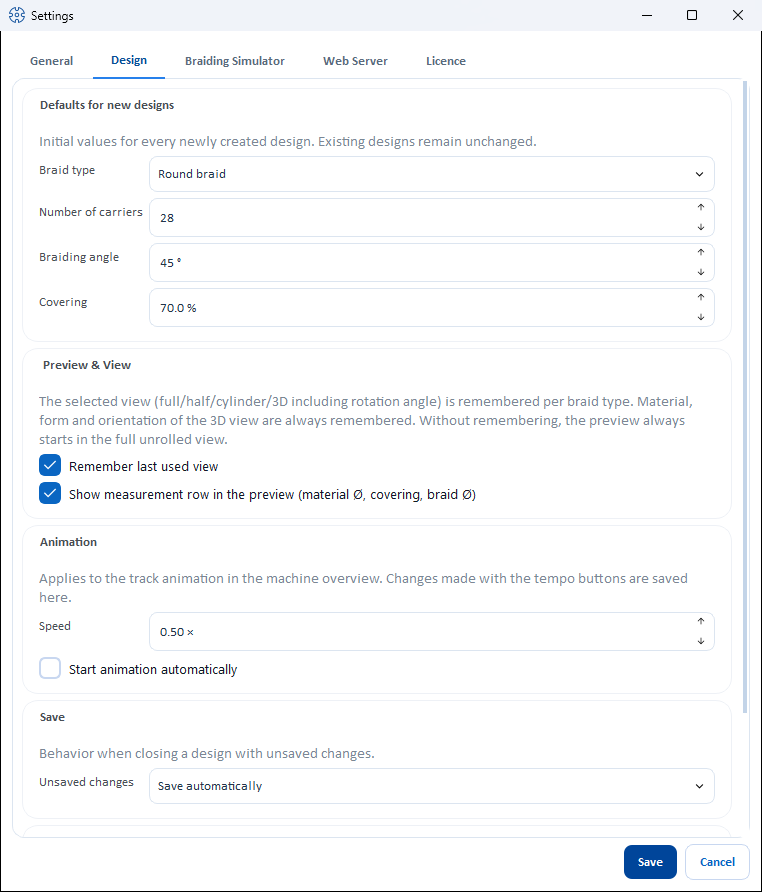
The Design tab (File > Settings) bundles everything that controls the behavior of the Designer program-wide — with which values a new design starts, whether the Designer remembers the last view, how fast the track animation runs and what happens when an unsaved design is closed. At the very bottom is the Legacy design import card for legacy data.
Controls in detail
Defaults for new designs
Initial values for every newly created design (New in the Designer). Existing designs remain unchanged.
| Setting | Meaning | Values / default |
|---|---|---|
| Braid type | Braid type with which a new design starts. | Round braid (default), Flat braid, Square braid, Spiral braid, Packing braid, Soutache braid |
| Number of carriers | Number of carriers of the new design. The permitted values depend on the selected braid type — while you type, the field jumps to the next permitted number. | Default 16 |
| Braiding angle | Initial braiding angle, in the configured reference of the braiding angle. | 20–80 ° to the cross direction (displayed as 10–70 ° to the braid axis), default 45 ° |
| Covering | Initial covering. | 0–100 %, default 70 % |
Preview & View
| Setting | Effect |
|---|---|
| Remember last used view | If the option is enabled (default), the Designer remembers the last selected view per braid type (full, half, cylinder/square including rotation angle, or 3D) and restores it at the next start. Without the option, every braid type starts in the full development; the remembered values are retained. |
| Show material Ø, covering and braid Ø | Shows or hides the three fields in the Designer on the left below Ply count (default: on), see Braid type and parameters. The change takes effect at the next redraw, e.g. when switching the design window. |
Animation
Applies to the track animation in the setup overview.
| Setting | Effect |
|---|---|
| Speed | Playback speed as a factor (0.25 × to 16 ×, default 8 ×). The speed buttons in the Designer write the last used value back here. |
| Start animation automatically | Starts the animation automatically when a design is opened (default: off). |
Save
| Setting | Effect |
|---|---|
| Unsaved changes | Behavior when closing a design with unsaved changes: Ask (default) shows the confirmation prompt; Save automatically saves without asking — only for designs that have never been saved is the target folder requested. |
Legacy design import
With this card, you take over design files in the old Herzog CAB format (designs saved as individual JSON files, e.g. from earlier program versions or exported from the old GFL stock) into the design library of the current workspace.
Permission required
The import requires the Workspace settings permission.
| Element | Description |
|---|---|
| Import — Import JSON... | Opens the Select legacy JSON files file selection (filter JSON (*.json)). Several files at once can be selected. |
This is how the import works:
- Open File > Settings, Design tab.
- Click Import JSON... and select one or more legacy files.
- Herzog CAB checks each file and stores the valid designs as products in the Products/Import folder of the active workspace — you will then find them in the design library in the Import folder.
- Finally, the Legacy import dialog reports the result, e.g. "3 file(s) imported successfully." Unreadable or invalid files are listed by name under Failed:.
Check after the import
Open the imported designs once in the Designer and check the setup and colors — legacy data may contain incomplete information; missing names appear as Legacy import.
Related pages
- Settings (dialog) — overview of all tabs
- Designer — where the defaults take effect
- Braid type and parameters — permitted numbers of carriers per braid type
- Master data: Designs — the design library