Manage templates
Reference — create, choose and delete print templates
You open the print editor via the navigation item Print editor. At the top you choose the template to edit; on the right you find the actions for managing it.
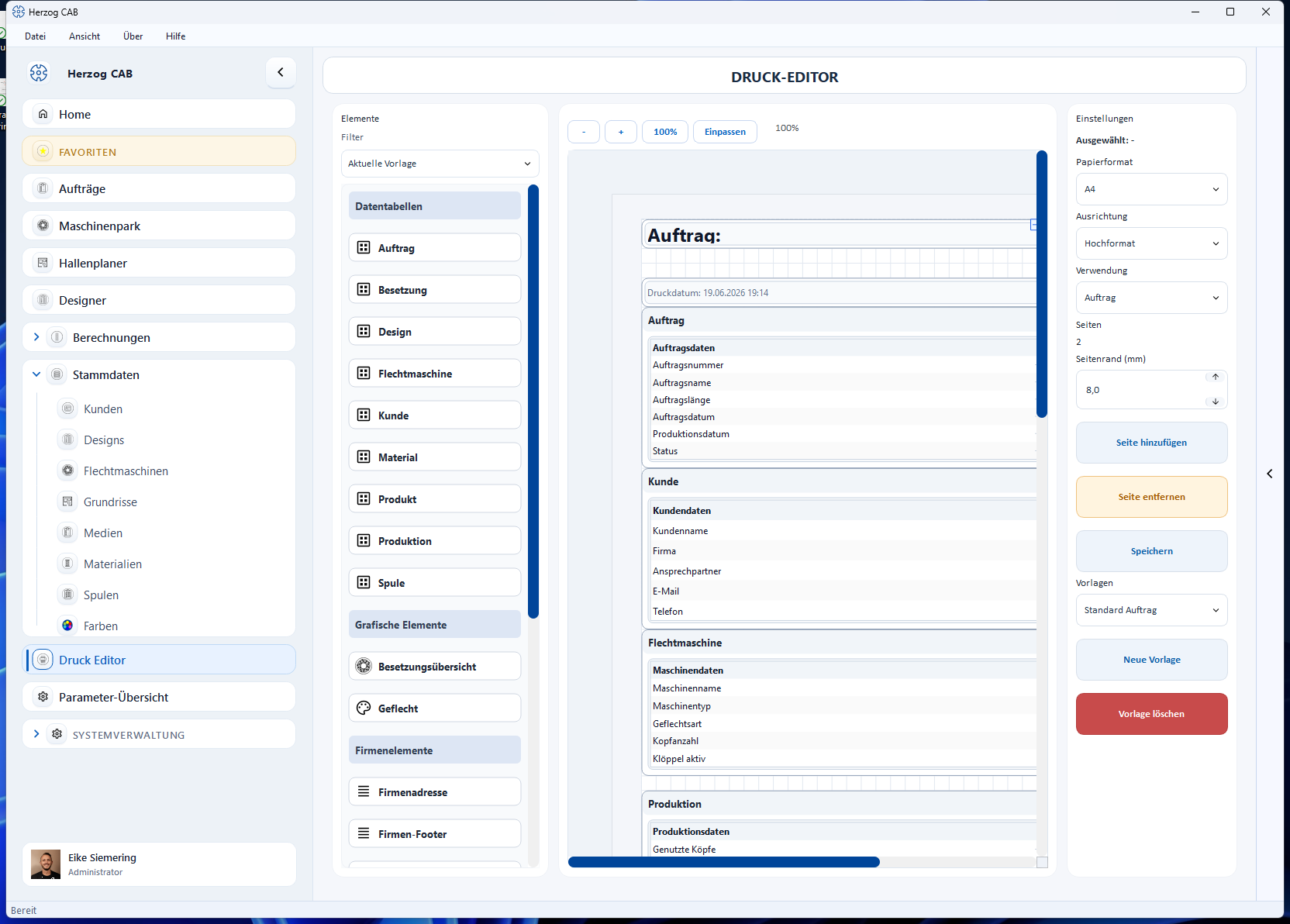
Choose a template
Use the Templates selection field (e.g. Default Order) at the bottom right to switch between the existing templates. The selected template is displayed in the editor immediately.
Actions
| Action | Effect |
|---|---|
| New (tooltip New template) | Creates a new, empty template. |
| Save | Saves the current template with all changes. If there are unsaved changes, the button is called Save * and is highlighted in blue. If a colleague has saved the same template in the meantime, Herzog CAB asks (Overwrite, Save as copy, Reload). If they are editing it right now, it is read-only for you (lock in the template selection, banner Being edited – read only) — see Multiple users. |
| Delete (tooltip Delete template) | Removes the current template (with confirmation prompt). |
| Usage | Specifies what the template is for: calculation, design or order, with the Braiding Simulator also Braiding Simulator (switching plan, template Standard switching plan, see Output). See Editor layout. |
If you leave the editor with unsaved changes, Herzog CAB asks whether you want to save first or discard the changes.
Supplied standard templates
Herzog CAB comes with standard templates, e.g. Default Order, Default Design and Default Design (high carrier count). Which design template is offered when printing is described under Saving and printing.
If an update brings a new version of a standard template, Herzog CAB replaces the template at the first start, once per workspace folder — but only as long as it still has its original name. Templates with a different name and your own templates remain unchanged. Herzog CAB does not recreate a standard template that has been deleted.
Keeping your own changes to a standard template
If you have adapted a standard template, save it under a name of your own before the update: click Save and enter a new name under Template name. Herzog CAB then creates a template of your own that an update does not replace.
File location
All templates are stored as files under Printouts/templates/ in the active
workspace. This means they can also be backed up or exchanged between workstations
that use the same workspace.
Start with a copy
Instead of starting from scratch, start from the supplied template Default Order: adapt it, save it under a new name – done.
Permission required
To view templates, the permission View print templates is sufficient. To create, change, save and delete you additionally need Edit print templates. More on this under Roles.
Related pages
- Editor layout – element palette, filter, page settings
- Elements and placeholders – all building blocks of the element palette in detail
- Preview and print – page format, preview, output
- Create a print template – step-by-step guide
- Orders → Print – where order templates are used
- Designer → Save and print – where design templates are used