Views and 3D view
Reference — the Designer's view switches and the Display window: full and half development, the rotatable projections cylinder and square, the real 3D model of the braid and how the yarns are drawn.
What you use this area for
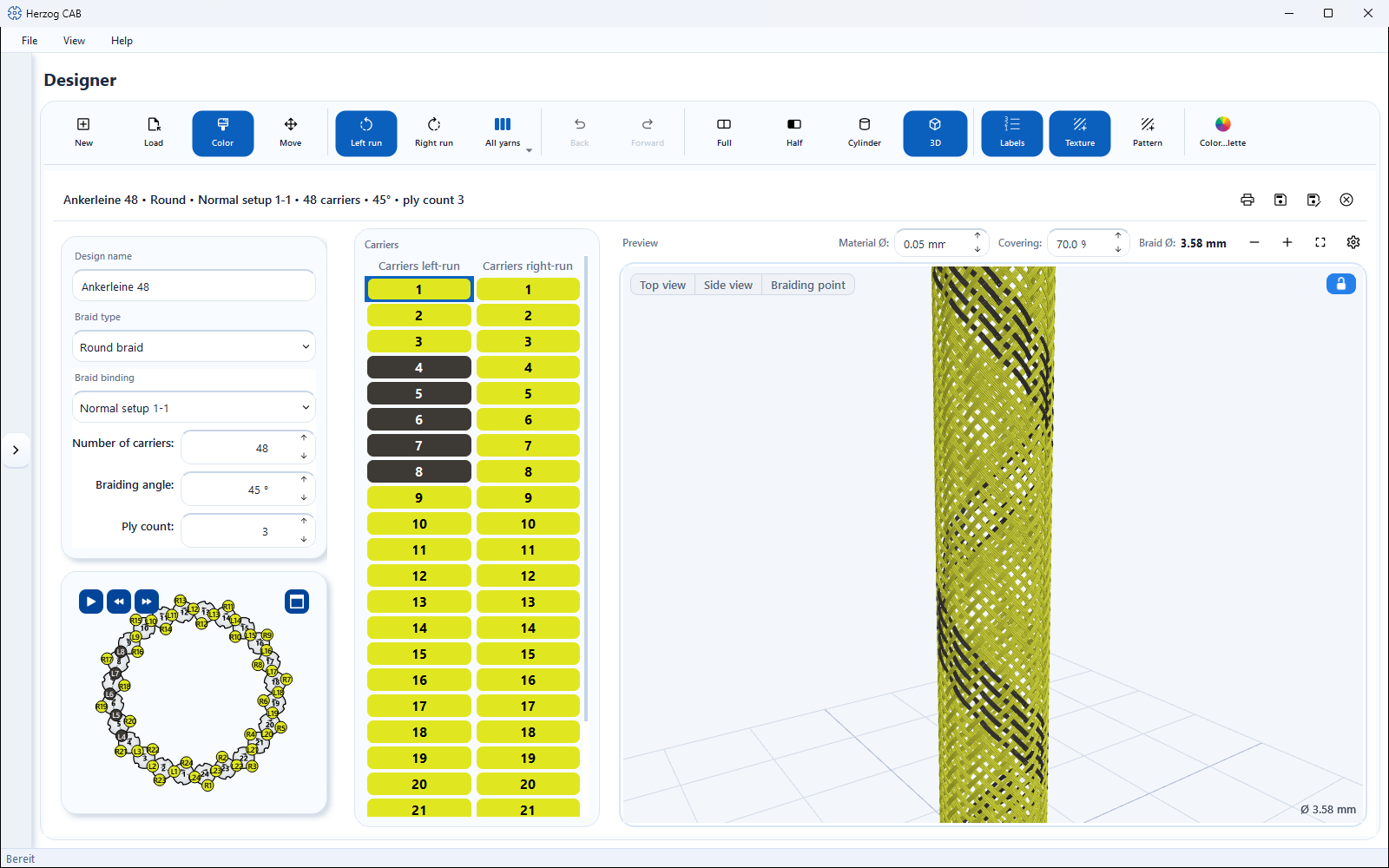
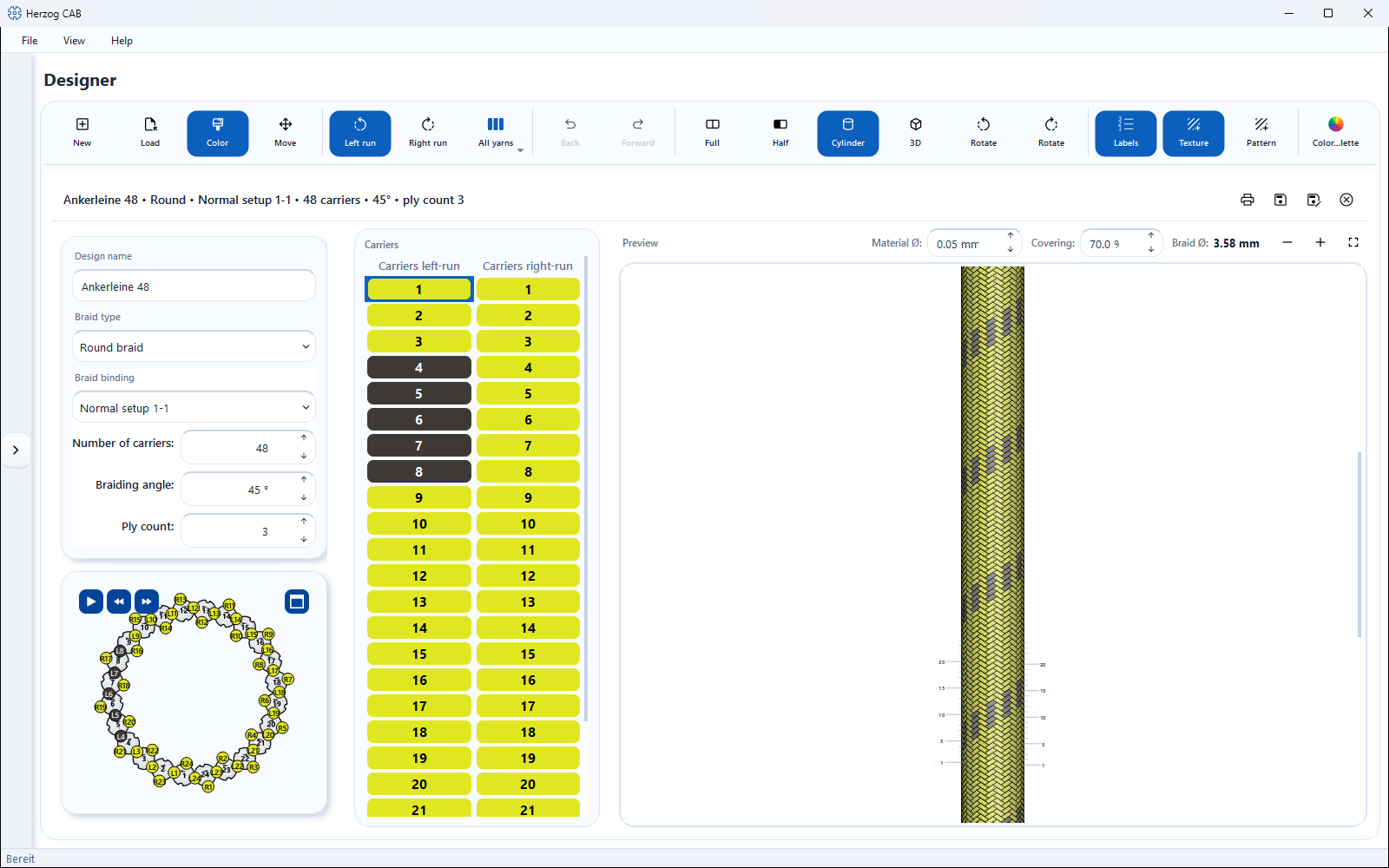
The normal braid pattern shows the braid as a flat, "cut open" section. To judge a pattern on the finished product, the Designer offers further views: the projections place the development rotatably on a cylinder or square, the real 3D model builds the braid thread by thread from the carrier tracks of the Setup overview — with crossings, material and covering, freely rotatable. This lets you judge spirals, rings, transitions and edges realistically before the design goes to the machine. How the yarns look in all views is set in the Display window.
The screen at a glance
Controls in detail
View switches in the toolbar
The switches form a group — exactly one is active. Which ones appear depends on the braid type:
| Braid type | Switches |
|---|---|
| Round braid | Full · Half · Cylinder · 3D |
| Square braid | Full · Square · 3D |
| Packing braid | Full · Square · 3D; with the track type round as for the round braid |
| Flat braid, spiral, soutache braid | Braid pattern · 3D |
Mixed designs of round and flat braid sections only show the braid pattern; the view switches are hidden then.
| Switch | Meaning |
|---|---|
| Full / Braid pattern | The complete development of the circumference as a flat braid pattern — the default view in which you color. For flat, spiral and soutache braids the switch is called Braid pattern. |
| Half | Only the front half of the development (round braid). |
| Cylinder / Square | The development projected onto the cylinder (round) or the square (square, packing). The back is hidden. With Square, the edges are created by light and shading, not by lines. Rotating with the mouse, see below. |
| 3D | The real spatial model of the braid from the carrier tracks of the Setup overview — for all six braid types. |
Colors, twist, ply count and all ongoing changes remain identical in all views — including plying colors: in the 3D model, each yarn of a carrier runs in its own color. Coloring by click belongs in the drawn views; in the 3D view you color via the carrier table or the palette — the model recolors immediately, without being rebuilt, even with many carriers and a high ply count. The Designer remembers the selected view (including the rotation angle) per braid type if the setting Remember last used view is active (Settings > Design).
Rotating cylinder and square
You rotate the body in the Cylinder and Square views with the mouse, like the 3D view:
| Action | Effect |
|---|---|
| Hold down the left mouse button and drag sideways | Rotates the body around its longitudinal axis. When you release the button, the Designer remembers the angle. |
| Short click without dragging | Colors as in the flat braid pattern, or sets the twist with the Twist brush. |
| Hold down the right mouse button and drag | Pans the view. In Move mode this is the way to pan here, because the left mouse button rotates in this mode as well. |
Operating the 3D view
At the top of the picture is the view bar:
| Element | Effect |
|---|---|
| Top view | View of the cross-section, oriented like the machine in the Setup overview. |
| Side view | The whole braid from the side — the braid pattern. |
| Braiding point | Close-up of the point at which the braid is currently being formed; the camera follows the track animation. |
| Lock | Locked: mouse and finger do not rotate the braid, the mouse wheel still zooms. Open: the left mouse button rotates, the right one pans, a double-click restores the selected view. |
| Zoom in / Zoom out (preview card) | Also work in the 3D view; so does the mouse wheel. |
Material, form and orientation of the model are set in the Display window. The Covering in the parameter panel below Ply count determines the drawn thread thickness; the Braiding angle has a live effect. If the track animation is running, the 3D braid grows in sync; the ⏮ button in the Setup overview resets the build-up to the start.
For flat and spiral braids from ply count 2, the yarns of a carrier lie side by side as a flat band in the model. For a soutache braid with cores, the cores lie inside the braid.
Limits of the 3D view
- Coloring by click into the picture and the labels are only available in the drawn views; in the 3D view you color via the carrier table.
- Mixed designs of round and flat braid sections have no 3D model.
- For square and packing braid, the model shows the tracks of the carriers; the packed square cross-section of the finished product is only created on the machine.
- Large machines (from about 100 carriers) need a moment to rebuild after a change of the number of carriers or the binding; color changes are visible immediately.
- The view requires OpenGL-capable graphics (see System requirements).
“Display” window
The Display button to the right of the view switches opens a window with all settings for how the braid is drawn. The window is the same in all views. Whatever has no effect in the current view is grayed out; the tooltip gives the reason. The settings apply to all design windows and all designs and are kept.
📷 Screenshot missing
Subject: Open “Display” window below the Display button with the sections Drawn views (Yarn structure, Labels) and 3D view (Material, Simple display, Form, Orientation).
How to create: Designer, round braid in the 3D view, click the Display button next to the view switches.
Target file: assets/screenshots/designer/designer-darstellung.png
Drawn views (Full, Half, Cylinder, Square, Braid pattern):
| Element | Effect |
|---|---|
| Yarn structure | Draws the yarns of the ply count in every stitch with fiber sheen, twisted yarns with twist lines (S “\”, Z “/”), see Twist. Off: only the carrier color. Default: on. |
| Labels | Shows or hides the carrier numbers in the braid pattern (default: on). Grayed out for mixed designs. |
3D view:
| Element | Effect |
|---|---|
| Material | Fiber structure, roughness and sheen of the yarns; the carrier colors are kept with every material. Yarn shows the yarns according to their twist: untwisted yarns smooth, S and Z yarns twisted, the slope follows from TPM and material Ø. Wire shows wires without twist. Rope shows each thread as a braided rope with light and dark tracers, for braids made of ropes; set the material Ø to the rope diameter for this, e.g. 10 mm. Grayed out while Simple display is on. |
| Simple display | Fast, simplified 3D view without fiber structure, for slow graphics cards or very large braids. |
| Form | How the cross-section is derived, see the table below. |
| Orientation | Top → bottom or Bottom → top: only turns the 3D display of the braid — depending on whether you want to view the machine from above or from below. |
Below the fields, a note says that the settings apply to all design windows and that the yarn thickness in 3D follows the covering of the design.
The Form selection offers three entries:
| Entry | Meaning | Grayed out for |
|---|---|---|
| Default for the braid type | The entry states what it means for the current braid type, e.g. Default for the braid type: interlacing. The default is interlacing for round and spiral braids, straightened for flat braids and as the machine for square, packing and soutache braids. | — |
| Interlacing only (schematic) | Shows the thread order and crossings on a normalized cross-section, without the horngear layout. | square braid, packing braid 2-track, 3-track and 4-track, soutache braid |
| As the machine is arranged | Converts nothing and shows the cross-section exactly like the machine's horngear layout. | spiral braid |
The selected form applies to all designs. If it does not suit the braid type of the active design, the view and the field show the default for the braid type; the tooltip of the field says so. For the other braid types your choice is kept.
Related pages
- Designer overview — zooming and panning the preview
- Braid type and parameters — choose the braid type, material Ø and covering
- Coloring and twist — colors and twist per carrier
- Setup and track animation — the kinematics behind the 3D model
- Design (settings) — remember the view