Interface overview
Concept — Structure of the main window and its fixed areas
After you sign in, Herzog CAB starts with the home page (Home). From there you reach all areas via the navigation on the left. This page explains how the main window is structured and which areas remain the same in every module.
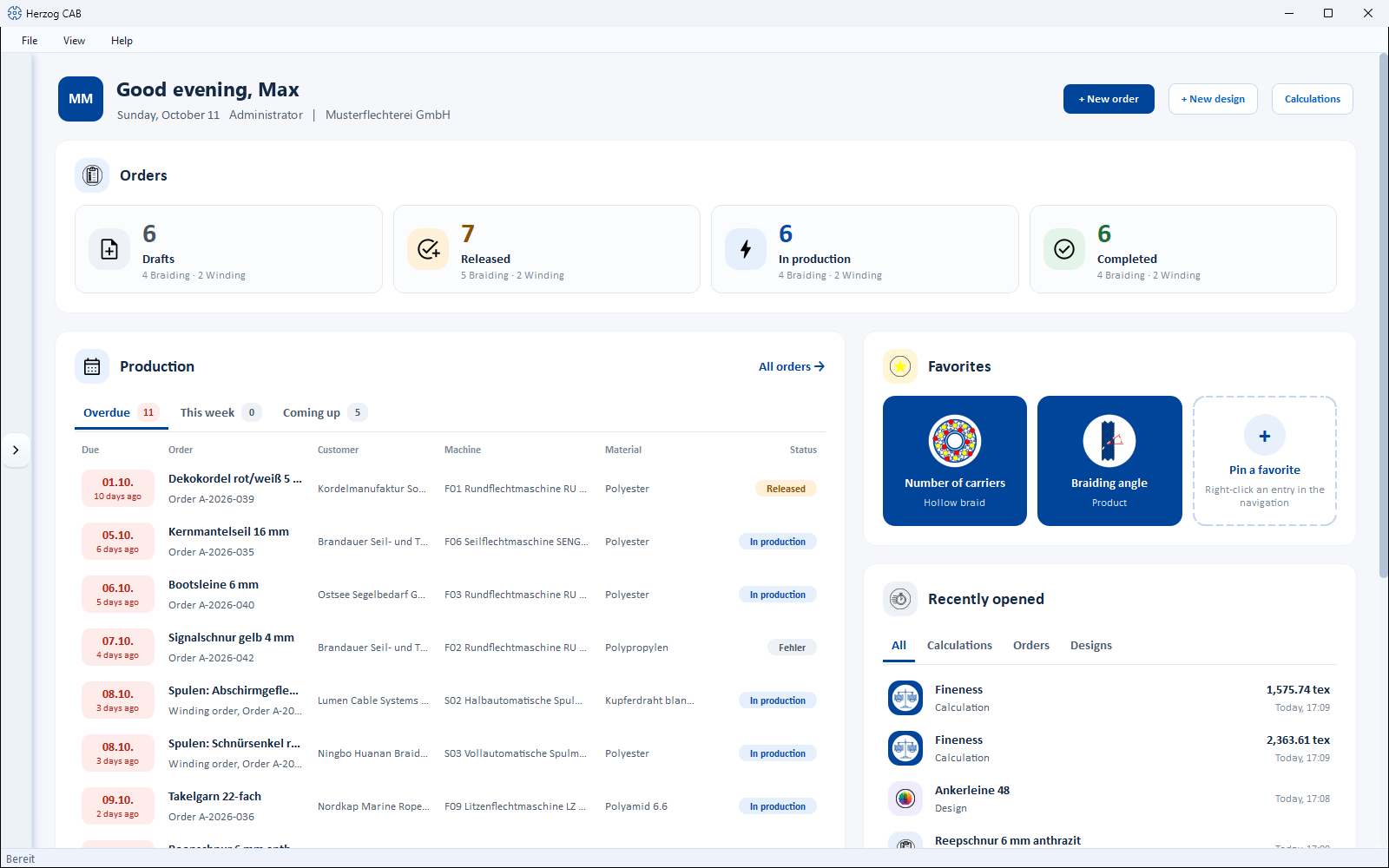
Structure of the main window
The main window can be reduced down to 960 × 600 pixels. If it is narrower than 1500 pixels, the navigation collapses on its own (see below) so that the content keeps enough space.
Menu bar (top)
| Menu | Entries |
|---|---|
| File | Settings (opens the Settings dialog), Print… (Ctrl+P, prints the current page using a print template), Quit |
| View | Navigation — expands or collapses the navigation on the left, like the arrow in its header |
| Help | Manual (F1, opens the matching page of this manual in the browser, see below), Guided Tours… (selection dialog of the guided tours), Updates (update check, see Installing updates), Feedback and news, About Herzog CAB (program and version information), About Qt |
No “About” menu any more
Up to version 2.1.0, updates, feedback and the two About dialogs were in a separate About menu. They are now collected in the Help menu.
Navigation (left)
The side navigation area leads to all modules. Its header shows the program name Herzog CAB, next to it an arrow icon with which you collapse and expand the navigation:
- Expanded, the navigation shows the complete tree with all entries and groups. It occupies a fixed strip on the left edge; the content moves next to it.
- Collapsed, a narrow icon bar remains. Each icon stands for a main area (the name appears as a tooltip when you hover over it with the mouse). Clicking an icon opens the page directly; for areas with sub-items, a small menu opens next to the icon. At the very bottom are a round user icon (opens My profile) and a gear icon (opens the Settings).
- Briefly expanding with the mouse: If the mouse pointer rests for a moment over the collapsed bar, the complete navigation expands and floats over the content — the page next to it does not move. As soon as the mouse leaves the navigation, it collapses again.
Collapsing automatically in a narrow window: Below a window width of 1500 pixels, Herzog CAB collapses the navigation itself; if you drag the window wider again, it expands again. If you expand the navigation yourself with the arrow in a narrow window, it stays open until the window has been wide enough again. Only your own choice via the arrow is remembered, not the automatic collapsing.
All entries, their order and the expandable groups are described in detail on the page Navigating the app. There you also read how to pin entries as favorites.
Main area (center)
Shows the content of the selected page — e.g. a master data list, a calculation or the order editor. Each page begins at the top left with a plain title line in normal spelling (e.g. "Braiding angle"), without a header card of its own. Short explanatory sentences about cards and forms appear as a tooltip when you point the mouse at the card heading.
If the window width is not sufficient for all areas of a page, the cards stack one below the other and the page can be scrolled; nothing is cut off.
History sidebar (right, calculations only)
On the pages under Calculations — the calculation overview, its groups and all calculators — the History sidebar can be expanded and collapsed at the right edge of the window via the arrow icon (Open history). It lists the calculations performed in this session with result and time; a click loads the calculation again with all input values used at that time. On all other pages (orders, master data, Designer, catalogue …) the sidebar does not exist. Details under Calculation history.
Profile bar (bottom left)
At the bottom of the navigation, the profile bar shows the profile picture, the display name and the Role of the signed-in user. Clicking it opens the My profile dialog (change display name, e-mail and your own password, Sign out) — see My profile.
Status bar (very bottom)
At the bottom edge of the window, a narrow status bar shows the program state ("Ready" in normal operation).
Messages in the program
Hints and confirmations appear as a short notification ("toast"), e.g. "Order saved" or the warning "Please check the entered data!" for an incomplete calculation. The notifications disappear on their own after a few seconds and do not block operation.
Help for the current page
- F1 (or Help > Manual) opens the matching page of this manual in the default browser. What counts is the page or dialog that currently has the focus, otherwise the open page. If there is no dedicated manual page for a location, the start page of the manual opens. This also works in dialogs. On macOS you achieve the same with Cmd+? or Fn+F1.
- Shift+F1 starts the guided tour of the area you are currently in; if the focus is in the navigation, the navigation tour starts.
An overview of all keyboard shortcuts can be found under Keyboard shortcuts.