Factory Planner editor
Reference — the drawing and populate editor of the Factory Planner: draw the hall geometry and place machines
What you use this area for
The editor is the work surface of the Factory Planner. It works in two modes with the same interface:
- Geometry mode (title Edit hall layout) — you draw the hall itself: walls, functional areas and elements such as doors and gates. Entry: Master data > Floor plans > Edit.
- Populate mode (title Factory Planner) — you place machines on a finished floor plan and align them. Entry: Factory Planner > Populate. The hall geometry is locked in this mode; the header shows which floor plan is being populated (Floor plan: …).
All objects lie to scale on the drawing area — positions and dimensions are kept to the millimeter and displayed in the selected unit (meters or millimeters).
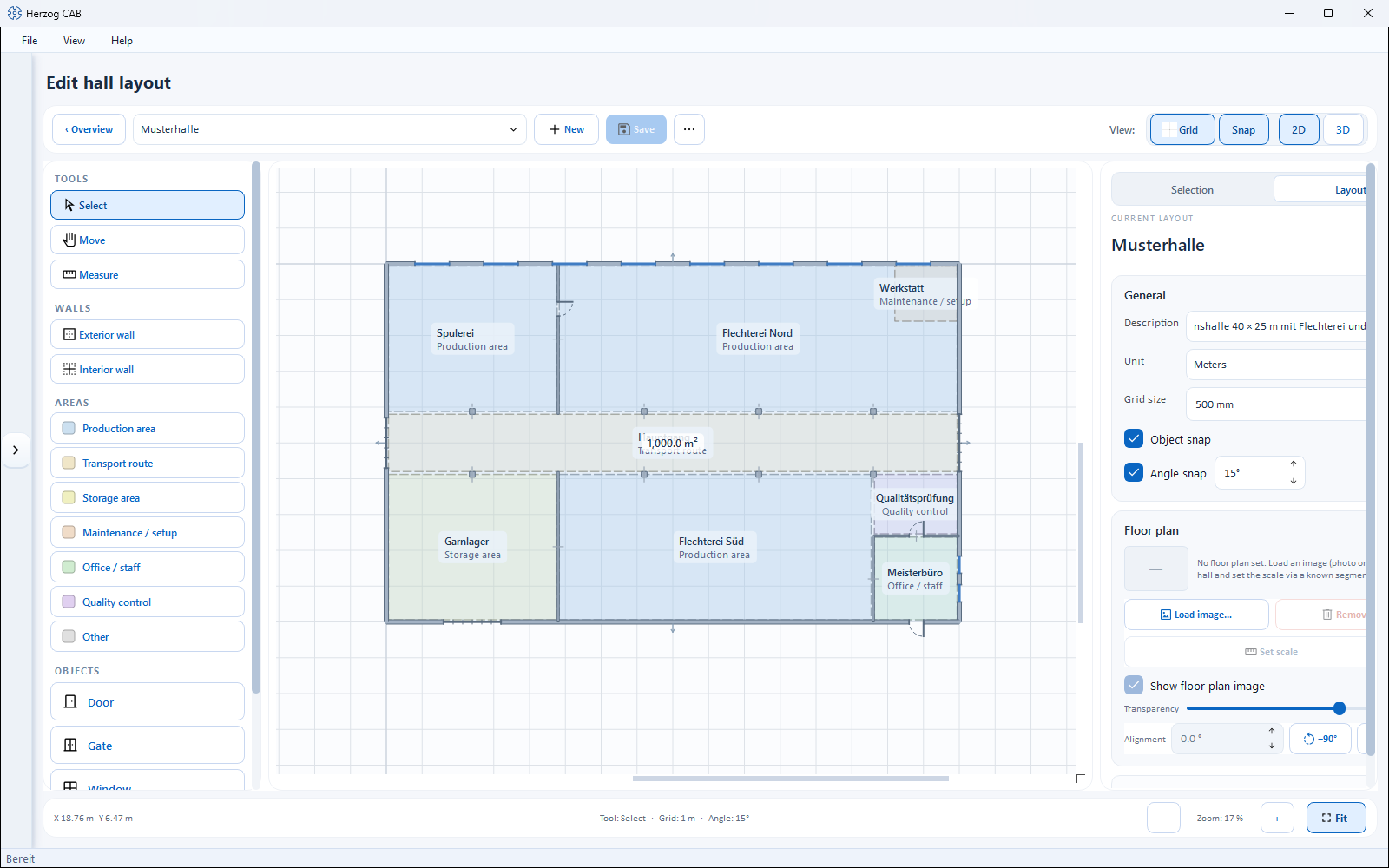
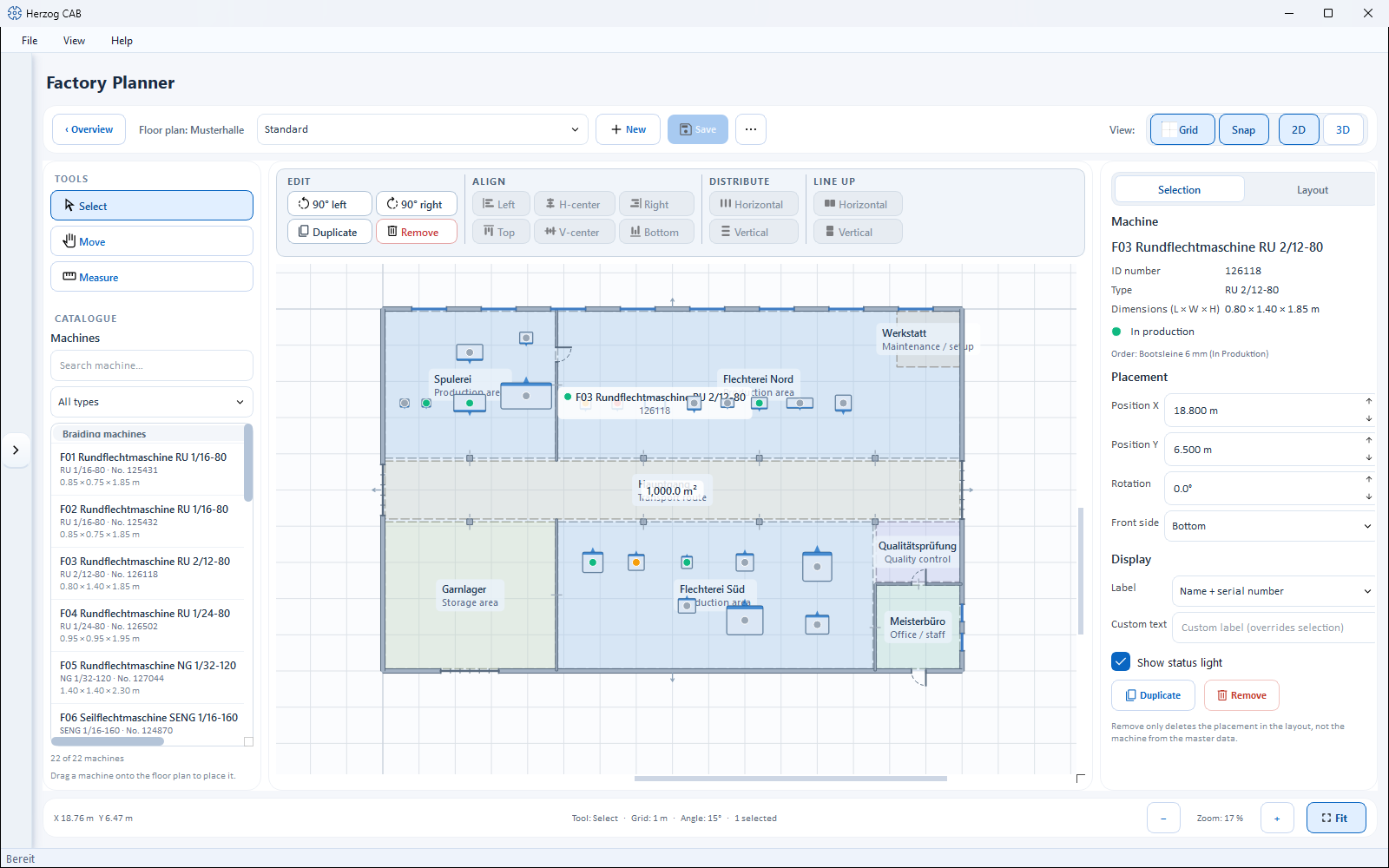
The screen at a glance
| Area | Content |
|---|---|
| Header toolbar (top) | Back to the overview, layout selection, New, Save, ⋯ menu, view toggles (grid, snap, 2D/3D). |
| Toolbar (left) | Tools for selecting, drawing and — in populate mode — the machine catalogue. |
| Drawing area (center) | The true-to-scale plan; in populate mode with the selection toolbar above it. |
| Properties panel (right) | Tabs Selection and Layout — properties of the marked object or settings of the entire layout. |
| Status bar (bottom) | Cursor coordinates, measured value, active tool, grid/angle, number selected and zoom control. |
Controls in detail
Header toolbar
- ‹ Overview — back to the overview page (floor plans or Factory Planner). If there are unsaved changes, the app asks: The layout "…" has unsaved changes. Save now?
- Floor plan: … (populate mode only) — shows which floor plan the edited assignment belongs to.
- Selection list — in geometry mode switches between the floor plans, in populate mode between the assignments.
- New — in geometry mode creates a new floor plan, in populate mode a new assignment (if there are several floor plans, the app asks for which floor plan).
- Save — saves the current layout.
- ⋯ (More layout actions) — menu with Rename…, Duplicate… and Delete… for the current floor plan or the current assignment.
- View:
- Grid — shows/hides the drawing grid.
- Snap — switches snapping to the grid on/off.
- 2D | 3D — switches between the drawing view and the 3D hall view (opens a separate window).
Left toolbar
Exactly one tool is always active. The TOOLS group is present in both modes:
| Tool | Function |
|---|---|
| Select | Click, move and mark objects (default). Dragging a frame marks several machines. |
| Move | Hand tool: pan the view with the mouse button held down. |
| Measure | Click two points — the measured length appears at the bottom in the status bar. |
In geometry mode, three drawing groups are additionally available:
WALLS
- Exterior wall — draw exterior walls as a click chain: click one point after another to set a wall run; right-click or Esc ends drawing.
- Interior wall — room divider, same operation. In the 3D view, interior walls receive the inside texture on both sides.
AREAS — colored functional areas. Click the corner points one after another; a click on the first point (or Enter) closes the area. Available types:
- Production area
- Transport route
- Storage area
- Maintenance / setup
- Office / staff
- Quality control
- Other
OBJECTS — elements:
- Door, Gate, Window, Banner / logo — click on a wall; the element sits in the wall and can then be moved along it.
- Stairs — click on a free spot to place it freely.
In populate mode, the CATALOGUE replaces the drawing groups:
- Search machine… — searches name, type, serial number and location.
- Type filter — restricts the list to one machine type (All types = no filter).
- Machine list — all machines from the master data; if your fleet contains braiding machines and bobbin winding machines, the list is divided into the sections Braiding machines and Bobbin winding machines accordingly. Each entry shows name, type, serial number and the footprint dimensions (L × W × H in meters); if the dimensions are missing, the entry warns with Dimensions missing.
- Place: drag the machine with the mouse onto the drawing area — or place it in the center of the view with a double-click.
- Counter — shows how many machines pass the filter.
Drawing area
- Zoom — mouse wheel (at the cursor position) or the zoom buttons in the status bar.
- Pan view — with the middle mouse button held down or with the Move hand tool.
- Mark — click on an object; in populate mode, dragging a frame adds several machines to the selection.
- Context menus — the right mouse button opens object-dependent menus (see below).
- Placed machines show — depending on the display setting — their label and a small status light with the current order status from the orders (same color logic as in the Machine Fleet). If, at a low zoom level, a machine is narrower than its label, it only shows the status dot — so the labels do not overlap; marked machines keep their label. If the master data of a placed machine is missing, it reads Unknown machine.
Keyboard shortcuts:
| Key | Effect |
|---|---|
| Esc | Cancel drawing or clear selection |
| Enter | Close area outline (when drawing areas) |
| Del / Backspace | Remove marked objects |
| Ctrl+C / Ctrl+V | Copy marked machines and paste them slightly offset |
Selection toolbar (populate mode only)
Above the drawing area is a bar with four function blocks. The blocks become active depending on the size of the selection; a grayed-out block gives the reason in its tooltip (e.g. Select at least two machines).
| Block | From | Buttons |
|---|---|---|
| Edit | 1 machine | 90° left, 90° right (rotate each marked machine), Duplicate, Remove (from the layout) |
| Align | 2 machines | Left, H-center, Right, Top, V-center, Bottom |
| Distribute | 3 machines | Horizontal, Vertical — even spacing |
| Line up | 2 machines | Horizontal, Vertical — place side by side without gaps |
Context menus (right mouse button)
- Machine (populate mode): Align submenu (with several marked machines, additionally distribute and line up), 90° left / 90° right, Front side (Bottom / Right / Top / Left), Duplicate, Remove from layout.
- Wall (geometry mode): Connect walls (join two marked walls into a corner), Mark as interior wall/exterior wall, Swap inside/outside, Remove wall.
- Element (geometry mode): for doors Mirror hinge (left/right) and Mirror swing (inside/outside); for doors and gates Open door/gate or close; for freely placeable elements Rotate 90°; in addition Duplicate and Remove element.
Properties panel (right)
The panel has two tabs: Selection (properties of the marked object) and Layout (settings of the entire layout). Without a selection, the Selection tab shows the hint to click an object.
"Layout" tab
General card:
| Field | Meaning |
|---|---|
| Description | Free text for the layout (optional). |
| Unit | Display unit of all dimensions: Meters or Millimeters. |
| Grid size | Spacing of the drawing grid in mm. |
| Object snap | Align to existing objects while drawing. |
| Angle snap | Snap walls/edges to fixed angle steps; you set the step size (°) next to it. |
Floor plan card — stores an image (photo or plan) as a true-to-scale drawing background:
| Element | Meaning | Visible in |
|---|---|---|
| Load image… | Choose a floor plan image via the Media library; very large images are automatically reduced on import. | Geometry |
| Orientation | Rotation of the image in degrees, with quick buttons −90° / +90° — this lets you align a crookedly scanned plan to the grid. | Geometry |
| Set scale | Calibration: click two points of a known distance on the image and enter its actual length in meters — after that, all dimensions are correct. | Geometry |
| Remove | Detaches the image from the layout; walls and machines are kept. | Geometry |
| Show floor plan image | Shows/hides the background. | Geometry + machine placement |
| Transparency | Slider for the opacity of the background. | Geometry + machine placement |
First align, then calibrate
After loading, the app recommends this order: first align the image to the grid via Orientation, then set the real length via Set scale.
Expandable card Wall texture (3D) (geometry mode only) — textures for the 3D hall view:
- Inside… — load a texture for the inside of the walls.
- Outside… — optional texture for the outside (empty = same as inside).
- Tile size — tile dimension of the texture in mm.
- Remove texture — removes the stored textures.
"Selection" tab — machine
| Group | Fields |
|---|---|
| Machine | Name, ID number, type and Dimensions (L × W × H) from the master data (read-only) as well as the current order status. If the dimensions are missing, the panel shows No dimensions set (substitute size 2.0 × 1.0 × 1.5 m). |
| Placement | Position X, Position Y, Rotation (°), Front side (Bottom / Right / Top / Left — determines which side counts as the operating side). |
| Display | Label (Name + serial number · Name only · Serial number only · Machine type only · Do not show), Custom text (overrides the selection), Show status light. |
| Actions | Duplicate, Remove — Remove only deletes the placement in the layout, not the machine from the master data. |
"Selection" tab — wall
- Dimensions: length and angle (read-only), Thickness in mm.
- Type & options: Interior wall (inside on both sides), Swap inside/outside face (which wall side receives the outside texture in the 3D view).
- Position (expandable): Start X/Y and End X/Y — for exact coordinates; alternatively, drag the end point handles directly on the drawing area.
- Remove wall.
"Selection" tab — area
- Type — the area type (see list above), can be changed later.
- Designation — custom name (empty = type name).
- Area — calculated size of the area (read-only).
- Remove area.
"Selection" tab — element
Only the fields matching the element type are shown:
| Field | Applies to | Meaning |
|---|---|---|
| Type | all | Element type (read-only). |
| Width | all | Element width in mm. |
| Position on wall | Door, gate, window, banner | Position along the wall in percent. |
| Door type | Door | Steel door with viewing window · Panel door (wood) · Glass door. |
| Hinge | Door | Left / Right. |
| Swing | Door | Inside / Outside. |
| Show open | Door, gate | Shows the element opened. |
| Wall side | Banner | Inside / Outside. |
| Banner image | Banner | Load image/logo… — image for the display (also in 3D). |
| Steps | Stairs | Number of steps. |
| Rotation | Stairs | Rotation in degrees. |
| Designation | all | Custom text (optional). |
Plus the button Remove element.
Status bar
- X / Y — the cursor position in the selected unit.
- Length … — live length while measuring and drawing.
- Tool · Grid · Angle · Selection — active tool, grid spacing, angle snap step size and number of marked objects.
- − / zoom value / + and Fit — zoom control; Fit brings the entire content into view.
Saving and rights
Changes are only applied with Save; when leaving, when switching the layout and when exiting, the app asks about unsaved changes. Editing floor plans requires the master data editing right; populating requires the Factory Planner editing right (see Roles).
Related pages
- Factory Planner overview — manage floor plans, assignments and the actual assignment.
- 3D hall view — view the result in three dimensions.
- Floor plans (master data) — create, rename, duplicate and delete floor plans.
- Media — image sources for the floor plan background, textures and banners.
- Build a hall — the complete workflow as a guide.