Print templates
Reference — Overview of print templates and the print editor
What you use this area for
Print templates determine what printouts from Herzog CAB look like – e.g. a production accompanying sheet for the order, a material list, a label or a calculation report. You design the templates once in the Print editor and then use them as often as you like for the actual printing.
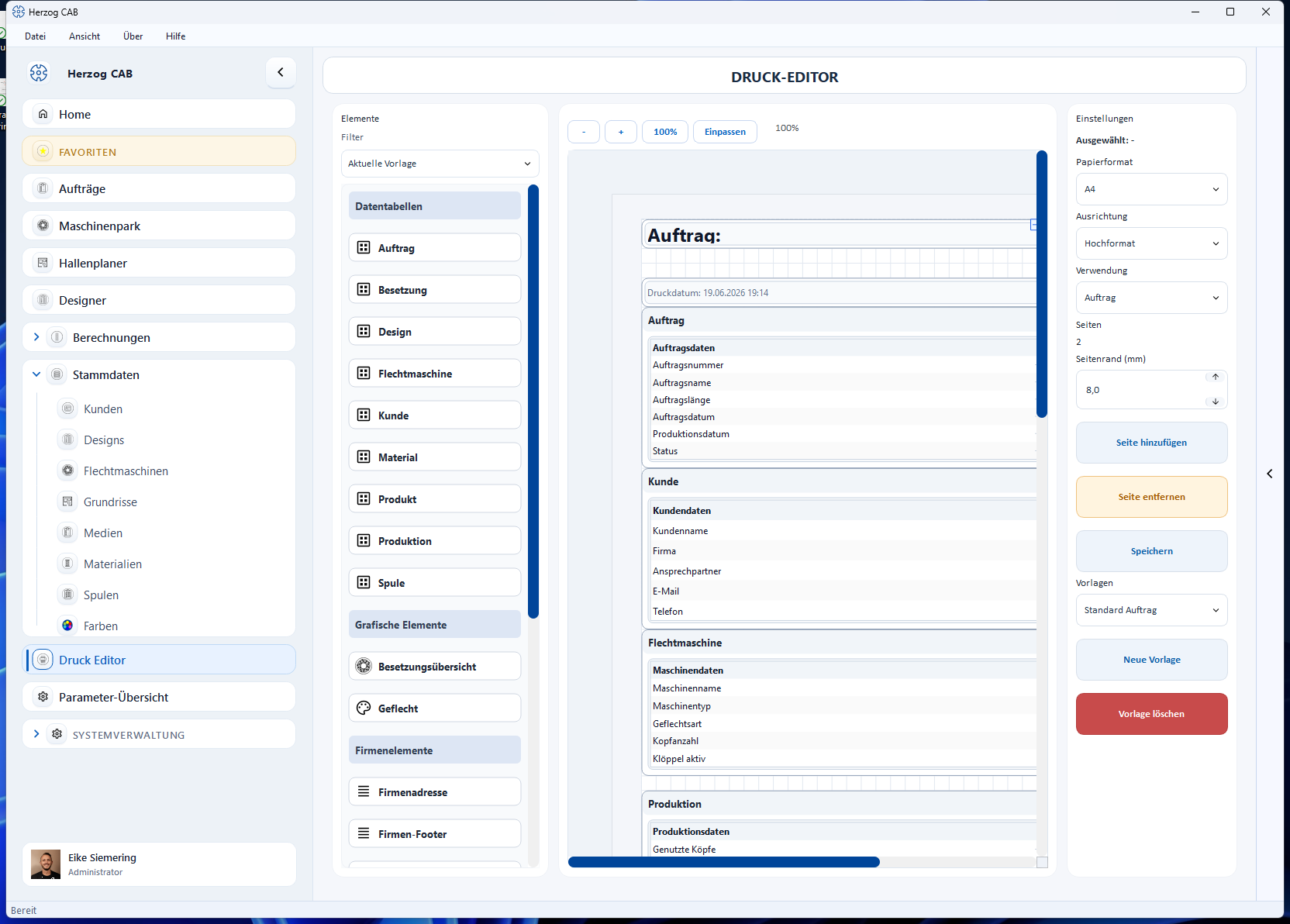
You reach the print editor via the navigation item Print editor.
Templates are stored centrally per workspace (under Printouts/templates/)
and are therefore available to all operators of the same workspace.
In this chapter
-
Manage templates
Choose, create, save and delete a template.
-
Editor layout
Element palette, page canvas and properties/page settings.
-
Elements and placeholders
All building blocks of the palette – from data tables to color breakdown – and how you fill them with program values.
-
Preview and print
Set the page format, live preview, and where you start the actual printout or PDF export.
A template applies to exactly one usage
Every template has a Usage: calculation, design or order. It determines in which selection dialog the template appears later and which elements are available in the palette. Details under Editor layout.
Where a template is offered for printing, depending on its usage:
flowchart LR
  D[Print editor:<br>design the template] --> V{Usage}
  V -- Calculation --> B[Print on a<br>calculation page]
  V -- Design --> G[Print in the Designer]
  V -- Order --> A[Print in the braiding order<br>and in the winding order]
Permission required
You can view templates with the permission View print templates; to edit and save you additionally need Edit print templates. More on this under Roles.
Related pages
- Create a print template – step-by-step guide
- Orders → Print – production accompanying sheet and templates in the order
- Designer → Save and print – print design templates
- Parameter Explorer – look up all program values in detail