Profiles (workspaces)
Reference — Managing profiles: workspace folder, web server options, switching profiles and migration from older versions.
The concept: workspace and profile
Herzog CAB separates data and configuration using two terms:
- A workspace (workspace folder) is the data folder with all master data, orders, designs and print templates. What exactly it contains is shown on the Storage location page.
- A profile (client) links a name with a workspace folder and the associated web server options. You choose which profile is active after login.
With several profiles you can, for example,
- keep several clients or plants separate (each with its own data folder),
- run a test and a production workspace in parallel,
- or use a shared workspace on a network drive from several workstations.
The screen at a glance
You open the profile management via System administration > Profiles or via File > Settings > General > Manage profiles …. On the left is the Profile list with a search field (Profile name) and the New profile button, on the right the editor of the selected profile. The currently active profile is highlighted in the list.
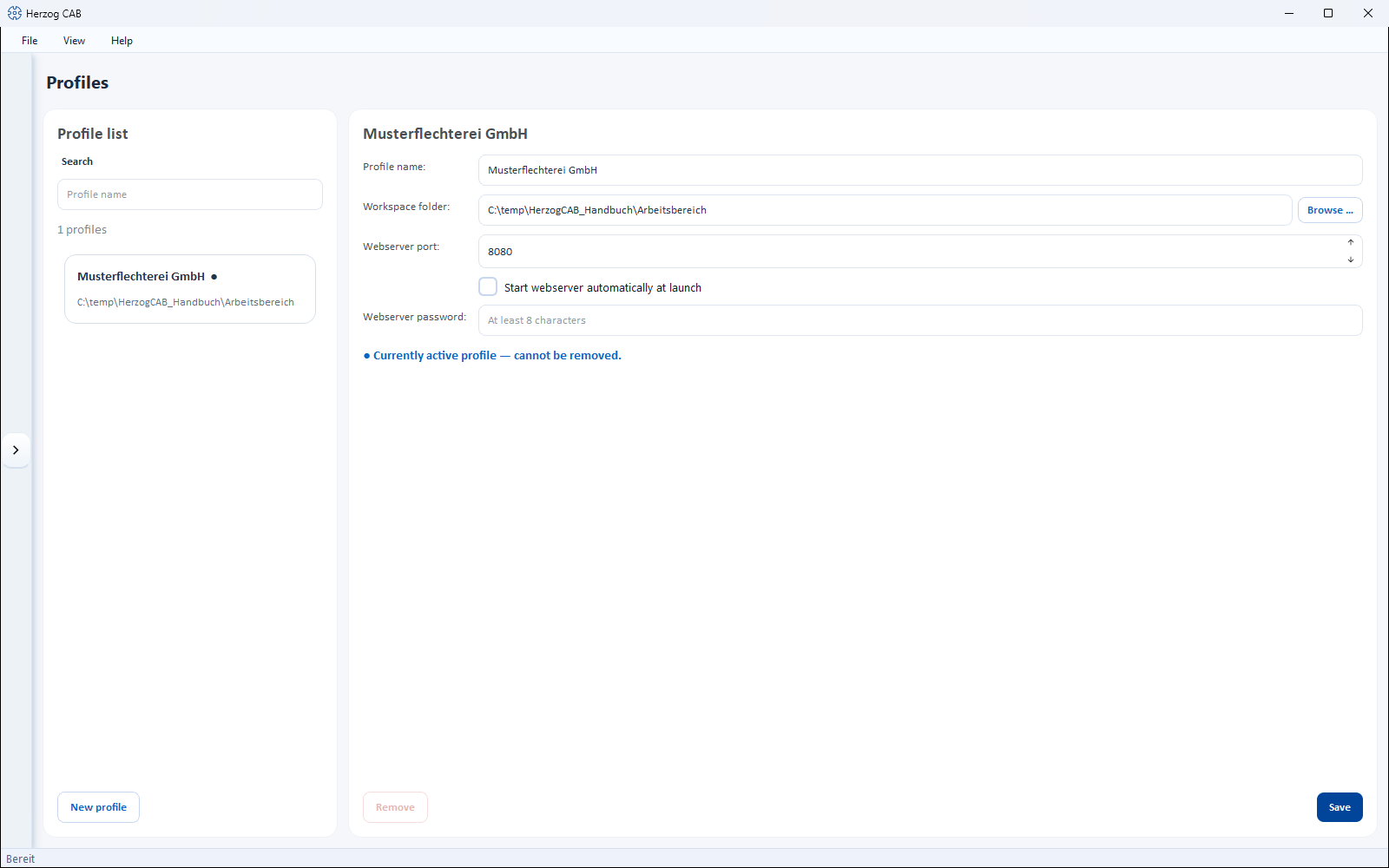
Permission required
Only users with the Workspace settings permission can see and use this area.
Controls in detail
Profile editor
| Field / button | Meaning |
|---|---|
| Profile name | Display name of the profile (mandatory field). |
| Workspace folder | Data folder of the workspace. Browse … opens the folder selection. You must have write access to the folder, otherwise the editor reports "No write access to this folder." |
| Webserver port | Port of the built-in web server for this profile (default 8080). |
| Start webserver automatically at launch | Starts the web server automatically as soon as the profile is opened. |
| Webserver password | Password for the mobile view, at least 8 characters. Without a password, the web interface can only be reached on this computer; on the network (tablets, phones) only with a password. The field stays empty; the placeholder shows whether one has already been set. It can only be removed in the Settings, Web Server tab. |
| Remove | Removes the profile from the configuration — the data folder itself remains untouched. The currently active profile cannot be removed. |
| Save | Stores the changes. |
Switching profiles
You can switch to another workspace at any time:
After every sign-in, the Select profile dialog asks which profile should be opened — select it and click Open profile.
- Open File > Settings, General tab.
- Click Switch profile … and choose the desired profile.
Switching via program restart
A profile switch restarts Herzog CAB so that the selected workspace is loaded cleanly. This also prevents unsaved entries from being lost — save open changes beforehand.
Changing the workspace folder (workspace path)
- Open System administration > Profiles (or File > Settings > General > Manage profiles …).
- Select the profile in the list.
- At the Workspace folder field, click Browse … and choose the desired folder.
- Save with Save.
Shared workspace on the network
If a workspace is to be used by several computers, place the workspace folder on a network drive that all workstations can access. For the central user data (accounts, profiles, assignments) there is a separate screen for this: Storage location.
Restart required
Changing the workspace folder of the active profile requires a restart of Herzog CAB so that the data is loaded cleanly.
Migration from older versions
If you update from an older version (before 1.3), user data and print templates are migrated automatically and once to the new format at the first start — you do not need to do anything. Herzog CAB also handles later internal renaming of data files itself at the first start after the update.
Related pages
- Storage location — central user data and contents of the workspace
- Signing in and out — profile selection after login
- Settings: Web Server — mobile view with QR code