Users
Reference — Taking over users from the customer account and assigning them to profiles; for dongle installations, creating, importing and deactivating accounts and resetting passwords.
What you use this area for
In the user management (System administration > Users) you see all users who can sign in to Herzog CAB and assign them roles per profile (workspace). What else you can do here depends on the licensing method:
| Licensing method | Users come from … | Here you maintain … |
|---|---|---|
| Customer account (normal case since 2.0) | the customer account — invited in the licence portal. | only the assignment to profiles. Master data, passwords, active flag and roles belong to the account. |
| Dongle / CmAct licence | the local user management, Microsoft Entra or LDAP / Active Directory. | everything: create, import, edit, deactivate, reset password. |
Permission required
Only users with the Manage users permission can see and use this area (see Roles and permissions).
The screen at a glance
On the left is the User list with a search field and the buttons for creating and importing or refreshing, on the right the editor of the selected user.
📷 Screenshot missing
Subject: User management with a dongle installation — user list on the left (with the buttons “New user”, “Import from Entra”, “Import from LDAP”), user editor on the right
How to create: Build with dongle, open System administration > Users, select a user
Target file: assets/screenshots/admin/benutzer.png
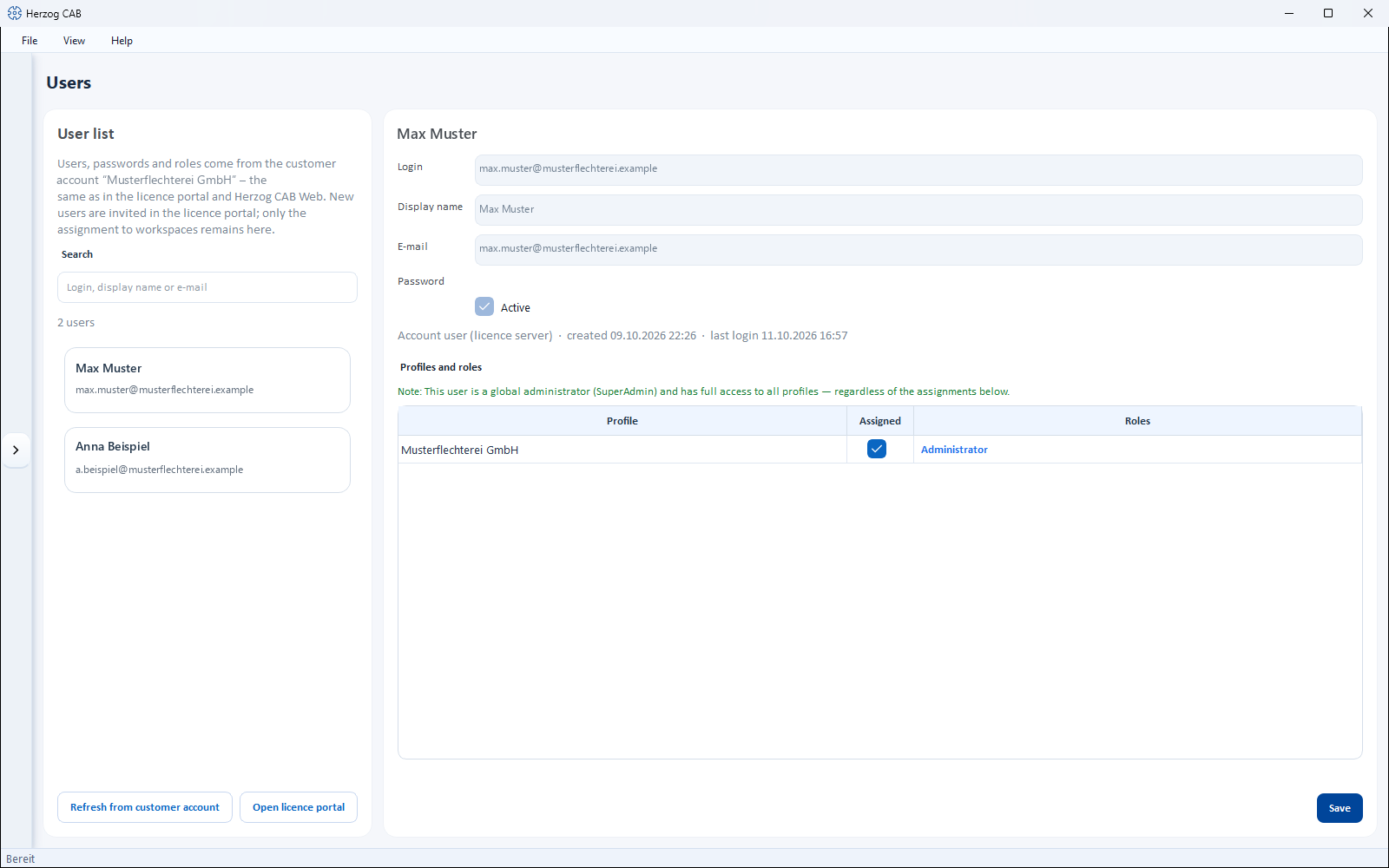
In the account model: users from the customer account
If Herzog CAB obtains its licence from the customer account, the note "Users, passwords and roles come from the customer account "<Company>" – the same as in the licence portal and Herzog CAB Web. New users are invited in the licence portal; only the assignment to workspaces remains here." appears above the user list.
| Element | Description |
|---|---|
| Refresh from customer account | Immediately fetches the current user list including roles from the licence server — the same synchronization that also runs at program start (see below). The success message states the number of users taken over, or "The user list matches the customer account."; without a connection, "The users could not be fetched from the licence server: …" appears. |
| Open licence portal | Opens the licence portal in the browser — there you invite new users and change roles. |
| Info line Account user (licence server) | Identifies a user from the account. Login, Display name and Email are read-only; Active, Reset password…, Deactivate and Delete permanently are hidden. |
| Profiles and roles | As described below — the assignment to workspaces remains local. The role itself comes from the account (Administrator = global administrator, Editor, Viewer); users without a role work as editors. |
Synchronization with the customer account at program start
If a user with the Manage users permission signs in, Herzog CAB synchronizes the user list with the customer account in the background a few seconds after startup — without a message and without you having to do anything:
| In the customer account … | … in Herzog CAB |
|---|---|
| newly invited user | is created and appears in the list. You assign workspaces to them here. |
| changed name, email, role or active status | is taken over. |
| user removed | is deactivated here, not deleted: they can no longer sign in, not even offline, lose global administrator rights, and the process is logged. Their assignments are retained. If the account invites them again later, they become active again at their next online sign-in. |
Users are only deactivated if the licence server has delivered the complete user list. If, for example, the signed-in administrator's permissions were revoked in the licence portal while the program was running, all other users remain unchanged. Independently of the synchronization, every user is updated at their next online sign-in.
The New user, Import from Entra and Import from LDAP buttons do not exist in the account model. Everything else on this page applies to dongle installations with local user management.
Controls in detail
User list (left)
| Element | Description |
|---|---|
| Search | Filters the list live by login, display name or email. The number of hits appears below the list (e.g. 3 of 12 users). |
| List entries | Show display name and login; deactivated accounts are marked inactive. |
| New user | Opens the Add new user dialog (see below). |
| Import from Entra | Opens the synchronization with Microsoft Entra (see below). Only usable if Microsoft sign-in is set up under Authentication. |
| Import from LDAP | Opens the synchronization with LDAP / Active Directory (see below). Only usable if LDAP is set up under Authentication. |
User editor (right)
| Field / button | Description |
|---|---|
| Login | Login name (e.g. m.mustermann). Must be unique. |
| Display name | Plain-text name that appears in the interface and on printouts. |
| Optional contact address. | |
| Password | Not displayed; set a new one via Reset password… (see below). |
| Active | Account active/deactivated. Deactivated accounts cannot sign in but are retained with all assignments. |
| Info line | Shows created, last login or never signed in. |
Profiles and roles
In the Profiles and roles section, you assign the user one or more roles per profile (workspace) — in the table with the columns Profile, Assigned and Roles. Via the roles column you open the Choose roles selection dialog. This way, the same user can have different permissions in different profiles.
Global administrator (SuperAdmin)
If a user is marked as global administrator, they have full access in all profiles — regardless of the assignments in the table. The editor displays a corresponding note.
Buttons at the bottom
| Button | Description |
|---|---|
| Deactivate / Activate | Sets the selected account to inactive or active again (with confirmation prompt). |
| Delete permanently | Removes the account irrevocably including its profile assignments (with confirmation prompt). For departed employees, Deactivate is usually sufficient. |
| Save | Stores the changes in the editor. |
Built-in protection mechanisms
You can neither deactivate nor delete your own account. Likewise, Herzog CAB refuses to deactivate or delete the last active administrator — so you do not accidentally lock yourself out.
Creating a new user
New user opens the Add new user dialog:
| Field | Description |
|---|---|
| Login | Unique login name. |
| Display name | Plain-text name. |
| Optional. | |
| Password / Confirm password | Initial password; both entries must match. |
| Active | Create the account as active right away (default). |
Create creates the account; you then maintain the profile and role assignment directly in the editor.
Resetting a password
If a user has forgotten their password, you set a new one here:
- Open System administration > Users.
- Select the user concerned in the list.
- In the editor, click Reset password….
- Assign and confirm a new password — Herzog CAB reports "The password has been reset."
Account only temporarily locked?
After several failed sign-in attempts, an account is locked for a short time (see Signing in and out). The lock releases by itself after a short time — a password reset is not necessary for this.
Changing your own password
Every user changes their own password themselves in the My profile dialog — no administrator is needed for this. Account users change their password in the licence portal.
Importing users from Microsoft Entra
Import from Entra opens the Match users with Microsoft Entra dialog. The prerequisite is a configured Microsoft sign-in (otherwise the note "Microsoft sign-in is not configured (System administration → Authentication)." appears).
- When opening, Herzog CAB first signs in to Microsoft — the same Microsoft sign-in window appears as at login. The dialog then loads the users from the directory ("Loading users from the directory…").
- The Import tab lists the directory users with Name, Login (UPN) and Email. Check the desired persons; existing accounts are marked "(already exists)" and are skipped during the import. If an import group is stored under Authentication, the list only shows its members.
- The Departed users tab shows Herzog CAB accounts whose counterpart in the directory is missing or blocked — with the reason (no longer in directory, not in the import group, blocked in directory). Check which of these accounts should be deactivated.
- Use the search field to filter the lists by name, login or email.
- Apply carries out the import and deactivation; the summary reports e.g. "5 imported, 1 deactivated. 2 skipped (already exists)." Close ends the dialog.
Importing users from LDAP / Active Directory
Import from LDAP opens the Match users with LDAP / Active Directory dialog. The prerequisite is a configured LDAP configuration under Authentication.
The procedure corresponds to the Entra import, with two differences:
- Instead of a Microsoft sign-in, the dialog queries the directory directly in the company network. At the top you can adjust the Search filter and run the query again with Search.
- The result table shows Name, Login and Email; the Departed users tab works as with the Entra import.
Apply creates or deactivates the checked users.
Roles automatically via directory groups
So that imported users automatically receive the correct role, store the Entra group → role mapping under Authentication.
Related pages
- Inviting and managing users (licence portal) — users in the account model
- Roles and permissions — what a role may do
- Authentication — setting up Microsoft Entra ID and LDAP
- My profile — what every user can change themselves
- Setting up users and roles — step-by-step guide