Install CodeMeter
Guide — Wibu CodeMeter Runtime installed and ready for use
Only for existing customers with a dongle or software licence
This page only concerns installations whose licence is on a CmDongle or a CmAct software licence. If you license your Herzog CAB via the customer account (standard case since version 2.0), you need no CodeMeter and can skip this page.
For dongle and CmAct licences, Herzog CAB uses the Wibu CodeMeter system. Before you install Herzog CAB itself, the CodeMeter User Runtime must be present on the computer. It includes the CodeMeter Control Center and CodeMeter WebAdmin, which are used to manage licences.
Order
We recommend setting up CodeMeter before the Herzog CAB installer. This way the runtime is already fully initialized at the first program start.
Clarify in advance: deployment scenario
How CodeMeter should be set up depends on whether only one user or several operators / computers work with it. A look at the deployment scenarios helps you choose the right setup.
Where do you get the runtime?
There are two sources — both lead to the same result and are independent of the licence type:
| Source | When? |
|---|---|
| Download from wibu.com | Always possible. Provides the latest version. Recommended. |
| Supplied USB stick | Only if you have ordered a CmDongle — the installer is also included there. Useful if the computer has no internet access. |
So dongle customers can also download the runtime from Wibu — the enclosed USB stick is just a convenience bonus.
Variant A - Download the runtime from wibu.com
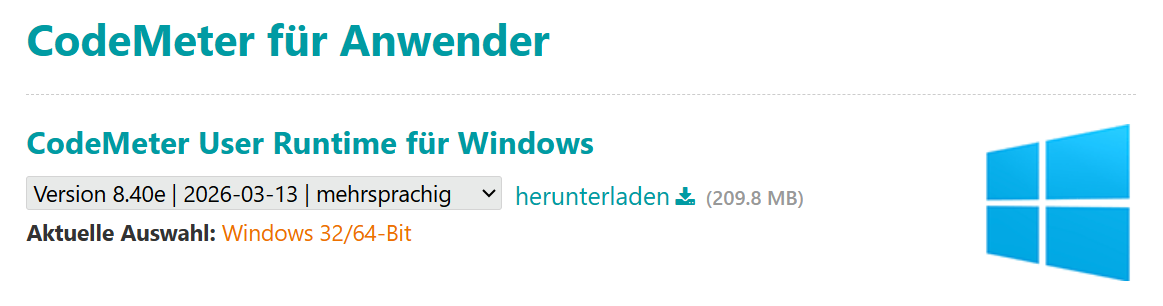
- Open https://www.wibu.com/de/support/anwendersoftware.html in the browser.
- Under CodeMeter User Runtime for Windows, choose the current version (in the example v8.40e). The Windows 32/64-bit variant suits all current Windows PCs.
- Click download. You receive the file
CodeMeterRuntime.exe.
- Double-click the downloaded
CodeMeterRuntime.exeand confirm the Windows prompt for administrator rights with Yes. - Follow the setup wizard (see below).
Versions compatible
CodeMeter runtimes are backward compatible. Installing a newer version than the one on a supplied USB stick is usually not a problem.
Variant B - Runtime from the supplied USB stick
Only relevant if you have ordered a CmDongle. With the dongle delivery you receive two USB drives:
- the CmDongle itself (small stick with the licence)
- an additional USB stick with the software
Proceed as follows:
- Plug the software USB stick (not the dongle!) into a free USB port.
- Open the stick in Windows Explorer. You will find there:

- Double-click
CodeMeterRuntime.exe. - Confirm the Windows prompt for administrator rights with Yes.
- Follow the setup wizard (see below).
After a successful installation you can remove the USB stick and store it safely - you only need it if the runtime has to be reinstalled later.
Run through the setup wizard
The setup wizard is identical for both variants.
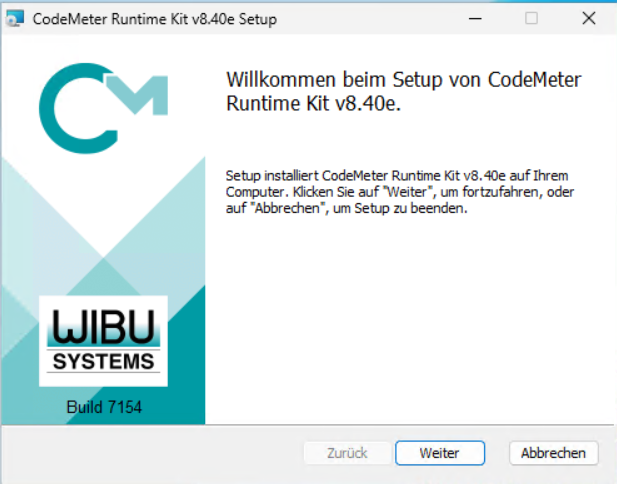
Step 1 - Welcome
Click Next.
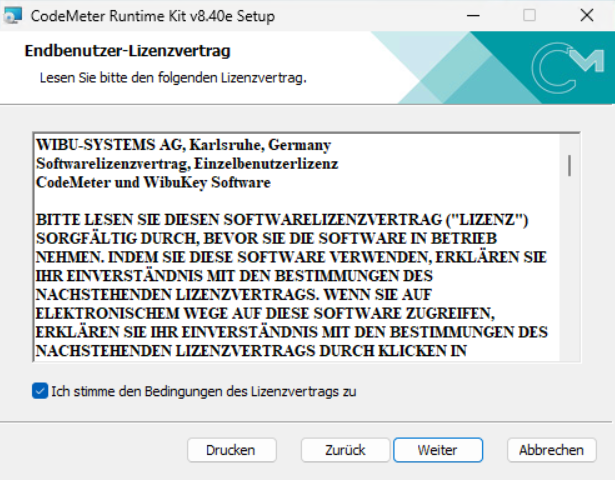
Step 2 - Licence agreement
Read the agreement, tick the checkbox I accept the terms in the License Agreement and click Next.
Step 3 - Component selection
Here you decide which features are to be installed.
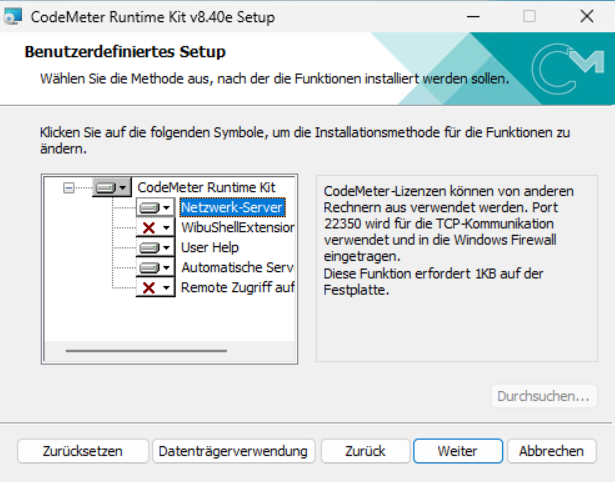
Important for floating licences / licence server
If this computer is to serve as a licence server (variant 3 of the deployment scenarios — floating licences for several clients), the Network Server component must be activated. To do this, click the icon in front of Network Server and choose Will be installed on local hard drive.
The component opens port 22350 for TCP communication with the clients and adds an exception to the Windows firewall.
For single-seat or client installation
If this computer does not become a licence server (variant 1 or 2, or a client in variant 3), the standard components are sufficient — Network Server does not need to be activated.
After making your selection, click Next.
Step 4 - Start the installation
Click Install.
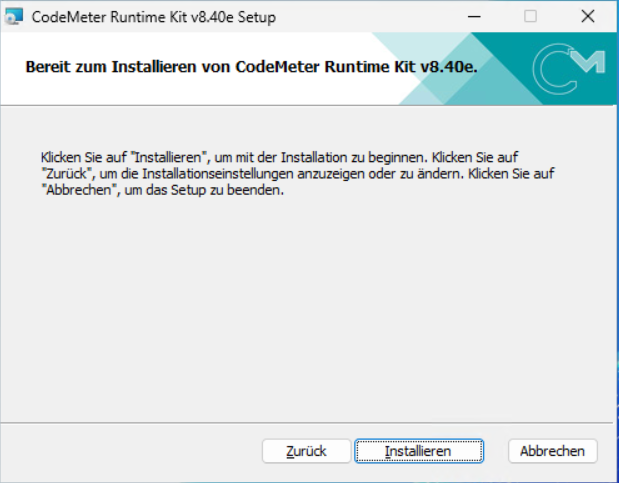
Depending on the computer, the process takes one to two minutes. At the end, close the wizard with Finish.
Check whether CodeMeter is running
After the installation, CodeMeter runs as a background service. Check success as follows:
- Look at the Windows notification area at the bottom right (next to the clock). The CodeMeter icon should appear there (small C in a circle). You may have to expand the tray menu with the arrow to see it.
- Double-click it - the CodeMeter Control Center opens.
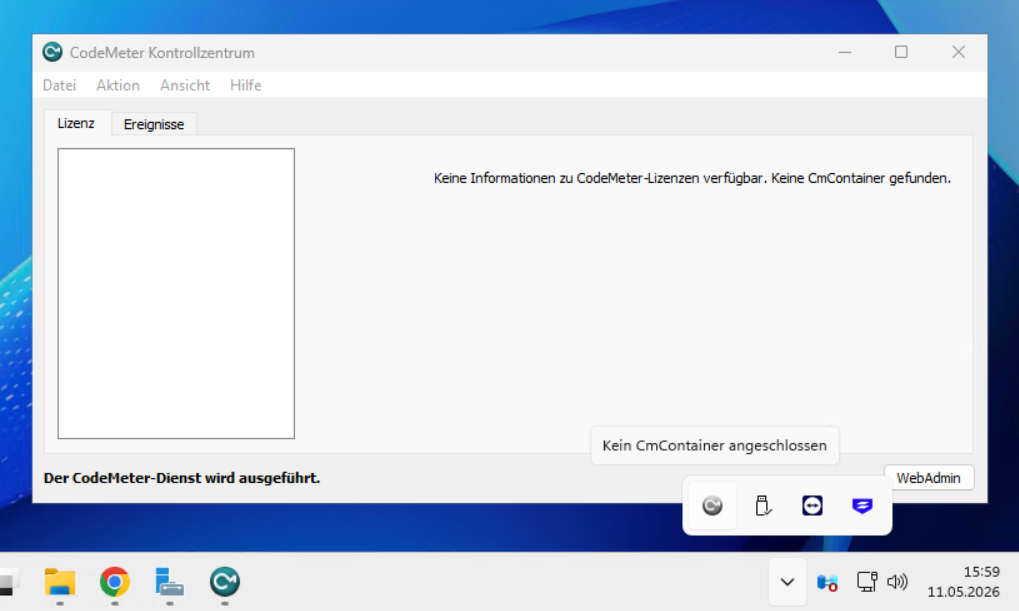
In the Control Center, the licence list is still empty — the message "No information about CodeMeter licenses available. No CmContainer found." is correct at this point. All that matters is the status at the bottom left: "CodeMeter service is running."
The Herzog licence is only activated in the next step.
Next step
Now you can install Herzog CAB.