First start and setup
Guide — Storage location, user and workspace folder set up at the first program start
Prerequisites: Herzog CAB is installed and the computer is signed in to the customer account — or, for existing customers: the dongle is plugged in or the CmAct licence is activated.
When you start Herzog CAB on a computer for the first time, the program guides you through a short setup. Depending on whether you are the first user in your plant or are joining an existing setup (e.g. because user management is already on a network drive), you see a different number of the following dialogs.
flowchart LR
  A[Sign in to the<br>customer account] --> B[Company's<br>workspace folder]
  B --> D[Herzog CAB starts]
The user with whom you signed the computer in to the account is also your program user — you no longer create an administrator account. Instead of steps 1 to 3 below, only one dialog appears: Company's workspace folder. If your customer account already knows your company's folder, you just click Connect there.
flowchart LR
  A[Choose storage location] --> B[Create administrator]
  B --> C[Set up profile]
  C --> D[Herzog CAB starts]
Without a customer account, Herzog CAB manages its users locally. At the first start you create the first administrator (step 2).
These dialogs only appear when needed
Each dialog is displayed only if the respective state does not yet exist. On a second or third computer that accesses the same (already set up) user management, you usually only see the normal sign-in dialog and, if applicable, the profile selection.
Customer account: company's workspace folder
In the account model, after signing in Herzog CAB only asks where the company's data is stored — designs, orders, machines and master data. Your customer account remembers the storage location: the company's first computer defines it, and every further computer connects to it. Nobody needs to know the network path for this.
The account knows the folder: connect
If your company already has a storage location, the "Set up workspace folder" dialog shows this folder and immediately checks whether it can be reached from this computer.
📷 Screenshot missing
Subject: “Set up workspace folder” dialog with the company's folder, green tick “The folder can be reached from this computer.” and the Connect button
How to create: Sign in for the first time on a second computer with an account that already has a storage location
Target file: assets/screenshots/setup/arbeitsverzeichnis-verbinden.png
| Element | Meaning |
|---|---|
| Company folder | The network path from the customer account, e.g. \\fileserver\freigabe\HerzogCAB. |
| Check result | ✔ = the folder can be reached. ✘ = cannot be reached; usually the network drive is not connected (when working from home: VPN) or your Windows user is not allowed to write there. |
| Connect | Sets up the folder on this computer and starts Herzog CAB. Only active if the folder can be reached. |
| Check again | Appears if the folder cannot be reached. Checks again after you have connected the network drive. |
| Choose a different folder … | Only for users with the Workspace settings right. Opens the selection below, e.g. for a test folder. |
| Quit | Quits Herzog CAB without setting anything up. |
No silent fallback
If the folder cannot be reached, Herzog CAB does not create a local substitute folder. This prevents two separate data sets from being created.
Company's first computer: define the storage location
If the account does not yet know a storage location, the dialog asks once:
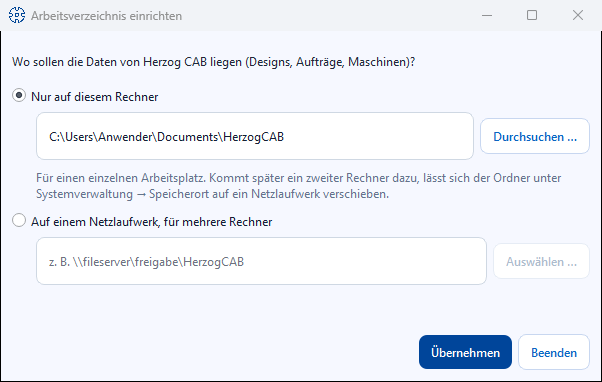
| Element | Meaning |
|---|---|
| On this computer only | For a single workstation. Prefilled with Documents\HerzogCAB, can be changed via Browse …. If a second computer is added later, move the folder to a network drive under Storage location. |
| On a network drive, for several computers | For several workstations. Enter the path or select it via Choose …. Herzog CAB itself converts a mapped drive such as Z:\HerzogCAB into the network path so that every computer can find it. |
| Apply | Sets up the folder. With the Workspace settings right, a network drive is also stored as the company's storage location in the customer account. |
Define the storage location in advance
Administrators can also enter the storage location in the web app under Account and users before the first computer is set up.
Step 1: Choose the storage location for user management (dongle / CmAct only)
Not applicable with the customer account
In the account model, users come from the customer account. The folder for the data is defined by the Company's workspace folder dialog.
This "Set up data storage location" dialog only appears at the very first start on a computer that does not yet know any user management (neither locally nor via an already configured network path). It defines where user accounts, profiles and roles are stored.
| Element | Meaning |
|---|---|
| Local — this computer only | Preselected option. User management is stored under %ProgramData%\Herzog GmbH\Herzog Cab on this computer. Suitable for variant 1 of the deployment scenarios. |
| Network path — shared with other computers | Activates the path field. Suitable for variant 2/3, if several computers are to see the same user accounts. |
| Path field | Free text field for the UNC path (e.g. \\fileserver\share\HerzogCAB), only active with "Network path". |
| Choose … | Opens the folder selection. |
| Test connection | Checks whether the path exists or can be created and is writable. Also shows whether user data is already stored there. |
| Apply | Saves the choice. With "Network path", Herzog CAB then restarts automatically so that the new path takes effect everywhere. |
Data already present at the destination?
If the connection test finds user data at a network path (e.g. because a colleague has already created an administrator there), it is reused — no new administrator is created. You then go straight to the normal sign-in dialog.
The chosen storage location can be changed at any time later under Storage location in system administration.
Step 2: Create the administrator account (dongle / CmAct only)
Not applicable with the customer account
In the account model, users, passwords and roles come from the customer account. Whoever signed in the computer is immediately signed in to the program; colleagues sign in at the next start with their own account user (see Sign in and sign out). Your role in the program corresponds to your role in the account — an account administrator has all rights.
If there is no account yet in the local user management, Herzog CAB shows the "Set up user management" dialog. The account created here automatically becomes the first SuperAdmin and is then immediately signed in — signing in again is not necessary.
📷 Screenshot missing
Subject: “Set up user management” dialog with the fields
Company, Login name, Display name, Email, Password, Confirm password.
How to create: Start Herzog CAB on a computer without existing
user management (empty %ProgramData%\Herzog GmbH\Herzog Cab).
Target file: assets/screenshots/setup/erstadmin-einrichten.png
| Field | Meaning |
|---|---|
| Company | Company name displayed in the program. Can be changed later under System administration > Company. |
| Login name | Sign-in name for the login dialog. Not case-sensitive. |
| Display name | Full name displayed in the program. |
| Email (optional) | Stored in the user account. |
| Password / Confirm password | Must be at least 6 characters long and match in both fields. |
Click Finish setup as soon as all mandatory fields are filled in — the button is disabled until then.
Who should be the first administrator?
Ideally a person who is organizationally responsible for Herzog CAB in the plant — e.g. a shift supervisor or workshop manager. You create further users with restricted rights later under Manage users.
Keep the password safe
If you forget the administrator password, only another SuperAdmin can reset it via Manage users. If there is no second SuperAdmin yet, write down the password in a safe place.
Step 3: Set up a profile (dongle / CmAct only)
Not applicable with the customer account
There, the Company's workspace folder dialog creates the profile itself; it is named after your company.
A profile is a self-contained workspace with its own workspace folder (orders, master data, print templates) and its own web server port. If the newly signed-in SuperAdmin sees no profile, Herzog CAB automatically shows the "Set up profile" dialog.
| Field | Meaning |
|---|---|
| Profile name | Name of the profile, prefilled with "Default". With several companies/plants on the same installation, give it a meaningful name here. |
| Workspace folder | Folder for orders, machines, materials, colors and print templates of this profile. Prefilled with Documents\HerzogCAB. Selectable via Browse …. |
| Webserver port | Port at which the mobile web interface of this profile can be reached. Prefilled with 8080. |
| Start webserver automatically at launch | Checkbox, off by default. |
| Webserver password | At least 8 characters. Without a password, the web interface can only be reached on this computer; tablets and phones on the network need a password. Can be set later under Web server and QR code. |
Workspace folder in multi-user operation
Profiles are stored centrally. If several computers are to work with the same
profile, the workspace folder must be a
network path (e.g. \\fileserver\share\HerzogCAB-Daten).
A local path such as C:\Daten\… can only be reached on the computer
on which you entered it here.
Click Create profile as soon as the name and workspace folder are valid (green tick below the form).
Select a profile instead of setting one up
If the signed-in user sees more than one profile (e.g. because several plants/profiles have already been created), the "Select profile" dialog appears instead: a list of all assigned profiles with the workspace folder and web server status for the selected row, and the buttons Manage profiles … (SuperAdmins only) and Open profile. If exactly one profile is assigned, Herzog CAB opens it automatically — without a dialog.
You create, rename or delete further profiles later under Profiles (workspaces).
Result
Herzog CAB opens the main window, signed in with your user and the profile you set up. In the workspace folder, the program automatically creates the necessary basic files (including for orders, braiding machines, materials and colors) — you will find details under Profiles (workspaces).
If the workspace folder can no longer be reached later
If the workspace folder stored in the profile can no longer be reached or is not writable at a later program start (e.g. network drive not connected), Herzog CAB reports this directly at startup with an error message including a hint for the solution. In an older special case — very early installations without profile assignment — the "Set up workspace folder" dialog may appear automatically instead: path field, Browse …, a status note (green tick with write access, red cross otherwise) and Apply workspace folder. If you cancel this dialog, Herzog CAB automatically falls back to Documents\HerzogCAB so that the program can start in any case.
If something doesn't work
- Password is not accepted or the two password fields do not match → note the message in the dialog, use at least 6 characters.
- Folder is not writable (red cross) → choose a different folder
or check permissions; do not choose a folder under
C:\Program Filesor on a write-protected network drive. - Sign-in fails on a further computer → see Sign-in problems.
- Licence is not recognized → see Licence problems.
Related pages
- Deployment scenarios — which topology suits your plant
- Storage location — change the storage location later
- Profiles (workspaces) — create and manage further profiles
- Manage users — create further users or take them over from the customer account
- Customer account and invitation — invite colleagues to the account
- The interface at a glance — how to continue after the start