Inviting and managing users
Reference — The “Users” page in the licence portal: inviting colleagues, changing names and roles, deactivating or deleting accesses
What you use this area for
Everyone who is to sign in to the desktop app, the web app or the licence portal needs a user in the customer account. Administrators invite colleagues by e-mail here, define their role and switch off accesses of people who have left. The seats belong to the account, not to the user. You can therefore create any number of users. The seats only limit how many persons can work at the same time, in the program or in the browser.
The screen at a glance
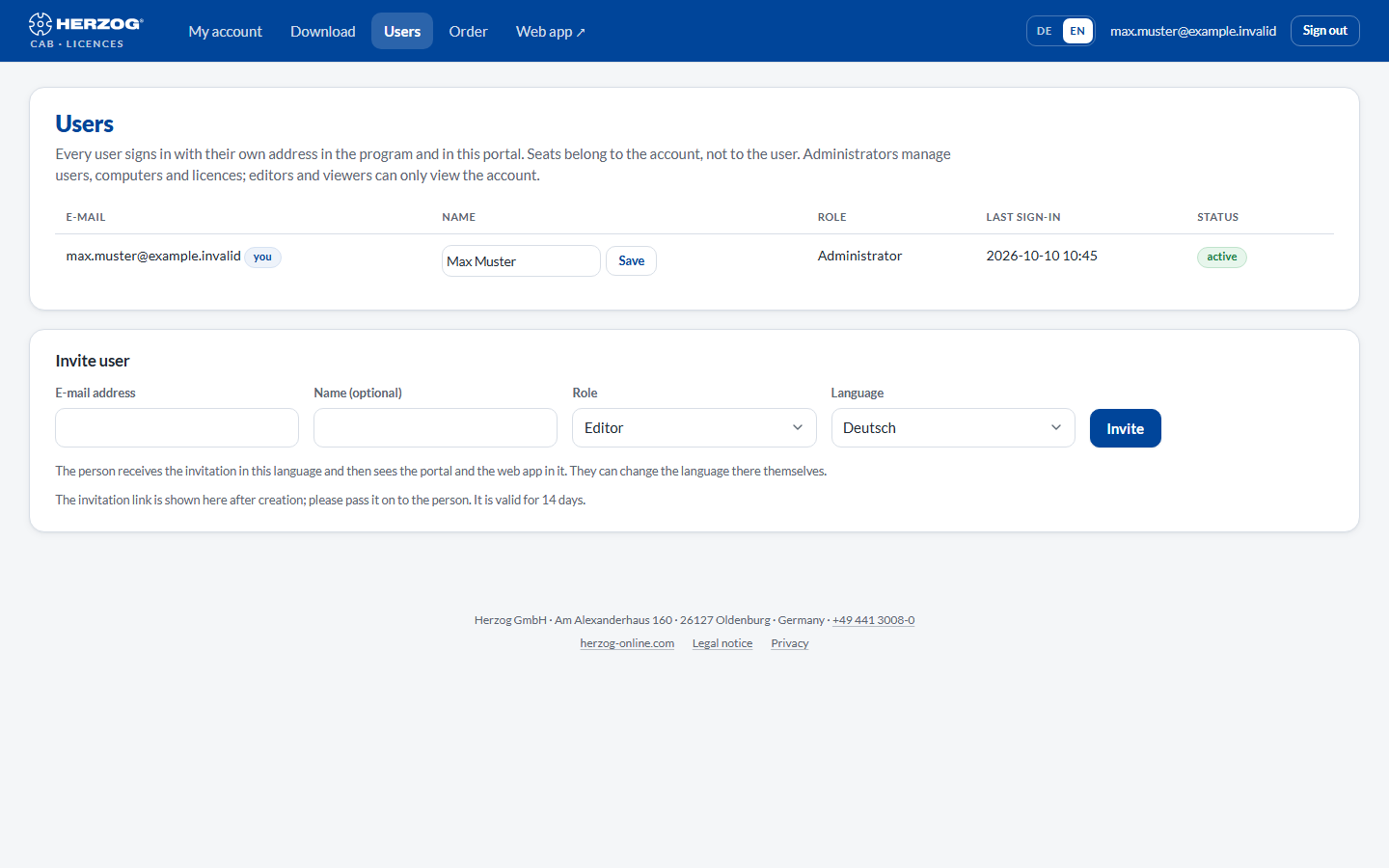
At the top is the User list, below it the Invite user form. Editors and viewers can only view the list; it is managed by the administrators.
Controls in detail
User list
| Column | Meaning |
|---|---|
| Login name of the user. Your own entry is marked you; Herzog employees assigned to your account for support are marked Herzog staff. | |
| Name | Display name, as the person appears in the program, in the web app and in the portal. Administrators change it directly in the row (see Save below). You do not change the name of Herzog staff accounts here. |
| Role | Administrator, Editor or Viewer — administrators change it directly in the row with Change. What the roles mean is described under Customer account and invitation. |
| Last sign-in | Time of the last sign-in (portal, desktop or web) or never. |
| Status | active, deactivated, Invitation open until <time> or Invitation expired. Plus the 2FA flag if the user has set up a second factor. |
| Button | Effect |
|---|---|
| Save (name) | Saves the name you entered in the row: at most 190 characters; an empty field removes the name. The portal confirms The name has been saved. The desktop app takes it over at the person's next sign-in. Every user can also change their own name themselves under Password, second factor and name. |
| Change (role) | Saves the role selected in the row. The new role applies immediately in the web app, and in the desktop app after the next start or after Refresh from customer account in the user management. |
| Renew invitation | Sends a new link to a person who has not yet set their password, even if the invitation has already expired. The new link is again valid for 14 days; the old one is then no longer valid. Next to it, you choose the language of the invitation. |
| Deactivate | The user can no longer sign in anywhere; their data and assignments are retained. Computers on which they were signed in to the desktop app require a new sign-in. With confirmation prompt. |
| Activate | Removes the deactivation. |
| Delete | Permanently deletes the access, after the prompt Permanently delete the access <e-mail>? Designs, orders and computers stay with the account. On the computers the deleted user also loses offline access: the desktop app synchronizes its user list with the customer account at startup as soon as someone with the Manage users permission is signed in there, and deactivates the user (see Manage users). |
Built-in protection mechanisms
You can neither deactivate nor delete your own access, and your own role can only be changed by another administrator. The last active administrator of an account can neither be deactivated, deleted nor downgraded.
Invite user
| Field | Meaning |
|---|---|
| E-mail address | Login name of the new person; must be unique within the account. |
| Name (optional) | Display name. |
| Role | Role of the new user (default: Editor). |
| Language | Deutsch or English. The person receives the invitation in this language and then sees the portal and the web app in it; they can change the language there themselves. Preset according to the country of your account. |
| Invite | Creates the user and sends the invitation. |
This is how the invitation works:
- The person receives an e-mail with a link and sets their password themselves (at least 10 characters). The link is valid for 14 days.
- Until then, the user appears in the list with Invitation open until ….
- If the person has not accepted after three days, the portal sends them a reminder once with a new link. The old link is then no longer valid. If they open an expired link, they can send themselves a new invitation there.
- After the password has been set, the access is active and applies immediately to the portal, desktop app and web app.
The life cycle of an access at a glance:
stateDiagram-v2
  [*] --> Open: Invite
  Open --> Open: after 3 days one reminder with a new link
  Open --> Expired: link older than 14 days
  Expired --> Open: Renew invitation
  Open --> Active: password set
  Active --> Deactivated: Deactivate
  Deactivated --> Active: Activate
  Active --> [*]: Delete
  Deactivated --> [*]: Delete
  Open: Invitation open until …
  Expired: Invitation expired
  Active: active
  Deactivated: deactivated
Users in the trial account
With the trial version, you can invite as many users as the trial version has seats. Below the form, it says how many are still free. Once the number is reached, a note appears instead of the form. With a subscription, the limit no longer applies.
No e-mail delivery possible?
If no e-mail could be sent (e.g. in a test environment), the portal displays the invitation link directly — pass it on to the person by another route.
What the roles do in the programs
| Licence portal | Desktop app | Web app | |
|---|---|---|---|
| Administrator | Manages users, computers, requests. | Global administrator: all permissions in all profiles. | All permissions; can create roles, manage company and import. |
| Editor | Views the account. | Standard role Editor: create and change orders, designs, master data. | Same. |
| Viewer | Views the account. | Standard role Viewer: read, calculate, print, export. | Same. |
In the web app, administrators can additionally create custom roles with individual permissions and assign them to users — see Roles (web app) and Account and users (web app). In the desktop app, assignment is made per profile (workspace), see Managing users.
Related pages
- Customer account and invitation — accepting the invitation, roles
- Setting up users and roles — the procedure as a guide
- Password, second factor and name — what every user sets themselves
- My account — seats and computers