Factory Planner (web app)
Reference — The Factory Planner module of the web app: managing floor plans and assignments, the 2D editor and the 3D view
What you use this area for
The Factory Planner represents your production hall: a Floor plan (walls, areas, doors, gates, windows, stairs) and on it any number of Assignments — scenarios of which machine stands where. An assignment can be marked as Current. The model corresponds to the desktop app (Factory Planner); this page is about operation in the browser.
Overview of the floor plans
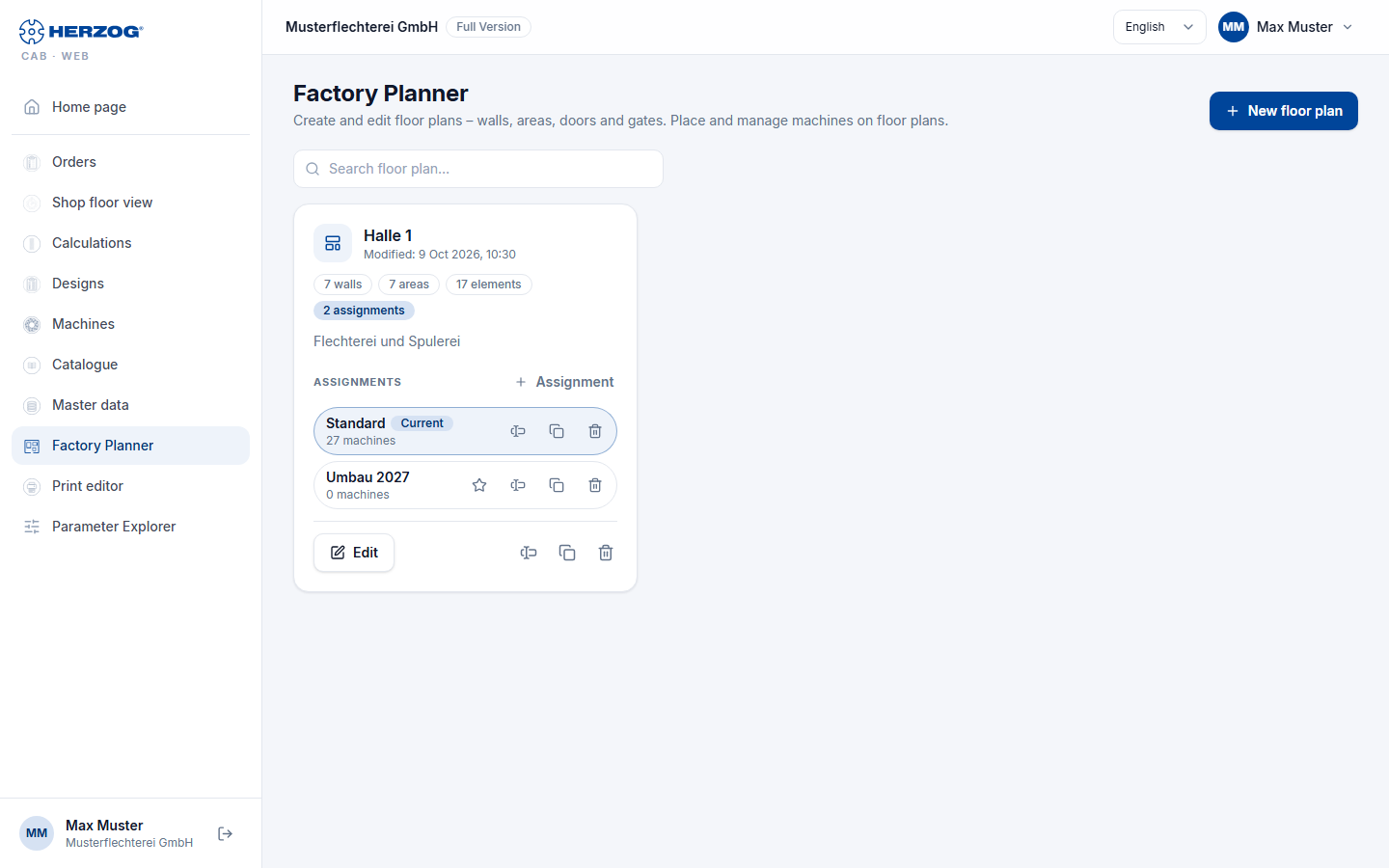
| Element | Meaning |
|---|---|
| New floor plan | Asks for the name (hall / area) and opens the editor. |
| Search floor plan… | Filters the list. |
| Floor plan card | Name, date of change, number of walls, areas and elements, and the associated Assignments. |
| Edit | Opens the floor plan in the editor (Floor plan mode). |
| Rename… / Duplicate… / Delete… | Deleting also removes all assignments of the floor plan; the machines remain in the master data. The floor plan and assignments go to the recycle bin. |
| New assignment / scenario | Creates an assignment for the floor plan (name, e.g. Variant). |
| Assignment: Set up | Opens the assignment in the editor (Assignment mode). |
| Assignment: Set as actual assignment | Marks the assignment as the current layout (Current). |
Layouts in the old format
Layouts from older desktop versions contain the floor plan and machines in one file. Split turns this into one floor plan and one assignment Standard — like the migration in the desktop app.
The editor
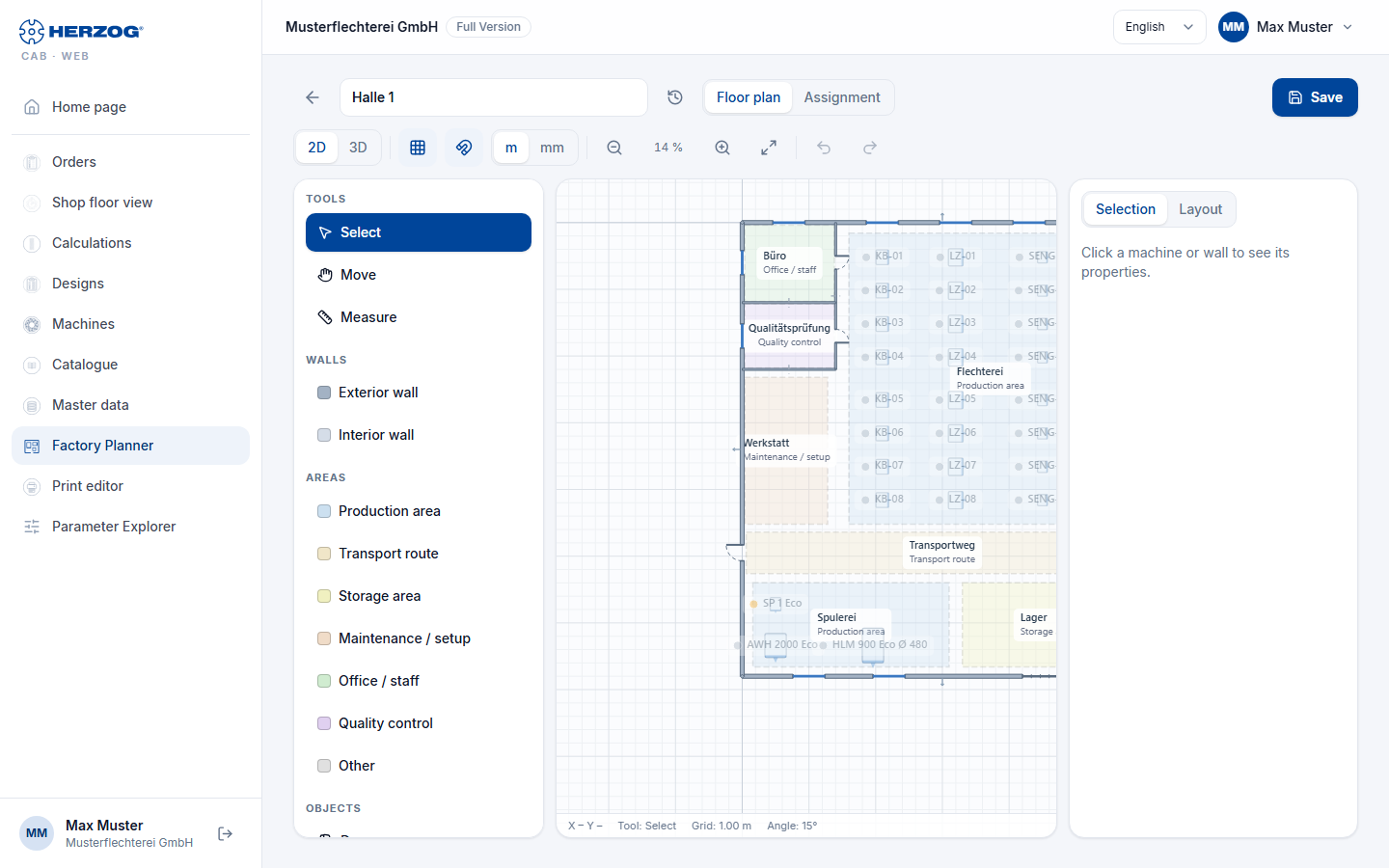
At the top is the header with the name of the floor plan and the switch Floor plan / Assignment, below it the toolbar. On the left, in Floor plan mode, is the Tools palette (tools, walls, areas, objects), in Assignment mode the Catalogue of your machines; in the middle the drawing area, on the right the tabs Selection (properties of the selected object) and Layout. At the bottom, a status line shows the mouse position, the tool, the grid and, when measuring, the length.
Toolbar
| Element | Effect |
|---|---|
| Floor plan / Assignment | Mode: edit the floor plan or place machines. In Assignment mode you select the assignment next to it (Current marked). |
| 2D / 3D | Drawing view or the interactive 3D view (see below). |
| Grid / snap | Show or hide the grid, switch snapping to the grid on or off. |
| Unit | Meters or millimeters. |
| Zoom out / Zoom / Zoom in / Fit | Zoom of the drawing area (also mouse wheel or two fingers). |
| Undo / Redo | Editing steps. |
| Edit | With a selection: rotate 90° left/right, duplicate or delete the selection; with several machines, distribute evenly horizontally/vertically and line them up. |
| Save | Saves the floor plan or assignment (Save current layout). |
| Versions (icon in the header) | Earlier versions of the floor plan (Floor plan mode) or of the selected assignment (Assignment mode), see Versions and recycle bin. |
"Tools" palette (Floor plan mode)
| Group | Tools |
|---|---|
| Tools | Select (select, move, mark objects), Move (hand: drag the view), Measure (click two points — the length appears at the bottom). |
| Walls | Draw Exterior wall and Interior wall as a chain of clicks; right-click or Esc ends it. |
| Areas | Production area, transport route, storage area, maintenance, office, quality control …: click the corner points, click the first point again to close. |
| Objects | Place Door, Gate, Window on a wall; Stairs on a free spot; Banner / logo. |
| Set scale | Click a reference distance on the floor plan image and enter the actual length in meters. |
"Catalogue" palette (Assignment mode)
Your Braiding machines and Bobbin winding machines from the Machine Fleet with search field and type filter. Drag a machine into the floor plan or place it in the center of the view by double-clicking. Machines without dimensions are marked Dimensions missing — add length and width on the machine page.
"Selection" tab
Properties of the selected object (name, dimensions, rotation, wall type, door or gate width, etc.). Without a selection, the note Click a machine or wall to see its properties. appears here.
"Layout" tab
| Setting | Effect |
|---|---|
| Name, Description | of the floor plan or assignment. |
| Grid size, Snap, Object snap, Angle snap | Drawing aids. |
| Load hall floor plan | A photo or plan as a drawing background from the media library or as a file; Transparency, Orientation (rotate by 90°) and Set scale align the image. |
| Load image/logo… | Banner or logo for the plan. |
| Wall texture (3D) | Prepared; has no effect in the web app yet. |
3D view
3D in the toolbar shows the hall spatially: walls with openings, doors, gates, windows, stairs, the floor plan image and the machines as boxes with a front band and image (for internal accounts the 3D model). Controls: Rotate: left mouse button · Pan: right mouse button · Zoom: wheel; on a touchscreen, one finger rotates, two fingers pan, pinching zooms.
Difference from the desktop app
Context menus, Connect walls, the automatic area detection and wall textures of the desktop app do not exist in the web app.