Guided Tours
Concept — Interactive walkthroughs that train operators directly in the program
Herzog CAB contains built-in, interactive tours that guide new operators step by step through individual functional areas. The hints appear as speech bubbles directly in the program and highlight the relevant control.
Starting a tour
Select Help > Guided Tours…. The Guided Tours dialog opens with one card per topic. Click the round start button (▶, tooltip Start tour) at the bottom right of the desired card; Close leaves the dialog without a tour. If not all cards fit on the screen, the dialog can be scrolled.
Press Shift+F1 while you are in a functional area: the tour for this area starts directly. If the focus (or the mouse pointer) is in the navigation, the navigation tour starts instead. The status bar also reminds you of this when you point to Guided Tours… in the Help menu.
F1 on its own opens the matching page of this manual in the browser — up to version 2.1.0, F1 started the tour.
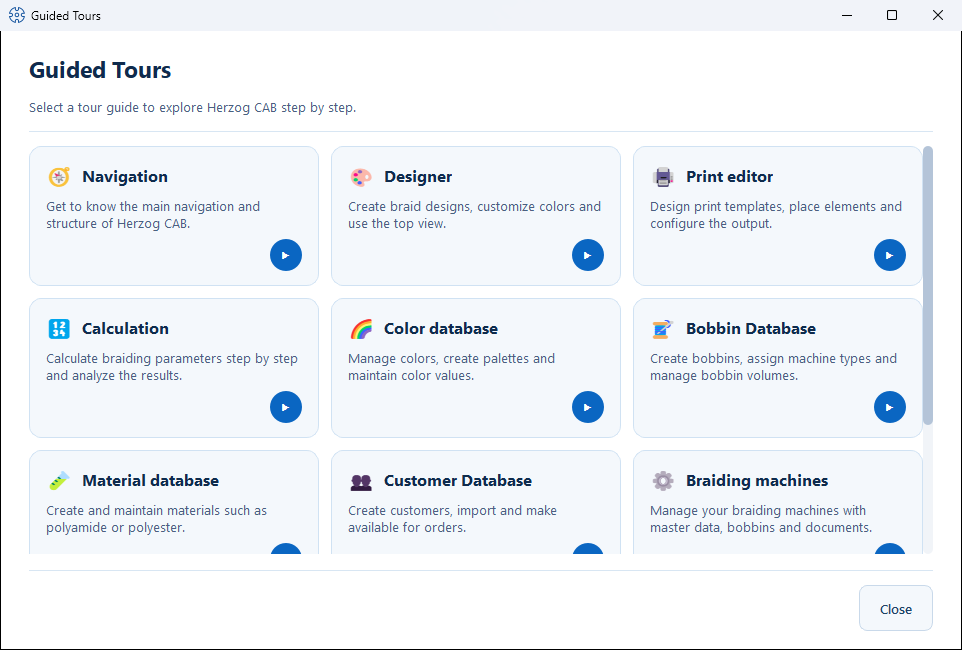
Available tours
| Tour | Content |
|---|---|
| Navigation | Get to know the main navigation and structure of Herzog CAB. |
| Designer | Create braid designs, adjust colors, use the top view — see Designer. |
| Print editor | Design print templates and place elements — see Print editor. |
| Calculation | Calculate braiding parameters and understand the results — using the example of Braiding angle. |
| Color database | Manage colors, create palettes — see Colors. |
| Bobbin Database | Create bobbins and assign machine types — see Bobbins. |
| Material database | Create and maintain materials — see Materials. |
| Customer Database | Create and import customers — see Customers. |
| Braiding machines | Manage your own braiding machines with master data and documents — see Braiding machines. |
| Order Editor | Enter a complete order — see Braiding order. |
When a tour starts, Herzog CAB automatically switches to the matching area.
Using the tour
In each speech bubble you find:
- Next — to the next step (in the last step the button is called Close).
- Back — to the previous step.
- Skip — ends the tour immediately.
- The step indicator "Step X of Y" shows your progress.
Use tours for training
Have new operators run through the tour of the relevant module once completely — this saves explanation time and avoids operating errors.
Prefer to look things up?
This manual covers the same topics in more detail — you find the reference pages for each area via the search or the chapter overviews.