Preview and print
Reference — template preview in the editor and the actual printout
Live preview in the editor
The page canvas in the print editor is also the preview: it shows the template true to the original in the selected Paper size and the selected Orientation (portrait/landscape). Use the zoom controls at the top to adjust the display size without changing the layout.
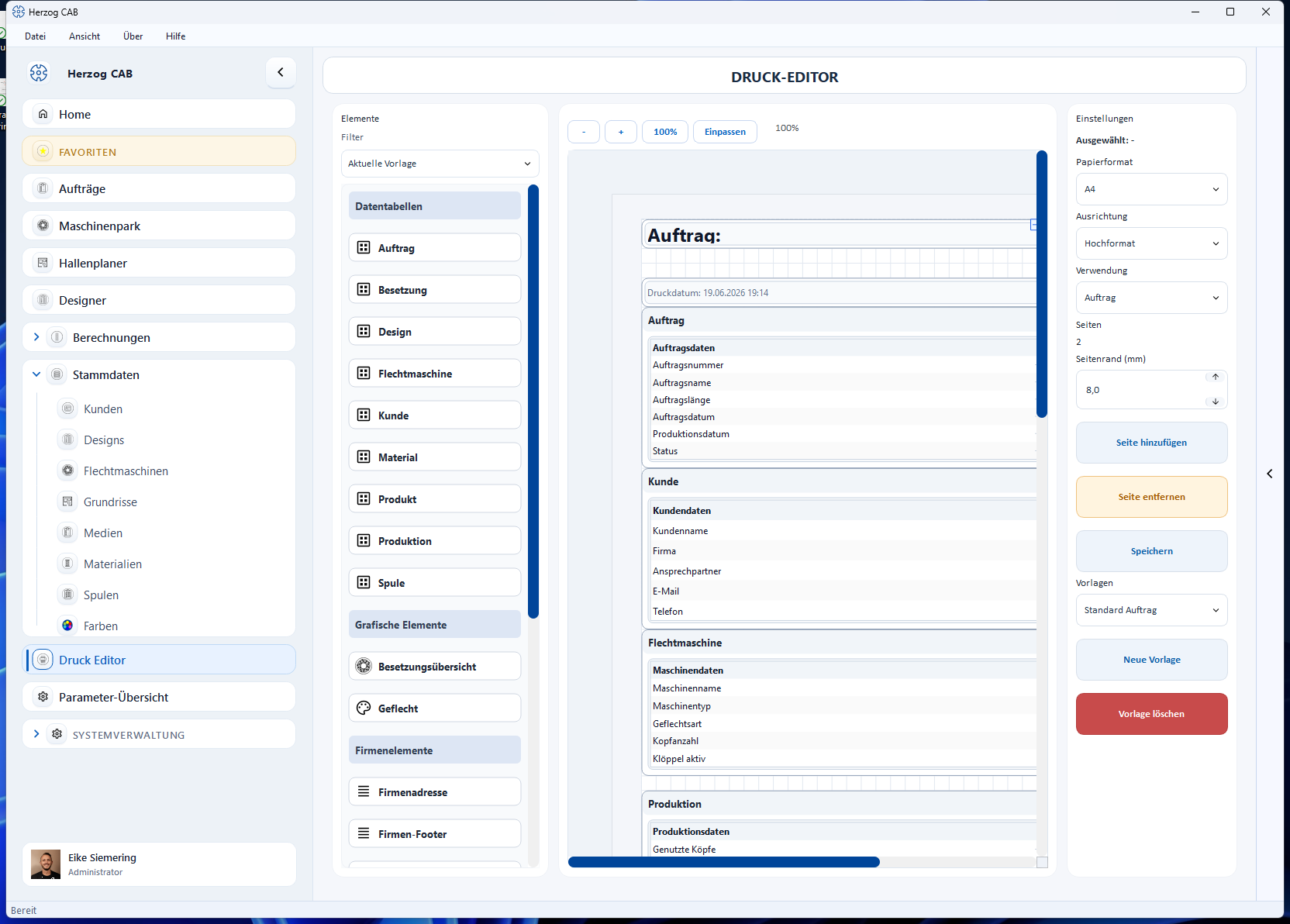
Set the page format
On the right in the page settings, choose Paper size, Orientation and Page margin (mm). You extend multi-page templates with Add page.
Printing and PDF export
You do not trigger the actual printing in the editor, but in the place the template is intended for (see Usage) — there it is filled with the real data and shown in a print preview. From there you print on a printer or output as PDF.
| Usage | Where you print |
|---|---|
| Order | Via Print in the order. |
| Design | Via Designer → Save and print. |
| Calculation | Via File > Print… (Ctrl+P) with the calculation open. If there are several matching templates, you first choose which one to use. |
Test before series use
Print a new template once with real data (or as PDF) to check placement, page breaks and margins before you use it in production.
Related pages
- Editor layout – element palette, filter, page settings
- Elements and placeholders – all building blocks of the element palette in detail
- Manage templates – create, choose and delete templates
- Create a print template – step-by-step guide
- Orders → Print – where order templates are used
- Designer → Save and print – where design templates are used