Home page
Reference — The home page of the web app: greeting with quick actions, orders, production, favorites, recently opened, overview and quick access
What you use this area for
The home page greets you after signing in and shows what is coming up: your orders by status, the productions of the next two weeks, your favorite calculators and what was worked on most recently. From here you jump into every module. You can reach the home page at any time via Home page in the sidebar, the Herzog logo or Home in the bottom bar on a smartphone.
The screen at a glance
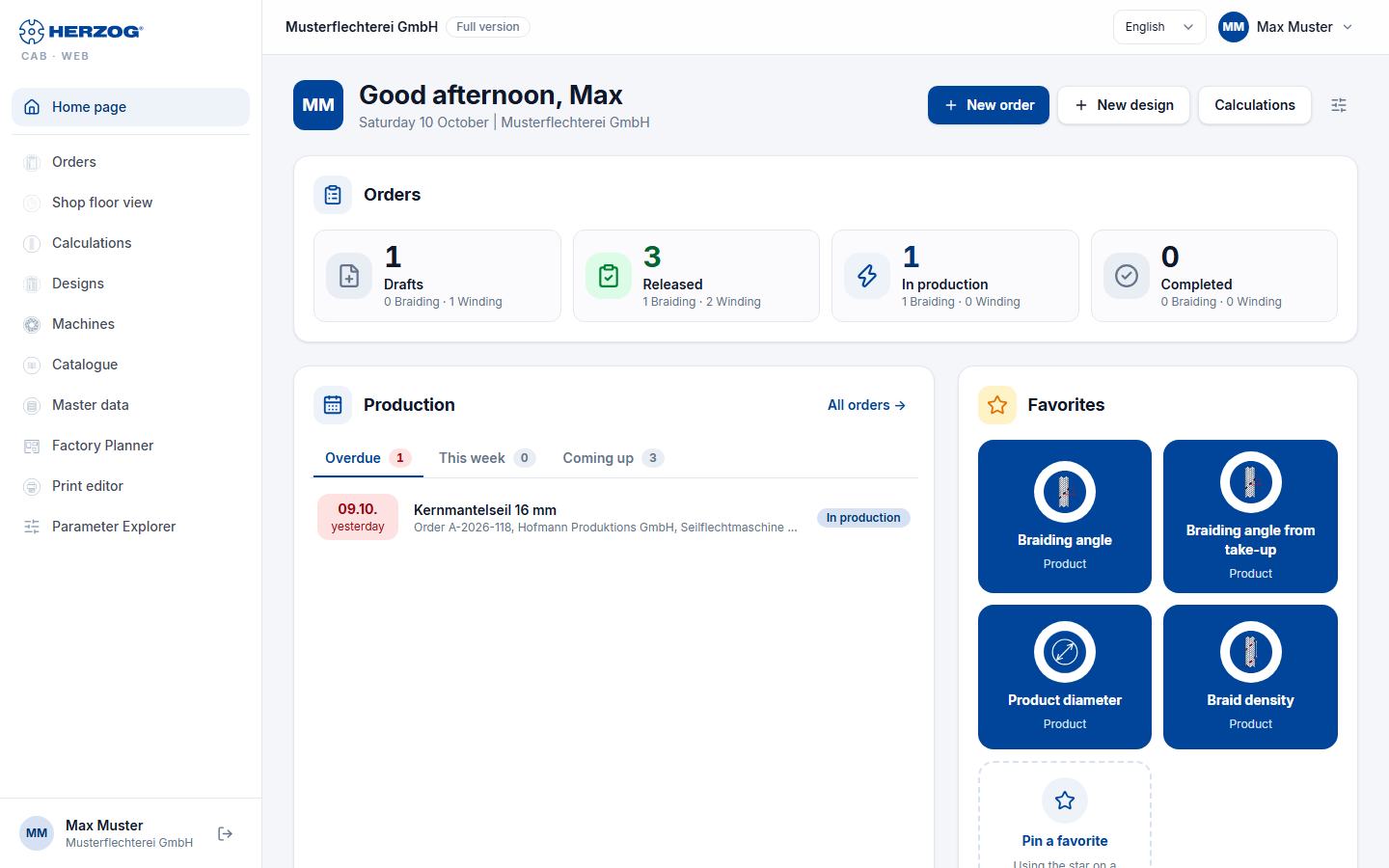
At the top is the header with greeting and quick actions. Below it follow the cards Orders, Production, Favorites, Recently opened and Overview, and at the very bottom across the full width Quick access and Calculations. The page uses the full width of the window. How the cards are arranged depends on the width of the content area (without the sidebar):
| Width | Arrangement |
|---|---|
| from about 1950 px (large monitor) | Three columns: on the left the wider column with Production, in the middle Orders and Favorites, on the right Recently opened and Overview. |
| from about 1050 px (laptop, monitor) | Orders at the top across the full width, below it two columns: Production on the left, Favorites and Recently opened on the right. Overview is below them across the full width. |
| narrower (tablet, smartphone) | All cards one below the other. |
The last card of each column extends to the bottom edge of the longest column, so the columns end flush. Which cards you see depends on your permissions. With the Herzog CAB Designer module the cards for orders and calculations are missing.
Controls in detail
Header
| Element | Meaning |
|---|---|
| Initials and greeting | Your initials on a blue background and a greeting according to the time of day: Good morning, <first name> (until 11 a.m.), Good afternoon, <first name> (until 6 p.m.), after that Good evening, <first name>. Without a stored name, Welcome appears. Below it the weekday, date and your company. |
| New order | Opens a new braiding order. Only with the permission Edit orders. |
| New design | Opens the Designer with a new design. Only with the permission Edit designer. |
| Calculations | Opens the calculator overview. Only with the permission Run calculations. |
| Customize home page (slider icon) | Opens the dialog for showing and hiding the areas (see below). |
The first of the quick actions that you are allowed to use is highlighted in blue.
Orders
Four counters show how many orders in the workspace are in which status: Drafts, Released, In production and Completed. If there are winding orders, the breakdown n Braiding · m Winding appears under each number. Clicking a counter opens the order list, already filtered by this status. In a wide card the counters are side by side, otherwise two by two.
Production
The card lists all orders that are not completed and whose production start (Production from) lies within the next 14 days or has already passed. Three tabs divide them up; the number in the tab gives the number of entries:
| Tab | Content |
|---|---|
| Overdue | The production start lies in the past. The number turns red as soon as there are any. |
| This week | From today up to and including Sunday. |
| Coming up | After that until the end of the 14 days. |
When the card opens, the first tab with entries is selected, usually Overdue.
Each row starts with the date and a relative indication (today, tomorrow, in 3 days, yesterday, 2 days ago); overdue dates are red, today's have a blue background. Next to it are the order name (otherwise the order number) and below it the order type, customer and machine, with the status on the right. If the card is wide enough (from about 900 px), the list becomes a Table with the columns Due, Order, Customer, Machine, Material and Status. Clicking a row opens the order.
The card shows eight rows. If it is taller because the neighboring column is longer, it fills the free space with more rows. At the bottom is the period (Until <date>, excluding completed orders) and, if not everything fits, n more. All orders → at the top right opens the order list.
Favorites
Your favorite calculators as blue tiles with image, name and group. A click opens the calculator. The last tile Pin a favorite reminds you how new ones are added: via the star on a calculator in the Calculations. The favorites belong to your user and apply on every device. The card only appears with the permission Run calculations.
Recently opened
A shared list, sorted by time, with at most eight entries:
- Your latest calculations with the result on the right. A click opens the calculator with the inputs used at the time.
- The Orders and Designs that were most recently changed in the account, no matter by whom. A click opens the order or the design in the Designer.
Each row shows an icon (calculations with their image from the calculator overview), the name, the type (Calculation, Order, Winding order or Design) and the time on the right. With the tabs All, Calculations, Orders and Designs you show only one type. Only the types for which you have permissions appear.
Overview
Four figures on the contents of the workspace: Orders, Designs, Machines and Customers. A click opens the respective module. In the trial the limit appears next to the number (for example 1 / 2), in red as soon as it is reached, and above it the note In the trial, these areas are quantity-limited. A subscription removes all limits.
Quick access
Tiles with a short description for the modules, depending on permissions Orders (Braiding and winding orders), Shop floor view, Calculations (with the number of calculators and groups), Designer, Machine Fleet, Herzog catalogue, Factory Planner, Print editor (Print templates for orders, designs and calculations), Master data and Import from the desktop app, plus always Account and users.
Calculations
One card per group (Material, Product, Hollow braid, Production, Winding) with the individual calculators. A click opens the calculator page directly.
Customize home page
The slider icon in the header opens the dialog Customize home page with all areas that you are allowed to see.
| Element | Effect |
|---|---|
| Checkbox per area | Without a check mark, the area is hidden. |
| Move up / Move down | Changes the order. It applies within each column and, on narrow screens, to the whole page. |
| Reset | Shows all areas again in the default order. |
| Apply / Cancel | Saves the selection or discards it. |
The selection belongs to your user and applies on every device. If all areas are hidden, the page shows All areas of the home page are hidden. with the button Customize home page.
Difference from the desktop app
The home page of the desktop app (version 2.1.0) is structured differently: it shows at most five upcoming productions without tabs, the latest calculations, orders and designs in three columns and any navigation entries as favorites. In the web app, favorites are always calculators. The update notice and workspace status do not exist in the web app, because it is always up to date and its data is stored in the account.