Orders (web app)
Reference — The Orders module of the web app: order list, braiding order editor, winding order editor and printing
What you use this area for
Under Orders you manage the braiding and winding orders of your account — the same orders that the desktop app also knows when you import the workspace or synchronize it via cloud upload. The editors correspond field by field to those of the desktop app; this page describes operation in the web app and refers to the reference pages of the desktop app for the meaning of the fields.
Order list
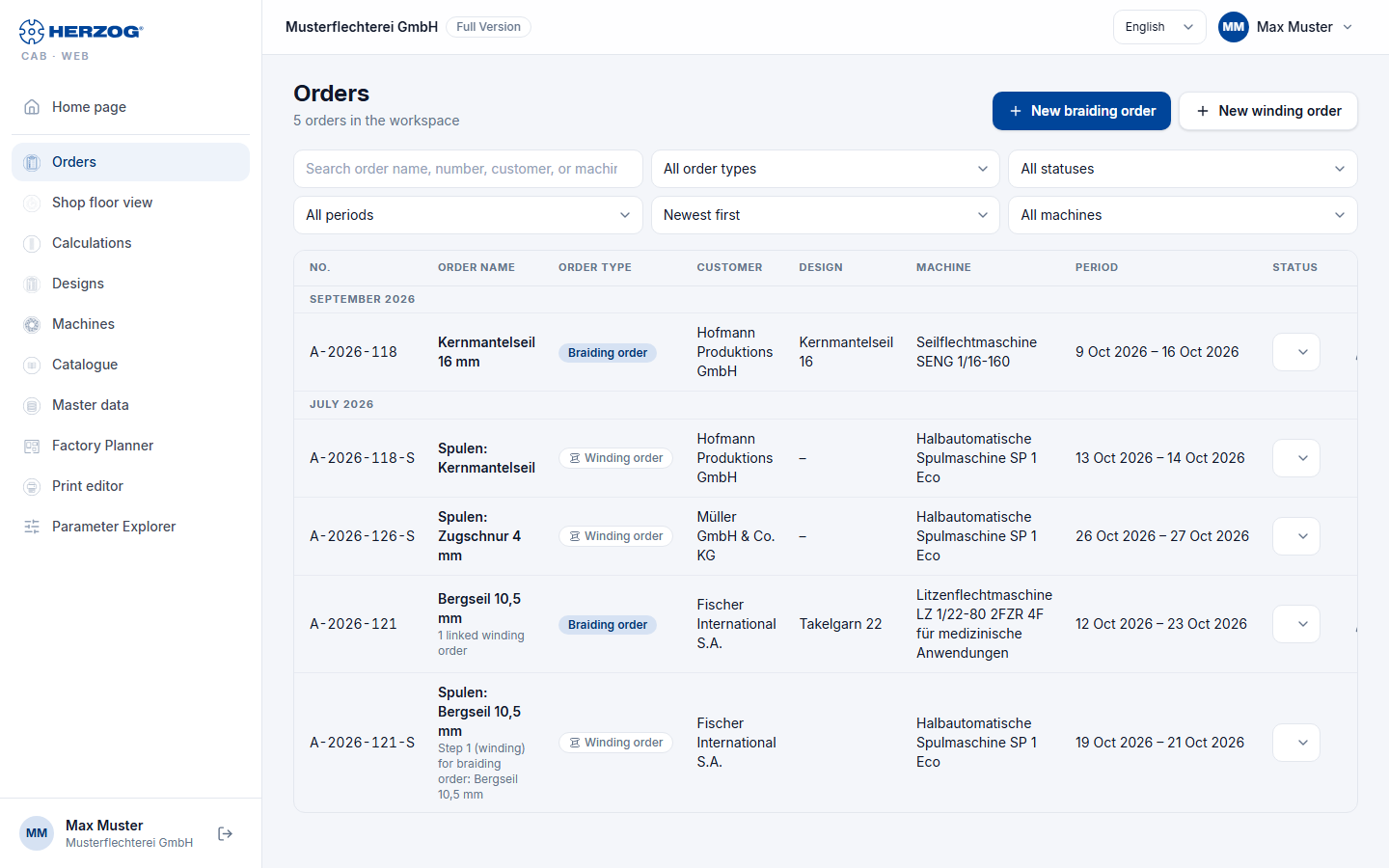
| Element | Meaning |
|---|---|
| New braiding order / New winding order | Open an empty editor (to the right of the page title). |
| Search | Filters live by order name, number, customer or machine. |
| Order type | All order types, Braiding orders, Winding orders. |
| Status | All statuses or one status: Draft, Released, In production, Completed. |
| Period | All periods, Today, This week, Last week, This month or Last 30 days, as in the desktop app. |
| Sort | Newest first, Oldest first, Production date or Order date, as in the desktop app. |
| Machine | All machines or one machine from your Machine Fleet. |
| Number of hits | n orders in the workspace or n of m orders visible. |
The filters are stored in the address of the page. A bookmark or the browser's back button therefore keeps them, and the counters on the home page jump here already filtered. As in the desktop app, the list divides the orders into time groups (Today, This week, Last week, then month and year).
The table shows No., Order name, Order type (chip Braiding order or Winding order), Customer, Design (name or –), Machine, Period (production from–to) and Status. You change the status directly in the row via the drop-down list — the change is saved immediately. Winding orders carry the addition Step 1 (winding) for braiding order: …, braiding orders state the number of their linked winding orders.
| Icon in the row | Effect |
|---|---|
| Open (pencil) | Opens the editor. |
| Duplicate (two sheets) | With write permission: saves a copy of the order and opens it in the editor. |
| Create winding order (bobbin) | Only for braiding orders with write permission: creates a linked winding order, prefilled with customer, material, bobbin format, date and target values. |
| Delete (trash can) | With write permission; confirmation prompt. If a braiding order has linked winding orders, these remain and only lose the link. The deleted order goes to the recycle bin. |
On narrow screens the list appears as cards.
Braiding order editor
The editor has the same nine tabs as the braiding order editor of the desktop app: Customer, Order, Machine, Material, Bobbin, Product, Production, Design, Overview. The meaning of each field is described there — here only the special features of the web app:
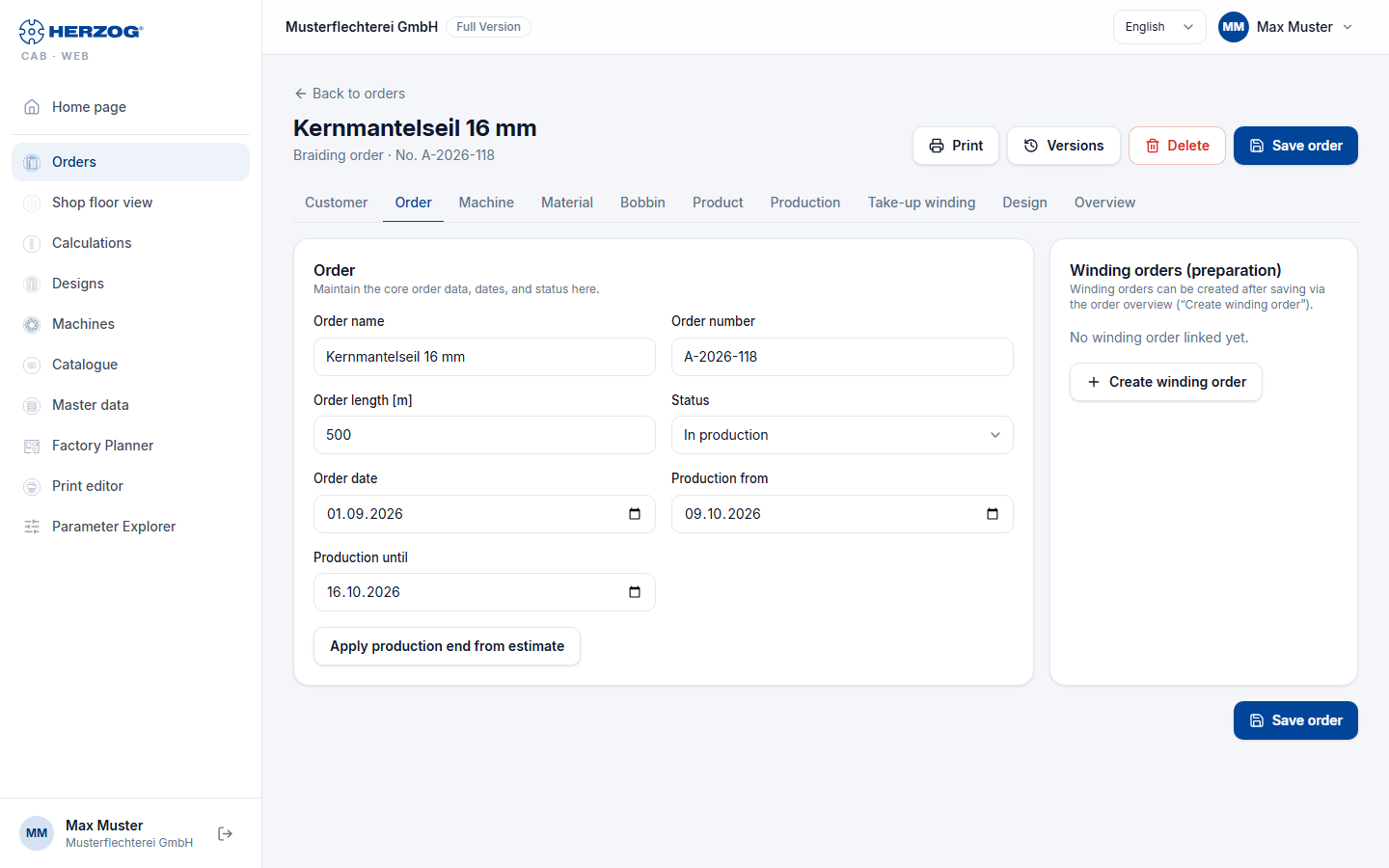
- The header shows the order name and number, the note unsaved when there are open changes, as well as Back to orders, Print, Versions (view and restore earlier versions), Delete and Save order.
- You select Customer, Machine, Material and Bobbin from the master data of the account; the buttons Open customers, Open braiding machines, Open material management and Open Bobbin Management jump to the respective maintenance. Entries that no longer exist appear as … (no longer available) in the field.
- The calculator icons next to the fields of the Product and Production tabs open the respective calculator as a dialog, prefilled with the order values; Apply writes the result back. At the braiding angle field the icon opens Braiding angle from take-up, as on the desktop.
- Production from / to and Apply production end from estimate work as on the desktop. You set the production hours per working day (default 8 h) for the whole account under Settings.
- The Design tab shows the linked design with preview and the carrier table; Open design switches to the Designer, New design creates a new one.
- The Winding orders (preparation) card next to the Order tab lists the linked winding orders with status and number of bobbins; Create winding order creates a new one after saving.
Winding order editor
The winding order is a scrolling page with the cards Linked braiding order, Order (basic data, customer), Material and bobbin (standard material, bobbin format, length per bobbin, target number of bobbins, total length), Color breakdown, Winding parameters (collapsible) and Machines and schedule (bobbin winding machines, distribution, winding time, production period) — the same order as in the desktop app. The fields are explained in the winding order editor of the desktop app.
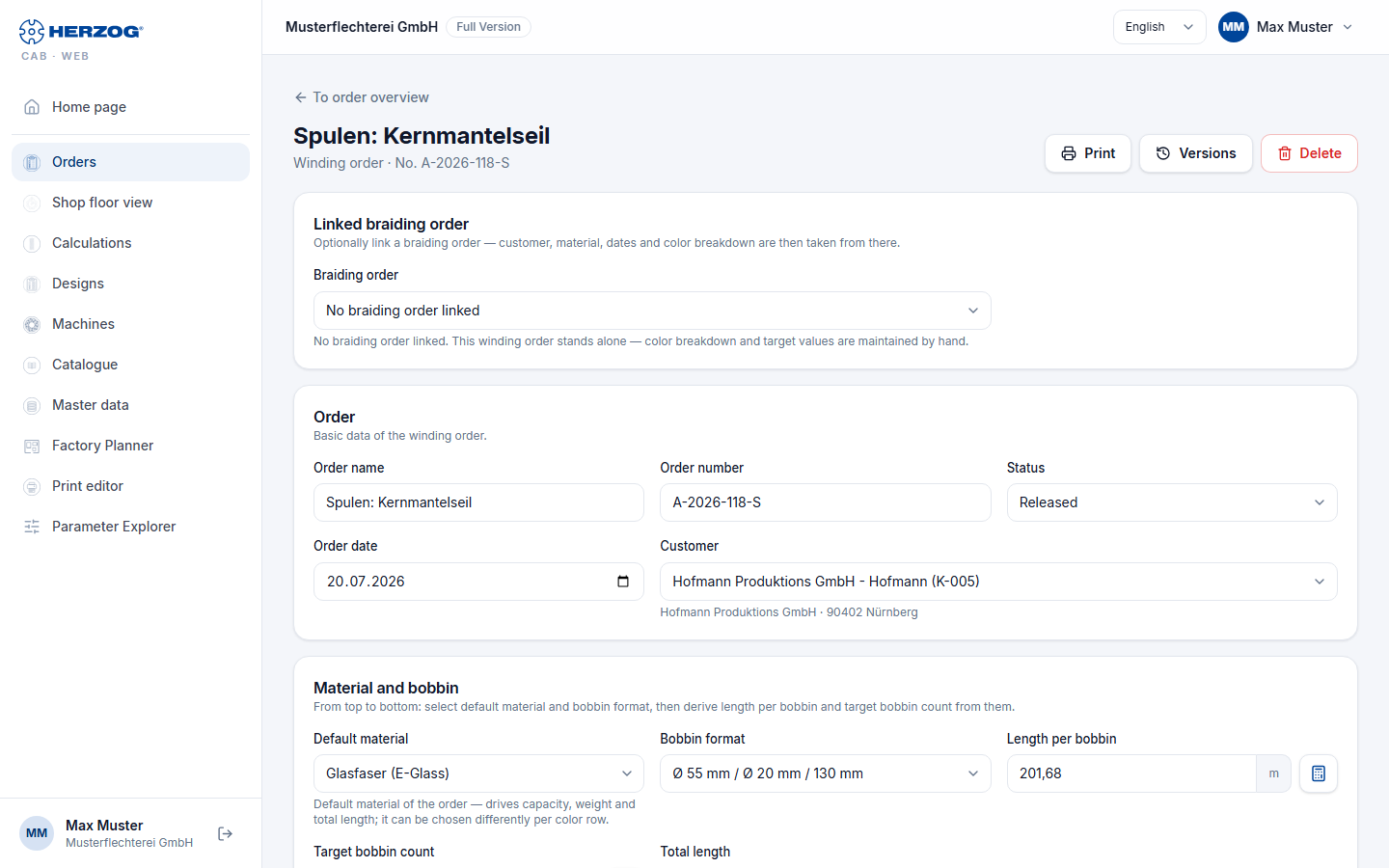
Special features of the web app:
- As with the braiding order, the header offers Print, Versions and Delete.
- When linking a braiding order, a dialog asks whether customer, material, bobbin format, production date and target values should be applied (Apply or Link only).
- Warnings appear as message boxes: deviating number of bobbins, missing winding time, or if the winding end is after the braiding start of the linked order.
- The Winding time details calculator is not included in the web app; the winding time estimate itself is available.
Printing
Print in the header opens the print page with the default template for braiding or winding orders.
Related pages
- Braiding order editor (desktop app) — meaning of all fields
- Winding order editor (desktop app)
- From customer order to machine sheet — the workflow
- Printing (web app)
- Versions and recycle bin — bring back earlier versions and deleted orders