Web server and QR code
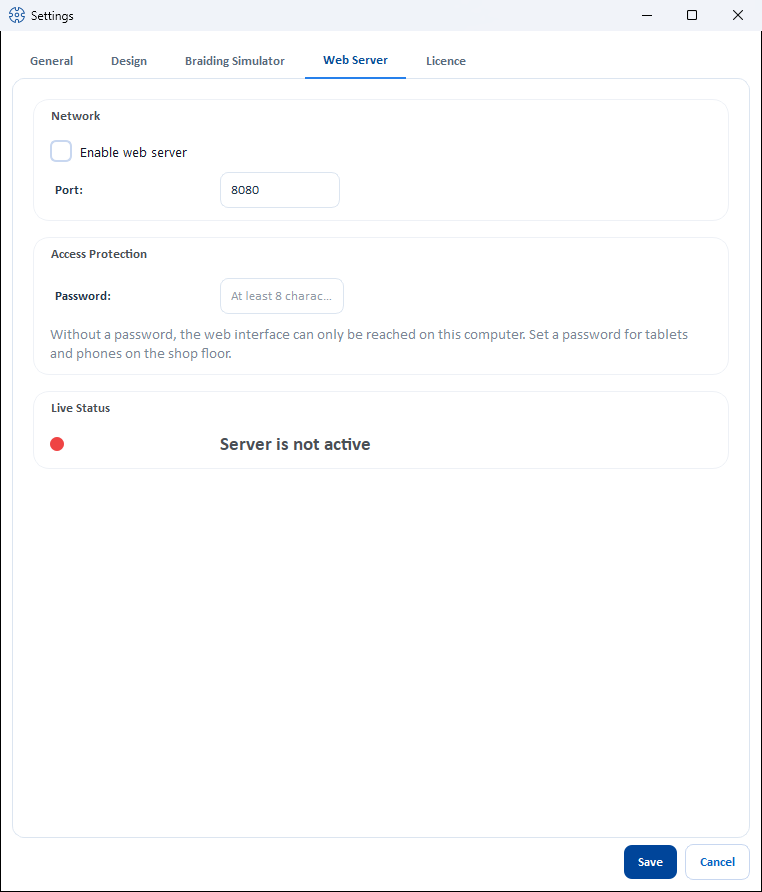
Reference — “Web Server” tab of the Settings dialog: starting the built-in web server, opening it to the network with a password, choosing the IP address and using the QR code for mobile access.
What you use this area for
The built-in web server provides order and machine data in the browser — e.g. on a smartphone or tablet directly at the machine. Access is convenient via a QR code, which you can display here and also print on order documents.
On the network only with a password
Without a password, the web interface can only be reached on this computer
(address http://localhost:<Port>), not from tablets or
phones on the shop floor. Only when you set a password under Access Protection
can it be reached on the company network — and then only after entering
this password. Up to version 2.1.0, the password was optional and the
web server was open on the network even without a password.
Permission required
Changing the web server settings requires the Workspace settings permission. Without this permission, all fields are locked.
Controls in detail
The tab is structured from top to bottom in the order in which you set it up: first switch it on, then secure it, then check the status.
"Network" card
| Element | Meaning |
|---|---|
| Enable web server | Starts or stops the server. |
| Port | Port of the server (default 8080). If the start fails (port in use), Herzog CAB reports this. |
"Access Protection" card
| Element | Meaning |
|---|---|
| Password | Password for the web interface, at least 8 characters. The field always stays empty — the placeholder shows whether a password has already been set (Set – enter a new one to change it) or not (At least 8 characters). A new password only takes effect when the dialog is closed with Save; if it is too short, Herzog CAB reports "The web server password must be at least 8 characters long." |
| Remove password | Only visible if a password has been set. After the prompt "Remove the web server password? …", it takes effect immediately, without Save: the web interface can then only be reached on this computer. |
| Note below the field | With a password: "The web interface can be reached from the network, only with this password." Without a password: "Without a password, the web interface can only be reached on this computer. Set a password for tablets and phones on the shop floor." |
If you set, change or remove the password, the web server restarts by itself with the new setting; all signed-in browsers must then sign in again. Herzog CAB does not store the password in plain text.
"Live Status" card
| Element | Meaning |
|---|---|
| Status | Green or red dot with Server running on port …, Server running on port …, on this computer only (without a password) or Server is not active. |
| IP Addresses | Only while the server is running: list of reachable addresses (per network adapter), e.g. http://192.168.178.38:8080. Without a password, only http://localhost:<Port> appears here. |
| QR address | Only while the server is running with a password: selection of the IP address encoded in the QR code (some computers have several addresses). |
| QR Code | Only while the server is running with a password. Point the smartphone camera at it — the browser opens the sign-in page of the mobile view. |
Signing in in the browser
If a password has been set, the browser first shows the Herzog CAB sign-in page with the text "Please enter the password to access the web interface.", the Password field and the Sign in button.
- A sign-in is valid for 12 hours; after that (or after a password change), the sign-in page appears again.
- If the password is wrong, it says "Wrong password. Please try again." After five failed attempts, the web server locks the sign-in for one minute, with further failed attempts twice as long each time, up to 15 minutes ("Too many failed attempts. Please try again in … minute(s).").
- Without a password, there is no sign-in page; the web interface then only opens in the browser on the same computer.
Messages at program start
If the web server starts automatically with the profile, the status bar reports:
| Message | Meaning |
|---|---|
| Web server active on port … | The server is running with a password and can be reached on the network. |
| Web server active on port …, on this computer only. To allow access from the network, set a password in the settings. | No password set — tablets and phones cannot get in. |
| Web server is already running in another instance of this workspace folder. | A second program window with the same workspace folder is already providing the server. |
| Web server start failed: … | Usually the port is in use — choose a different port. |
Settings apply per profile
Port, autostart (Start webserver automatically at launch) and password are stored per profile and can also be maintained in the profile management. New profiles have the web server switched off. A password can only be removed here in the Web Server tab.
After the update: set a password
If the web server could previously be reached on the network without a password, it can only be reached on the computer itself after the update. So that tablets and phones can access it again, set a password with at least 8 characters here.
Shared profiles with older program versions
If the profiles are stored in a shared storage location and computers with version 2.1.0 or older are still working there, the following applies: as soon as a password is set, the web interface of these older computers is locked (they ask for a password that nobody knows). If an older version saves the profile, the password must then be set again here. Therefore update all computers — see also Several users in the same workspace folder.
Choose the right IP
If the computer has several network adapters, check that the IP used in the QR code can also be reached from the smartphone (same Wi-Fi/network).
Related pages
- Orders — which data is available on mobile devices
- Printing order documents — QR code on the machine sheet
- Profiles (workspaces) — port, autostart and password per profile