Factory Planner
Reference — Overview of the hall floor plans and their assignments: manage scenarios, set the actual assignment, start populating
What you use this area for
In the Factory Planner you map your production to scale: machines, storage areas and zones are placed on a hall floor plan. This way you keep track of which machine stands where, plan footprints and routes, and can try out conversions as scenarios before anything is actually moved in the hall.
Floor plan and assignment — two separate things
The Factory Planner consistently distinguishes between:
- Floor plan — the hall itself: walls, areas, doors and gates. Floor plans are master data; they are managed under Master data > Floor plans and drawn in the editor (geometry mode).
- Assignment — a placement scenario: which machines stand where on this floor plan. For each floor plan you can create several assignments (e.g. "Default", "Conversion 2027", "Night production variant") and mark one of them as the actual assignment — it describes the actual state of your hall.
If you change the hall geometry, the change automatically applies to all assignments of this floor plan.
One floor plan with several assignments, one of which is the actual assignment:
flowchart LR
  G[Floor plan<br>walls, areas, doors, gates] --> A["Assignment Default (actual)<br>actual state of the hall"]
  G --> B[Assignment Conversion 2027<br>scenario]
  G --> C[Assignment Night production variant<br>scenario]
  A -- Duplicate … --> B
With Set as actual assignment you turn a scenario into the new actual assignment.
-
Editor — floor plan and machine placement
Draw walls, areas and elements; place, align and distribute machines.
-
3D hall view
Walk through the planned hall in three dimensions — with walls, machines and status light spheres.
The screen at a glance
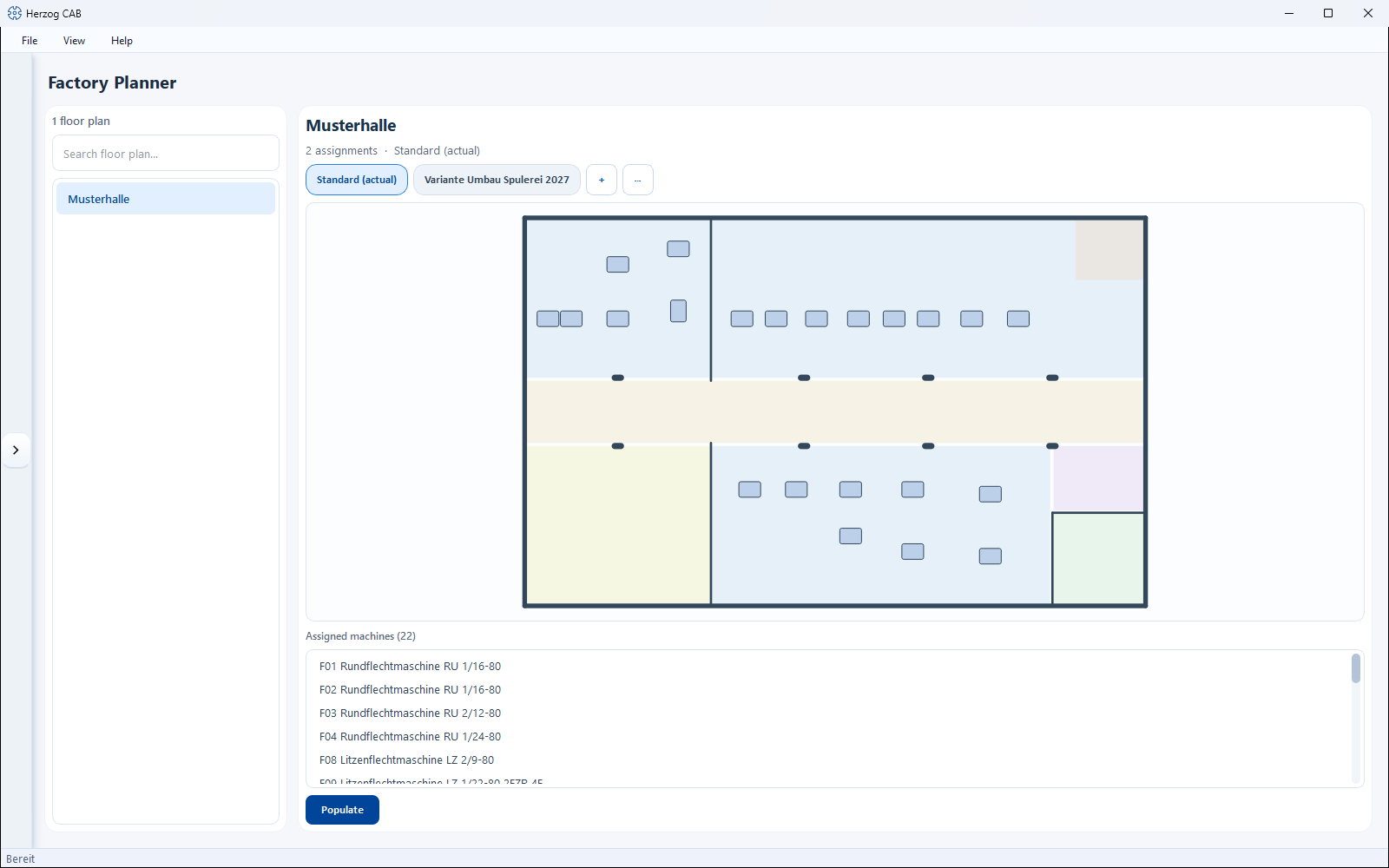
The overview is split into two parts:
- Floor plan list (left) — all existing hall floor plans with search field and counter.
- Detail area (right) — for the selected floor plan: the assignment pill bar, a preview, the list of assigned machines and the Populate button.
Controls in detail
Floor plan list (left)
- Counter — number of (visible) floor plans.
- Search floor plan… — filters the list while you type.
- List — a click selects a floor plan and updates the detail area; a double-click directly opens the editor in populate mode.
You create, rename, duplicate or delete floor plans under Master data > Floor plans — the Factory Planner only displays them here and works with their assignments.
Assignment pill bar
Above the preview, a row of buttons ("pills") appears for the selected floor plan — one per assignment:
- Assignment pill — a click selects the assignment; preview and machine list then show its state. The active actual assignment can be recognized by the suffix (actual), e.g. Default (actual).
- + — creates a new assignment (scenario); you assign a name. The first assignment of a floor plan automatically becomes the actual assignment.
-
⋯ (Manage assignments) — opens a menu with actions for the selected assignment:
Action Effect Set as actual assignment Marks the selected assignment as the actual hall state; the previous "actual" marking is removed. Rename… Assign a new name to the assignment. Duplicate… Create a copy of the assignment — ideal for planning a conversion scenario starting from the actual state. Delete… Removes the assignment after confirmation. The floor plan and the machine master data are kept.
Editing rights
Creating and changing assignments requires the editing right for the Factory Planner; floor plan actions require the master data editing right. The rights are assigned by your administrator via Roles.
Preview
The preview on the right shows the selected floor plan (walls and colored areas) and — as soon as an assignment is selected — the machines placed in it as neutral tiles. Without a selection, the note No floor plan selected appears; for a floor plan that is still empty, Floor plan still empty.
Assigned machines
Below the preview, Assigned machines (N) lists all machines of the selected assignment. Clicking an entry highlights the corresponding machine in green in the preview — this way you quickly find a particular machine on the plan. The tooltip of an entry shows the machine type.
Populate
The Populate button opens the editor in populate mode for the selected floor plan and the selected assignment. There you place, rotate and arrange the machines.
Prerequisites for a true-to-scale image
For the display to be correct, two things should be maintained:
- A floor plan with walls or a calibrated floor plan image — see Floor plans and Editor.
- The machine dimensions (length × width × height) in the braiding machine or bobbin winding machine master data. Machines without dimensions are displayed with a substitute size and marked in the catalogue with the note Dimensions missing.
Related pages
- Editor — floor plan and machine placement — the reference for drawing and placing machines.
- 3D hall view — view the hall in three dimensions.
- Floor plans (master data) — create and manage floor plans.
- Build a hall — step-by-step guide from the empty floor plan to the populated hall.
- Machine Fleet — operating and status overview of all machines.