Password, second factor and name
Reference — Your own page in the licence portal: changing your password, setting up two-step sign-in and changing your own name
What you use this area for
Your account password applies equally to the licence portal, the desktop app and the web app — it is changed only here. You also set up the second factor here: after that, every sign-in additionally requires a six-digit code from an authenticator app, and a guessed password alone is no longer enough. And here you change your name as it appears in the program, in the web app and in the portal.
You reach the page via your e-mail address at the top right of the portal's header bar (tooltip when pointing at it: Password, second factor and name). From the web app, Settings > Password and security leads here.
The screen at a glance
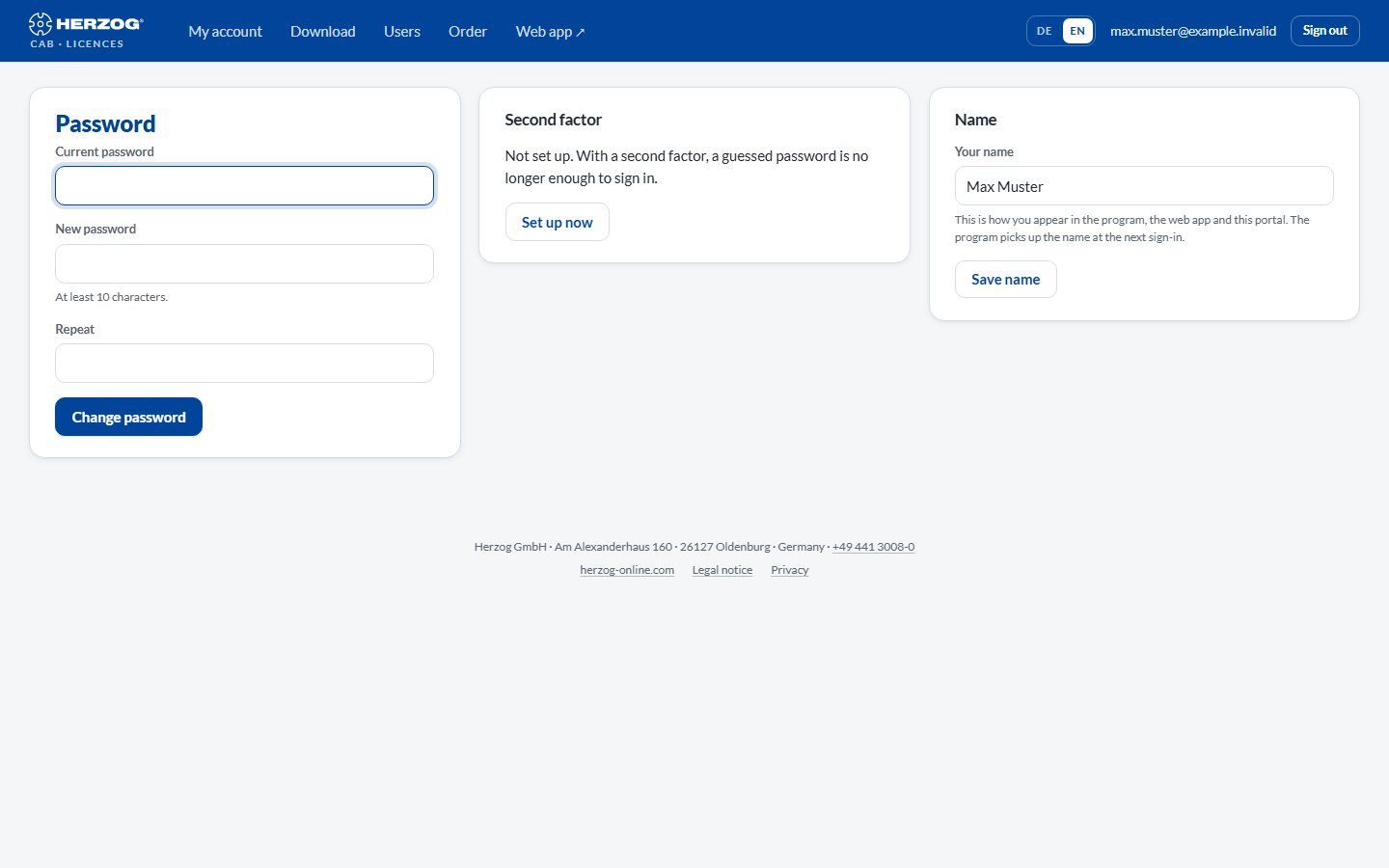
The page consists of three cards: Password, Second factor and Name.
Controls in detail
Change password
| Field / button | Meaning |
|---|---|
| Current password | Your previous password. |
| New password | At least 10 characters. |
| Repeat | Repetition of the new password. |
| Change password | Saves the new password. It applies immediately — also for the next sign-in in the desktop app and the web app. |
If you come here for the first time via the link from an invitation, the Current password field is missing, and the page only shows this card with the note Please set your own password first.
Desktop app after a password change
After a new password, the desktop app requires a new sign-in on all computers on which you are signed in, even with Stay signed in. A running program continues working until the end of its lease. For offline sign-in, the desktop app also remembers the password of the last online sign-in. Therefore sign in once with an internet connection so that the offline route also knows the new password.
Second factor
| State | What the card shows |
|---|---|
| Not set up | Note and Set up now button. For customer users, the second factor is optional but recommended — especially for administrators. |
| Set up | Confirmation that the code is required at every sign-in, and the note that Herzog resets the second factor if necessary. |
How to set up the second factor
- Click Set up now. The Set up second factor page shows a QR code.
- Open an authenticator app on your phone — e.g. 1Password, Bitwarden, Microsoft Authenticator or Google Authenticator — and scan the code. If the app cannot scan, enter the key displayed below it by hand; on the phone you can also use the Open in authenticator app link.
- To confirm, type the current code from the app into the field and click Set up.
From now on, the portal, desktop app and web app ask for password and code:
- In the portal, a separate page for the code follows after the password.
- In the desktop app, the sign-in dialog shows the Code (authenticator app) field after the first click on Sign in.
- In the web app, the sign-in card switches to Confirm with six boxes for the code after the password, see Signing in (web app).
Lost access to the app?
You cannot switch off the second factor yourself. If your phone is gone, contact Herzog — support resets the second factor for your user, after which you can set it up again.
Name
Here you change your own name, for example after a typo in the invitation.
| Field / button | Meaning |
|---|---|
| Your name | This is how you appear in the program, in the web app and in the portal. At most 190 characters. If the field is left empty, your user has no name; the e-mail address then appears instead. |
| Save name | Saves the name. The portal confirms The name has been saved. |
The desktop app takes over the name at the next sign-in. In the program itself, the name of an account user cannot be changed permanently, because it fetches it from the customer account at every sign-in. Administrators change the names of other users on the Users page.
Related pages
- Licence portal — signing in and Forgot password
- Signing in and out (desktop app)
- Signing in (web app)
- Inviting and managing users — changing other users' names
- My profile (desktop app)
- Login problems