Settings (web app)
Reference — The "Settings" page in the user menu of the web app: language, braiding angle, production planning, signed-in user, privacy, Designer defaults and the way to password and security
What you use this area for
The web app deliberately has few settings: most things — users, roles, modules, company data — are in the customer account or in the licence portal. Here you set your Language, choose how the Braiding angle is measured, define the Production hours per working day and customize the Designer.
You open the page via User menu > Settings.
The screen at a glance
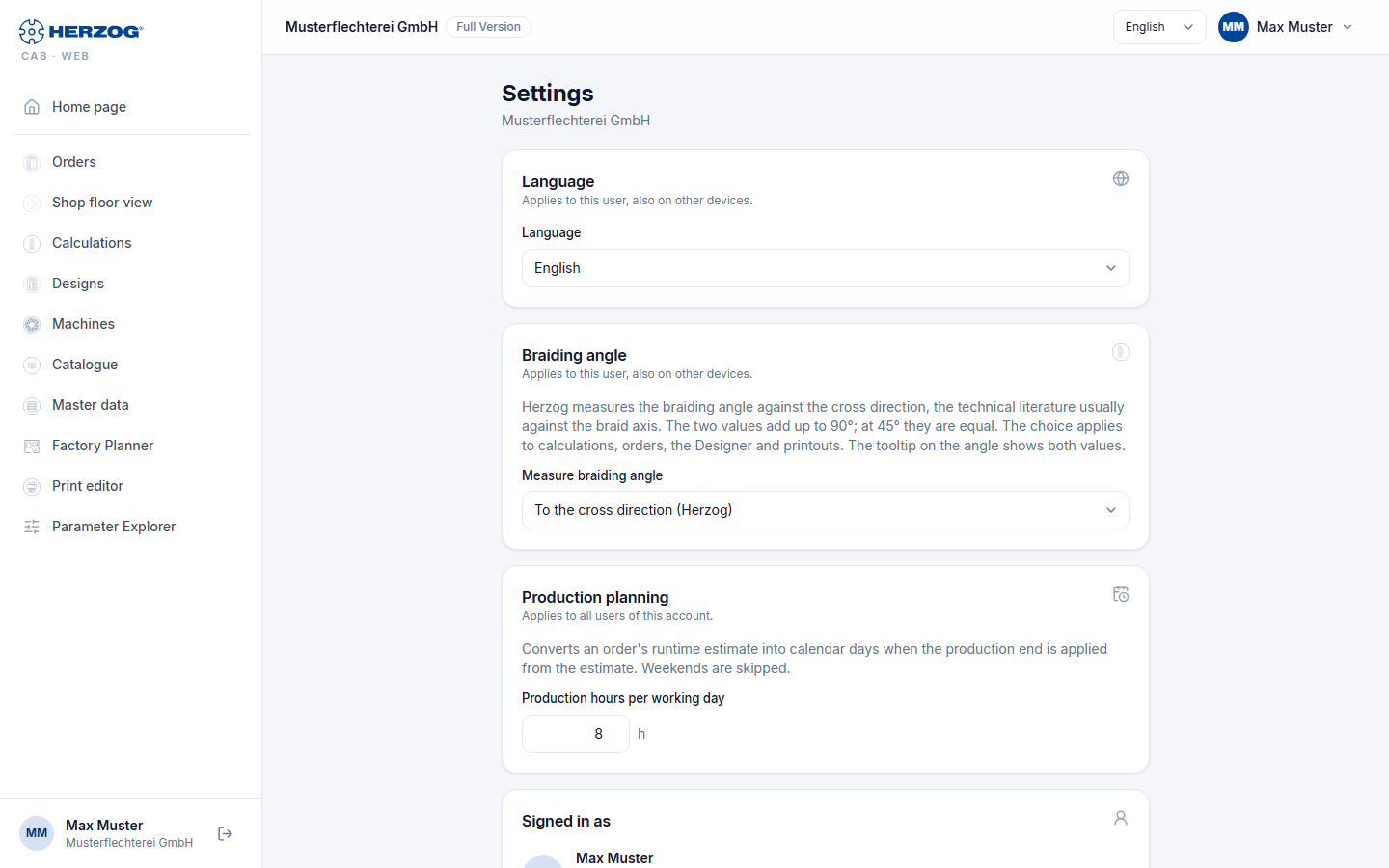
The cards are arranged one below the other. Below each card title it says to whom the setting applies: to this user (on all devices), to all users of this account or only to this browser.
Controls in detail
| Card | Applies to | Content |
|---|---|---|
| Language | this user | German, English, Polish, Spanish, Italian or Chinese. The same selection is available in the header. |
| Braiding angle | this user | Measure braiding angle: against which direction Herzog CAB shows the braiding angle (see below). |
| Production planning | all users of this account | Production hours per working day, 1 to 24 h in steps of 0.5 h (default 8 h). An order uses this to convert the runtime estimate into calendar days when you apply the production end from the estimate; weekends are skipped. Everyone with the permission View orders may see the card, everyone with Edit orders may change it. With the Herzog CAB Designer module it is missing. The desktop app stores the same value per computer, see Production planning (desktop app). |
| Signed in as | — | Name, email address and company, plus the edition as a chip (for internal accounts the note internal account). You change your name in the licence portal. |
| Privacy | this browser | Send anonymous usage statistics: which functions and calculations are used, without content, names or account. If the browser is not allowed to store data, the checkbox is locked. More on this under Privacy (desktop app). |
| Designer | this browser | Defaults for new designs, preview and view, animation and the behavior with unsaved changes — the same settings as in the desktop app under Design. Only with the permission View designer. |
| Password and security | — | Note: Password and two-factor sign-in are managed in the licence portal. The button below opens the page Password, second factor and name there. |
Braiding angle
Herzog measures the braiding angle against the cross direction of the braid, the technical literature mostly against the braid axis. The two values add up to 90°; at 45° they are equal.
| Selection | Effect |
|---|---|
| To the cross direction (Herzog) | Default. Angles as in the desktop app. |
| To the braid axis (technical literature) | All angles appear as the complement to 90°, for example 30° instead of 60°. |
The choice applies to display, input and printout in calculations, orders, in the Designer and in printing. Your saved data does not change in the process. When you point at an angle, a tooltip shows both values.
Difference from the desktop app
Font size, theme (light/dark), diagnostics, storage locations, legacy design import and web server only exist in the desktop app. The web app follows the font size and zoom of the browser.
Related pages
- Web app interface — language selection in the header
- Account and users
- Orders (web app) — production end from the estimate
- Password, second factor and name (licence portal)