Elements and placeholders
Reference — All building blocks of the element palette and how you fill them with program values
What you use this area for
A print template is made up of elements that you drag from the element palette (on the left in the print editor) onto the page. The palette is divided into six groups. This page explains each element, shows for which template Usage (calculation / design / order) it is available, and how you specify which program value is actually printed.
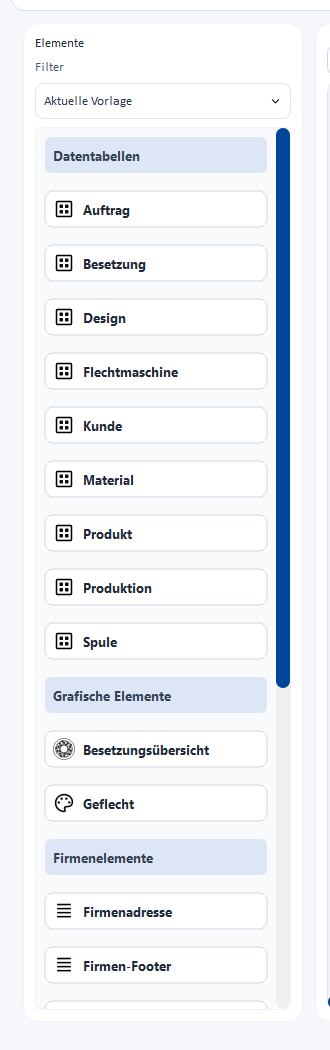
Only an excerpt
The screenshot shows the basic structure of the palette. Since version 1.4.5, two further data table groups for braiding and winding have been added (see below); the 3D view element is also missing from the picture — an up-to-date screenshot with all six groups is still missing.
The six element groups
Data tables
Tables that are neutral with regard to the order type, as well as the tables for calculation templates.
| Element | Shows | Usage |
|---|---|---|
| Order | Order number, order name, dates, status | Order |
| Customer | Address and contact details of the customer | Order |
| Material | Data of the materials used in the order | Order |
| Bobbin | Data of the bobbins used | Order |
| Input table | Input values of the active calculation | Calculation |
| Result table | Result values of the active calculation | Calculation |
Data tables braiding
| Element | Shows | Usage |
|---|---|---|
| Braiding machine | Machine name, machine type, braid type, number of heads, active carriers | Order |
| Product | Product data (e.g. diameter, braid density) | Order |
| Production | Production values (e.g. heads used) | Order |
| Design | Information on the linked design in plain words (see Design) | Design, Order |
| Setup | Carrier setup as a table with color and twist per carrier (see Setup) | Design, Order |
Data tables winding
New since version 1.4.5, for winding order templates.
| Element | Shows | Usage |
|---|---|---|
| Winding | Winding values of the winding order — including target number of bobbins, length per bobbin, total length, yarn speed, spindle speed, traverse stroke, yarn tension | Order |
| Color breakdown | The color positions of the winding order: color sample, name/code/Pantone, number of carriers and number of bobbins per color | Order |
Graphic elements
| Element | Shows | Usage |
|---|---|---|
| Braid | Preview image of the braid pattern, without carrier labels | Design, Order |
| 3D view | Side view of the braid from the 3D view of the active design window, on a white background without floor grid and in the same form as in the Designer. In the print editor a cube icon stands in for it; the image is created when printing. For mixed designs or without OpenGL-capable graphics, the note 3D view not available here appears instead of the image. | Design |
| Setup overview | Graphic overview of the carrier setup | Design, Order |
Company elements
Filled from the company data and available in every template, regardless of the usage.
| Element | Shows |
|---|---|
| Company logo | Your company logo as an image |
| Company address | Address and contact details of the company |
| Company footer | Compact footer with company information |
Free elements
Also available in every template.
| Element | Shows |
|---|---|
| Date/time | Current date or time at the time of printing |
| Table | Freely definable table with any number of rows and columns |
| Text field | Freely placeable text, also with embedded placeholders |
| Image | Any image, either from the media library or from the hard disk |
Not every element is available everywhere
Which elements appear in the palette depends on the Usage of the currently opened template — a calculation template, for example, shows no braiding machine table. How you control the display via the Current template filter is described under Element palette.
Defining content: double-click opens the editing dialog
You edit an element that has already been placed by double-clicking it on the page canvas. Depending on the element type, a different dialog opens:
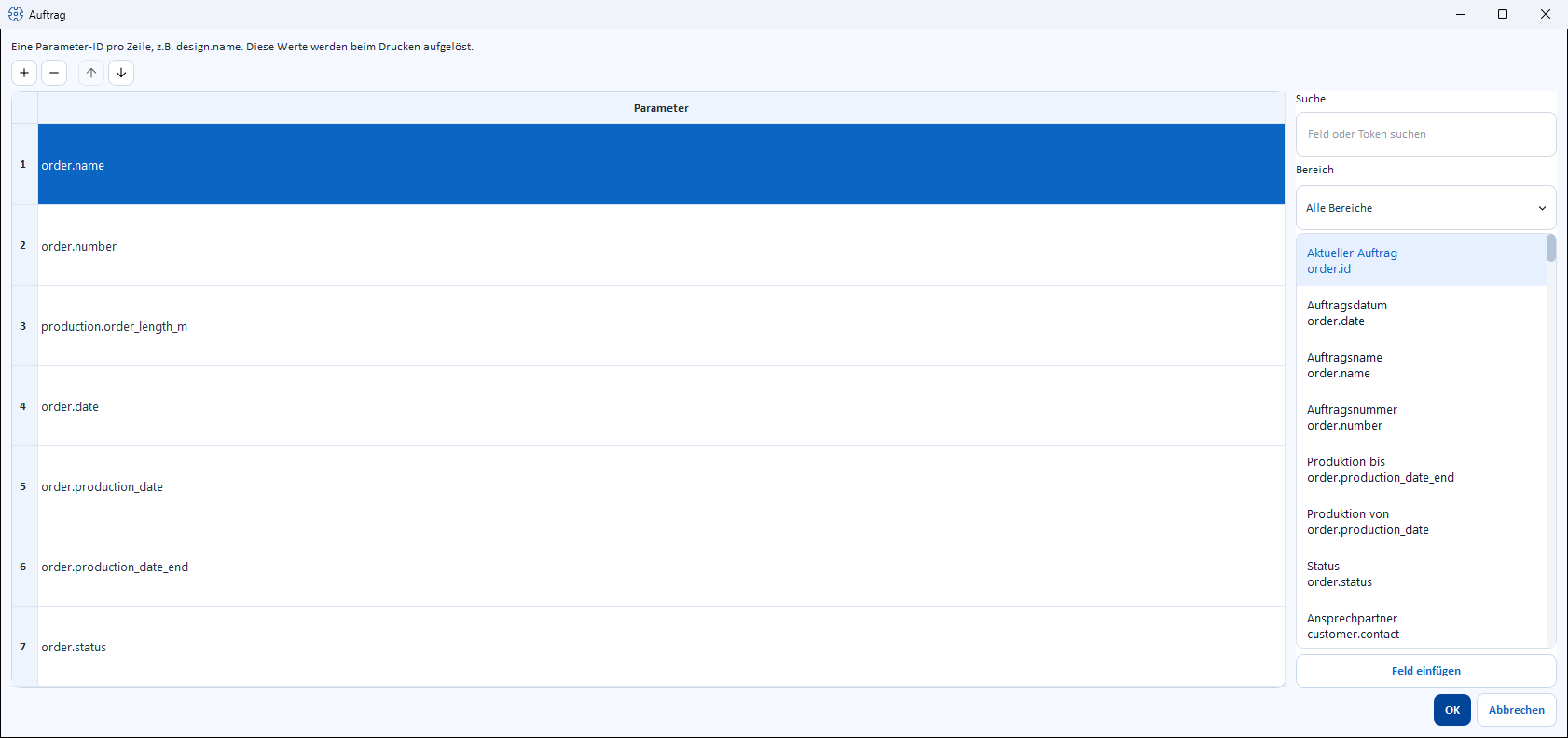
Data tables with selectable rows
For Order, Customer, Braiding machine, Material, Bobbin, Product, Production, Design and Winding you decide yourself which program value appears in which row:
- Use the row toolbar to add or remove rows and change their order (up/down arrows).
- For the marked row, choose the desired program value on the right in the Field template picker (see below) and take it over with Insert field.
Each of these tables starts with a sensible default content, which you can adapt or extend as needed.
When printing, the width of the label column follows the longest label. If a value is too long for its column, it is reduced down to 75 % and then shortened at the end ("…").
Design
The Design table prints the braid type and braid binding in plain words, e.g. Round braid and Normal setup 1-1. The default content comprises design name, braid type, braid binding, carriers, braiding angle, ply count, material Ø, covering or fill, braid Ø or product width and 3D material. Details that do not apply to the design are left out instead of staying empty:
- Material Ø, covering, fill, braid Ø and product width exist only for round and flat braids, as in the Designer.
- Herzog CAB prints the 3D material (yarn, wire or rope) only if an image of the 3D view is created as well.
- Spiral, packing and soutache braids have no braid binding row.
Free table
You edit the Table from the free elements cell by cell: you set the number of rows and columns in the toolbar via the fields Rows and Columns, alignment and text color via the icons next to them. Each cell can contain free text and/or placeholders — here, too, the field template picker on the right is at your disposal.
Text field
Opens a text editor with alignment and text color as well as the same field template picker. You type text and placeholders mixed, e.g. "Order {order.number}".
Image
Opens the selection for image files — either from the central media library or from the hard disk.
Setup
Instead of individual rows, here you define how the carrier setup is displayed:
| Field | Selection |
|---|---|
| Braid type | Automatic, Round, Flat braid, Per track (multi-column). Automatic chooses the two columns left run/right run for round braid, one continuous column for flat braid and, for packing and spiral braiders, one column per track (header Track 1, Track 2, …; row number per track starting at 1). Flat braid forces a single column instead. |
| Displayed runs | Both columns, Left run only, Right run only (selectable only for round braid) |
| Displayed value | Color ID, Color name, Hex value, Pantone |
| Cell style | Color fill: cell completely filled in the carrier color (classic). Color swatch + number: white cell with number and value on the left and a small, rounded color swatch on the right — compact rows, zebra stripes, light grid and the header in Herzog blue, like the other data tables. Color swatch with color legend: number, a color swatch with one stripe per yarn and the twist on the right; color names and the displayed value appear once in the Colors legend below the table (see below). |
Every cell style shows the twist of a carrier, also in the order printout: with Color fill and Color swatch + number after the number, e.g. "3 S 120", with Color swatch with color legend on the right of the cell. Untwisted carriers show only the number.
Color legend. With Color swatch with color legend, the legend lists each color once, in the order of its first occurrence, with color swatch, color name and the value selected under Displayed value. With plying colors, each yarn color appears separately. The legend takes up at most about 40 % of the element area; if not all colors fit, the last entry states the number of the remaining ones.
Direct printing without a template
If you print a design directly from the Designer without a template, Herzog CAB always uses the Color fill and chooses the columns automatically. The toggles exist only on the template element.
Automatically filled elements without their own dialog
Color breakdown, Input table and Result table always show the complete, current data record when printing (all color positions of the winding order or all input/result values of the calculation). You only place and scale these elements — there is no row selection here.
Setting placeholders: the field template picker
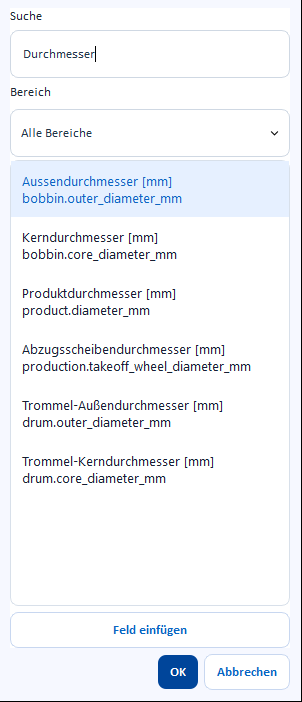
On the right of the editing dialog (see above) you narrow down the available program values and take them over:
| Field | Meaning |
|---|---|
| Search | Free-text search across designation, technical name and description. |
| Area | Restricts the list to one area: All areas, Order, Customer, Machine, Material, Bobbin, Product, Production, Design, Calculations or Company. |
| List | The program values matching the search term/area, with designation and – if available – unit. A click shows the current value and a short description below. |
| Insert field | Takes the marked program value over into the currently selected row or text position. Double-clicking a list entry does the same. |
Two kinds of placeholders
- For data tables with selectable rows, "Insert field" takes the
pure program value directly into the row (e.g.
design.name) — without braces, since the row shows exactly one value anyway. - For the free table and in the text field, the same value is inserted in
curly braces, e.g.
{order.number}. This lets you mix placeholders with free text, for example "Order no. {order.number} of {order.date}".
Type placeholders directly
In the text field and the free table, a suggestion list of matching
placeholders already appears when you type an
opening curly brace { — so you do not necessarily have to open the field template picker.
Related pages
- Editor layout – element palette, filter, page settings
- Manage templates – create, choose and delete templates
- Preview and print – page format, preview, output
- Create a print template – step-by-step guide
- Orders → Print – where order templates are used
- Designer → Save and print – where design templates are used
- Media – central image store for the "Image" element