Install Herzog CAB
Guide — Herzog CAB installed via the setup wizard
Prerequisite only for dongle licences
Existing customers with a CmDongle or CmAct licence first install the CodeMeter Runtime; otherwise the program reports a missing licence component at the first start. With the customer account this step is not required.
Where do you get the installer?
| Source | When? |
|---|---|
| Licence portal → Download | Recommended for everyone with a customer account. Sign in at license.herzog-cab.com and click Download — the page shows the latest version with its release date, the new features and one installer each for Windows (Herzog_CAB_Installer_<Version>.exe) and macOS (.dmg, from version 2.1.0). See Download. |
| Download from the Herzog feedback repo | Without a customer account. Open github.com/Herzog-GmbH/HerzogCAB-Feedback and download the current installer under Releases. The product page cab.herzog-online.com links to the same files. |
| Supplied USB stick | Only if you have ordered a CmDongle — the installer is included on the supplied software USB stick. Useful if the computer has no internet access. |
One installer for all editions
Since version 2.0 there is one installer. Whether the full version, Designer edition or trial version runs is determined by the licence — the modules in the customer account or the feature code of the dongle.
Double-click the downloaded file or the file started from the USB stick and confirm the Windows prompt for administrator rights with Yes.
Run through the setup wizard
The setup wizard guides you through the installation in seven steps. The left sidebar always shows where you are.
Step 1 - Welcome
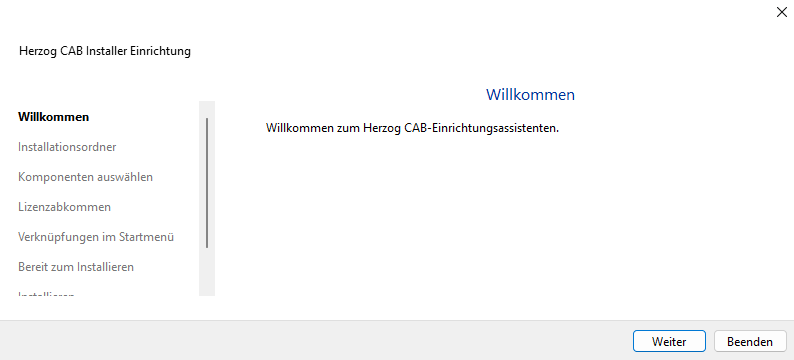
Click Next.
Step 2 - Installation folder
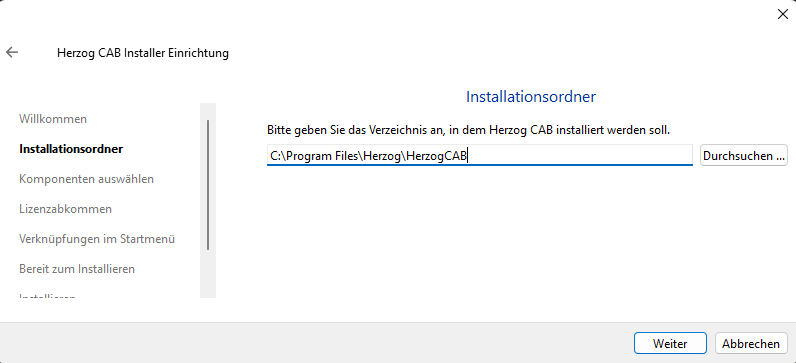
By default, Herzog CAB is installed to
You can choose a different folder via Browse — but we recommend keeping the default unless there is a specific reason not to.
Click Next.
Step 3 - Select components
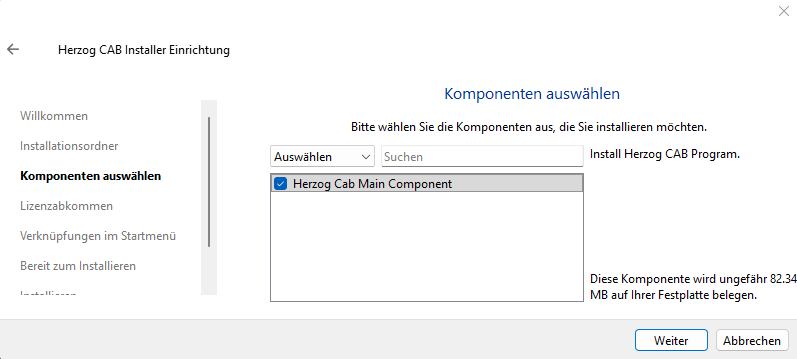
There is currently only one component: Herzog Cab Main Component (the main application, approx. 82 MB). Leave the checkbox ticked and click Next.
Step 4 - Licence agreement
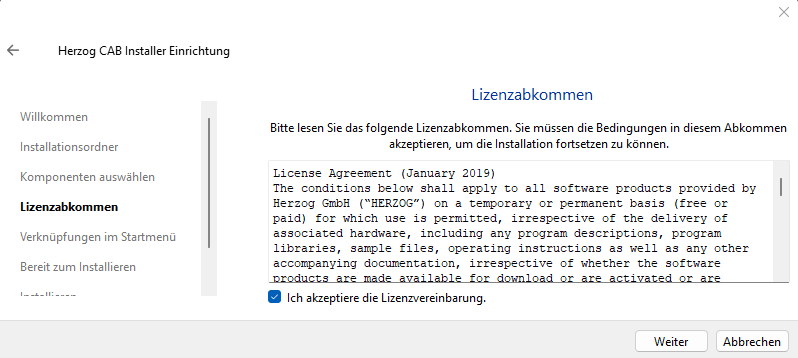
Read the License Agreement of Herzog GmbH, tick the checkbox I accept the license. and click Next.
Step 5 - Start menu shortcuts
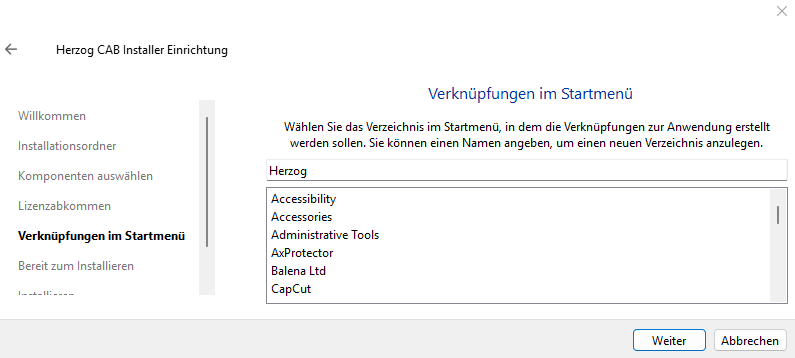
The installer creates a shortcut in the Windows Start menu. The default folder name is Herzog. You can type a different name or select an existing folder from the list.
Click Next.
Step 6 - Ready to install
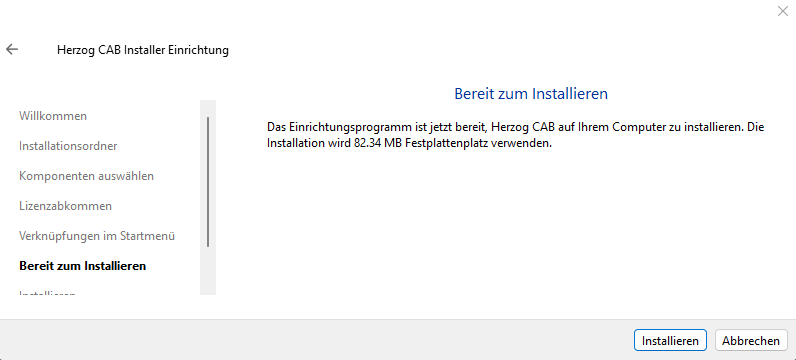
The wizard summarises what will happen (disk space required, target folder). Click Install.
Depending on the computer, the process takes one to two minutes. During the installation you see a progress bar.
Step 7 - Finish
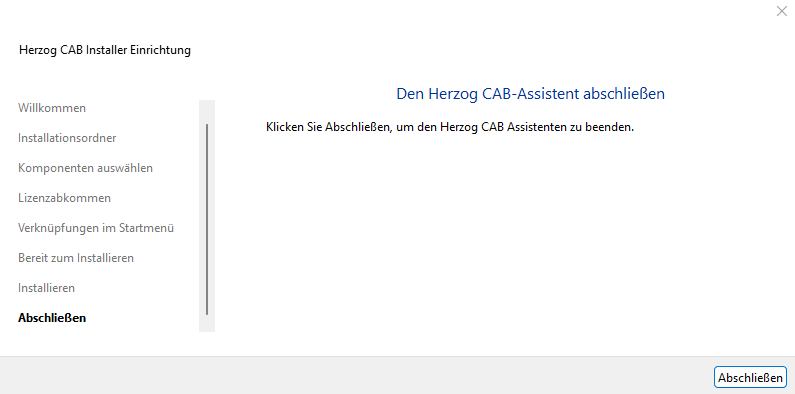
Click Finish. Herzog CAB is now installed and can be reached via the Start menu under Herzog > Herzog CAB.
Next step
Start Herzog CAB and sign the computer in to the customer account. Existing customers with a dongle first plug in the CmDongle or activate their CmAct licence — also described on this page.