Print editor (web app)
Reference — The Print editor of the web app: creating, editing, saving and deleting print templates in the browser
What you use this area for
In the Print editor you design the print templates with which the print page outputs orders, winding orders, designs and calculations — the same templates as in the print editor of the desktop app. Structure and elements correspond to the program; the meaning of the individual elements and placeholders is described under Elements and placeholders. This page describes operation in the browser and the differences.
You open the editor via Print editor in the sidebar, via the Print editor tile on the home page or on the print page via Edit template — the template selected there is then already loaded.
Permissions
You see the editor with the permission View print templates. You can only change, save and delete with Edit print templates; without this permission, the top of the page shows With your role you can view print templates but not change them. See Roles.
The screen at a glance
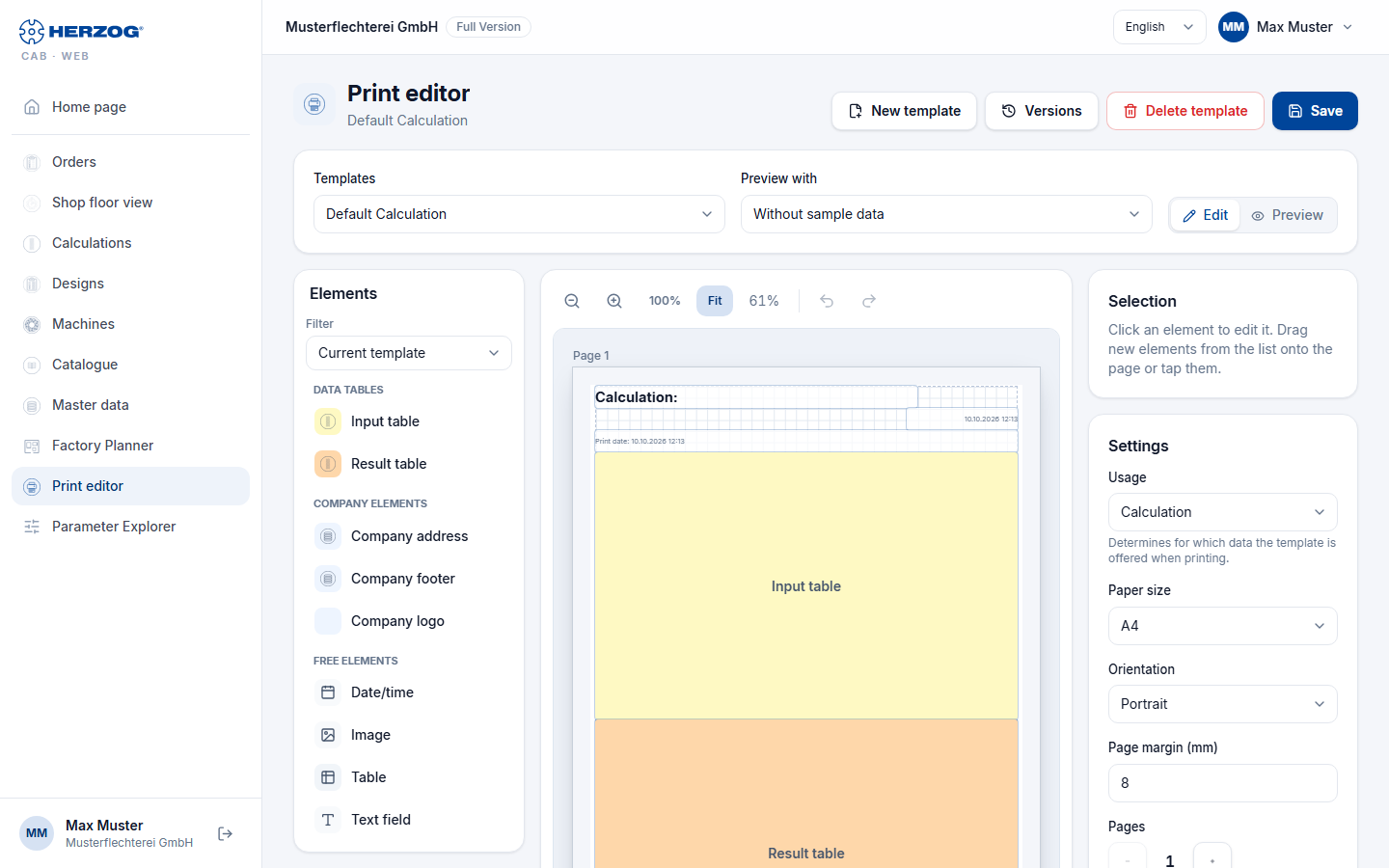
| Area | Content |
|---|---|
| Header | Title Print editor, below it the name of the template (or New template), with the addition unsaved if there are changes. On the right New template, Versions, Delete template and Save. |
| Templates | All print templates of your account and the supplied default templates, sorted by name. Supplied templates without your own version carry the addition (supplied). |
| Preview with | Sample data for the preview (see below). |
| Edit / Preview | Switch between the work area and the print view. |
| Elements (left) | The building blocks of the template, grouped as in the program, with Filter. On tablet and smartphone, the list is shown as a horizontally scrolling bar above the page. |
| Page (middle) | The pages of the template with grid; the elements show their real print content. Above it the zoom bar. |
| Selection (right) | The selected element and its buttons. |
| Settings (right) | Usage, paper size, orientation, page margin and number of pages of the template. |
Managing templates
| Button | Effect |
|---|---|
| New template | Starts an empty template. |
| Save | Opens the dialog Save printout template with the field Template name. The same name as the loaded template overwrites it; a different name creates a new template. The message Template saved. confirms this. |
| Versions | Only for templates of your account: view and restore earlier versions of the template, see Versions and recycle bin. |
| Delete template | Only for templates of your account: deletes the template after a confirmation prompt. It goes to the recycle bin. |
If someone else has changed the template since you loaded it, the editor does not save and reports The template has been changed by someone else in the meantime. Both versions can be seen under "Versions".
Changing supplied default templates
The supplied default templates can also be changed. If you save under the same name, your account gets its own version, which takes precedence when printing. If you delete this version again, the supplied one applies (The supplied version will then apply again.).
If you switch templates or start a new one with unsaved changes, the editor asks (Discard or Cancel); when leaving the page, the browser warns you.
Placing elements
- Drag – drag an element from the list onto the page; a green or red preview shows whether there is space for it there.
- Click or tap – the element is placed on the currently visible page.
The Filter above the list works as in the program (Current template, Show all, Calculation, Design, Order) — see Editor layout. If there is no free space left on the existing pages, the editor asks whether a new page should be created and the element placed there.
Working on the page
| Action | Effect |
|---|---|
| Drag element | Moves it; when released it snaps into place, also on another page. A shadow shows beforehand where it will land. |
| Handle at the bottom right | Changes the size. |
| Buttons at the top right of the element | Minimize, Maximize, Delete. |
| Double-click | Opens the edit dialog of the element. |
| Right-click | Context menu with Edit, Copy, Delete. |
| Ctrl + mouse wheel | Zooms the page. |
The zoom bar above the page offers Zoom out, Zoom in, 100%, Fit (default: the page fits the width) and the percentage display, and in Edit mode also Undo and Redo.
"Selection" area
Shows the selected element with page and size (e.g. Page 1 · 120 × 54 mm) and the buttons Edit element (for elements with a dialog), Minimize, Maximize, Copy and Delete. After Copy, Insert appears; the copy is placed on the visible page. Without a selection, it shows Click an element to edit it. Drag new elements from the list onto the page or tap them.
"Settings" area
| Setting | Meaning |
|---|---|
| Usage | Calculation, Design or Order — determines for which data the template is offered when printing. |
| Paper size | A4 or A3. |
| Orientation | Portrait or Landscape. |
| Page margin (mm) | 0 to 50 mm. |
| Pages | − / + removes or adds a page. If there are elements on the removed pages, the editor asks whether they should be moved to the last remaining page or deleted. |
Keyboard shortcuts
| Key | Effect |
|---|---|
| Del or Backspace | Delete the selected element |
| Ctrl+C / Ctrl+V | Copy / paste element |
| Ctrl+Z | Undo |
| Ctrl+Y or Ctrl+Shift+Z | Redo |
| Esc | Clear the selection |
Editing elements
The edit dialogs (Edit text field, Edit setup, Edit image, Edit company logo, Edit date and time, tables and data tables) contain the same settings as in the program — see Elements and placeholders. Special features in the browser:
- Text field – you edit the text as plain text; font, size,
bold, italic, alignment and text color apply to the whole field.
You insert placeholders such as
{order.number}via the search in the dialog. Text formatted in the program (e.g. individual words in bold) is kept as long as you do not change it in the browser. - Image – images come from your account's print images in the media library (Select image); in addition the Rotation (°).
Preview with sample data
In Preview mode the editor shows the pages as they will be printed. Via Preview with you fill the placeholders with real data from your account — matching the Usage of the template: for Calculation a calculator, for Order an order, otherwise a design. Without sample data, the placeholders remain empty.
Differences from the desktop app
- Additionally in the browser: undo and redo, the preview with selectable sample data and the print view in the editor.
- Text fields only as plain text with one font for the whole field (see above).
Templates from the browser in the program (from program version 2.1.0)
Templates that you create or change in the Print editor of the web app also come back into the program from program version 2.1.0; until then, print templates only went from the program to the web app. If you delete the customized version of a default print template in the web app, the supplied one applies again in the program. The prerequisite is that the program synchronizes its workspace folder with the cloud and adopts changes from the web app — the switches for this are under Settings > Licence, card Cloud (app.herzog-cab.com).
Related pages
- Printing (web app) — applying templates, printing, PDF
- Print editor (desktop app) · Elements and placeholders
- Media library (web app) — images for print templates
- Company (web app) — company data and logo for letterhead and footer
- Roles (web app) — viewing and editing print templates