Saving and printing
Reference — save designs in the design library (with target folder selection) and print them with a print template and preview.
What you use this area for
Via the document header of each design window you store the design in the design library — when saving for the first time you choose the name and target folder. Print creates a setup sheet for the machine from the design: with print template, preview and all current design, color and carrier data.
Saving
Save
Save button in the document header or Ctrl+S:
- Existing design — is updated directly. A short success message confirms the save with name, number of carriers, braiding angle and ply count.
- New design — before the first save, the Save design dialog opens (see below), in which you define the name and target folder. If you cancel the dialog, the design is not saved (message "Not saved (canceled)").
When saving, the app automatically creates a preview image — it appears in the design library and in the Last edited or saved list on the Designer start view.
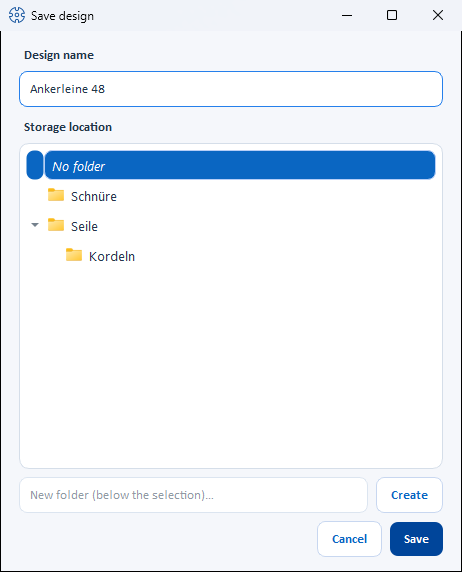
"Save design" dialog (target folder selection)
| Element | Function |
|---|---|
| Design name | Editable name field, preset with the name from the parameter panel. Changes here are transferred to the design. |
| Storage location (folder tree) | The folder structure of the design library, including all subfolders. The No folder entry stores the design at the top level. A Double-click on a folder accepts it directly and closes the dialog. |
| New folder (below the selection)… + Create | Creates a new subfolder directly below the currently highlighted folder (also with Enter in the input field). The new folder is preselected immediately. |
| Cancel | Closes the dialog without saving. |
| Save | Saves the design with the name entered in the highlighted folder. |
Save under new name
Save under new name button in the document header: creates a copy of the current design as a new entry in the design library. The same Save design dialog opens — there you assign the new name and choose the target folder. The original remains unchanged; you then continue working on the copy.
Unsaved changes
If you leave a design with unsaved changes — via Close view (✕), by loading another design or by closing the app — the app asks Save changes?:
- Yes — saves as described above (for new designs with the target folder dialog).
- No — discards the changes.
Saving requires edit rights
To save, you need the Designer edit permission (see Roles and rights). Without this right, the save buttons are deactivated; changes to open designs are discarded with a note when you leave.
Printing
Starting printing and choosing a template
Print button in the document header or Ctrl+P. Printing uses print templates; the workflow depends on which design templates exist:
- Exactly one template — the print preview opens directly.
- Several templates — the Choose print template dialog lists the template names; the matching standard template is preselected.
- No template — the app offers to use the simple default print instead.
For designs, Herzog CAB comes with two standard templates, which are offered automatically to match the number of carriers:
| Standard template | For designs with … | Layout |
|---|---|---|
| Default Design | up to 48 carriers | One page: design data and Setup overview at the top, below them the setup with color legend and the braid pattern and 3D view side by side. |
| Default Design (high carrier count) | from 49 carriers | Two pages: page 1 with design data, setup with color legend and the braid pattern and 3D view side by side, page 2 with a large Setup overview. |
Only the standard template matching the current number of carriers is ever shown; your own templates always appear in the selection regardless of the number of carriers. How Herzog CAB renews the standard templates during an update is described under Manage templates.
Print preview
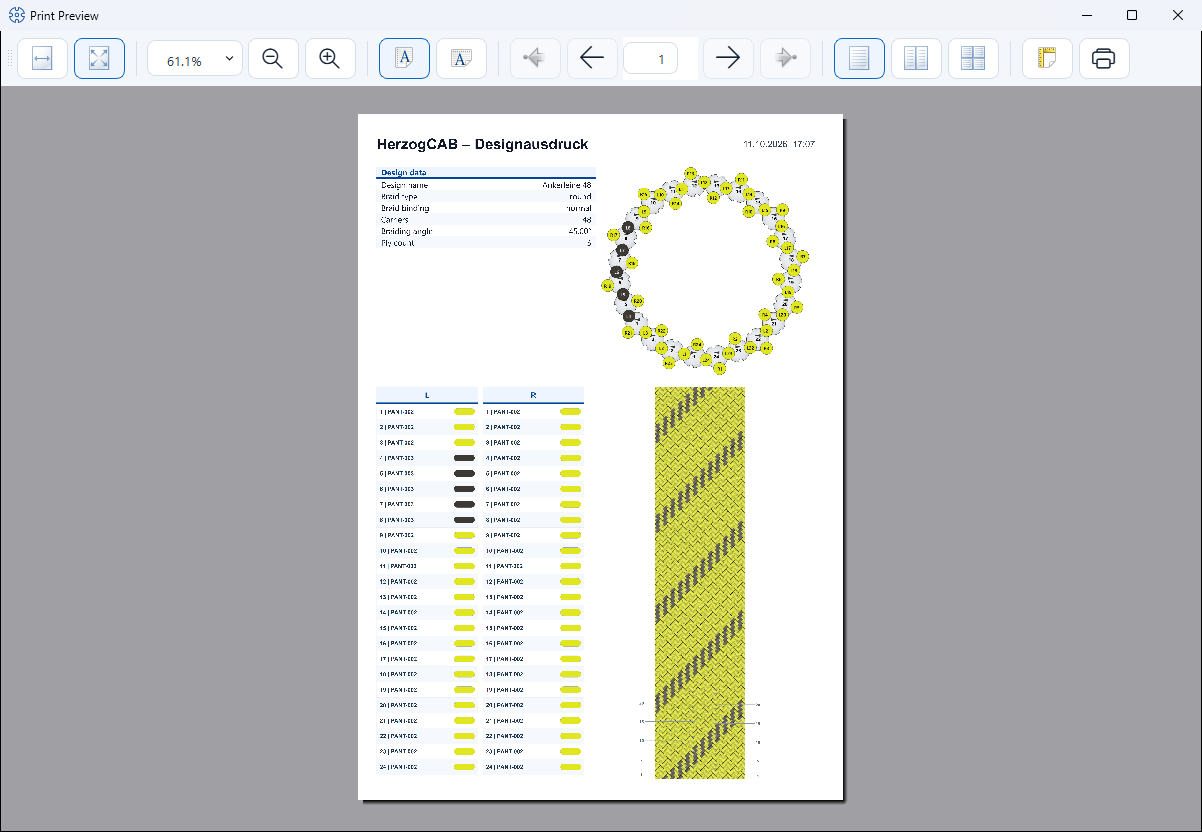
The print preview shows all pages of the selected template, already filled with the current design, color and carrier data:
- Design data — in plain words, e.g. Round braid and Normal setup 1-1. For round and flat braids, material Ø, covering or fill and braid Ø or product width are added, and with a 3D image the 3D material. Empty details are left out; spiral, packing and soutache braids have no braid binding row.
- Setup — per carrier the number, the twist and the color. With plying colors, the color swatch shows a stripe per yarn; depending on the cell style, the color details appear once in the color legend or per yarn separated by " / " in the cell (missing details as "–").
- Braid pattern — without carrier labels.
- 3D view — the side view of the braid in the form you selected in the Display window.
The preview window provides zoom functions and the Print button, which you use to send the printout to the printer.
Related pages
- Design library — manage, rename and move saved designs
- Print templates — design your own design templates
- Preview and print — print preview in detail
- Designing a design from scratch